Reporting issues
Feedback is the record of a problem with the inventory: "Room 1412 — no heat", "Guest Elevator 2 doors reopening", "Walk-in freezer temperature alarm". The front desk, housekeeping, security, a shift lead or a technician — anyone who notices a problem — can report it, and the maintenance team turns it into a work order.
Reporting an issue
- Open the inventory with the problem (e.g. Harborview Boston Waterfront › Vertical Transportation or directly Guest Elevator 2).
- Click New on the Feedback tab.
- Write the problem briefly in Subject and add where and what you saw in Description.
- Add a photo with Upload File.
- Click Save.
Write the place (floor, room, area), the symptom (noise, smell, leak, alarm light) and since when it has been happening. A photo helps the team come with the right parts. In the demo, the front office manager wrote: "Guest in 1412 called the front desk twice: the room stays at 64 °F with the thermostat at 72 °F."
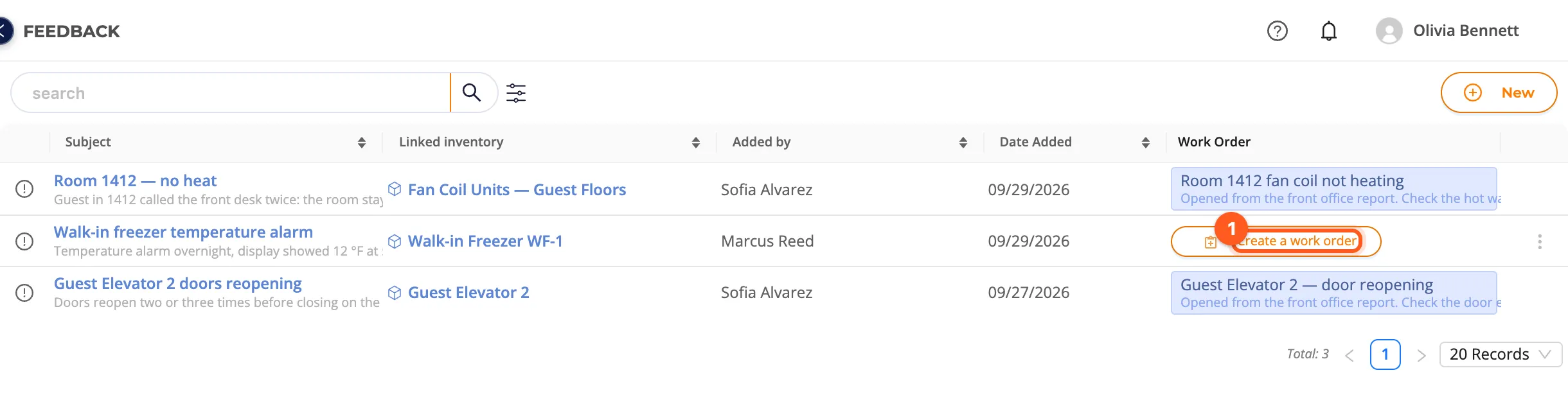
The Feedback page in the menu lists the feedback you opened and the feedback you may see.
Turning feedback into a work order
- In the Feedback list, click Create a work order on the feedback's row.
- The Create Work Order panel opens on the feedback's inventory; the feedback's subject and description are shown at the top of the panel and copied into Title and Description.
- Edit the title if needed (e.g. Room 1412 fan coil not heating), choose the assignee, priority and target date and save (see Creating work orders).
The work order panel shows its origin on the Feedback card, and the feedback list links to the work order.
Closing feedback
Close feedback with Mark as resolved in the row's action menu (e.g. when the problem was fixed without a work order). The same menu has Edit and Delete. Click a feedback to see its details and comments, and to write a comment.