Creating work orders
A work order describes a job on an inventory record: what is to be done, by when, by whom, and who reviews it. Every work order is linked to a location, system, piece of equipment or sub-equipment.
Where should I create a work order?
Create it from the page of the inventory where the work is done. For the maintenance of Chiller CH-1, click New on . The work order is then linked directly to that chiller, and the assignee list shows the chiller's assignees.
The New button on Work Orders › Company links the work order to the organization itself. Use the inventory page for work on a specific piece of equipment.
Steps
- On the inventory page open the Work Orders tab and click New. The Create Work Order panel opens on the right.
- Write the job briefly and clearly in Title, e.g. Chiller CH-1 oil leak check. Add the details in Description.
- Choose the Target Date. Work orders past their target date are shown in red in the lists.
- Choose the Priority: None, Low, Medium, High.
- If the work is done with a checklist, choose a published form under Form Selection (use Preview to look at it). Create Form builds a new form for this work order.
- Choose the person, team or expert company who does the work with Select Assignee (below).
- If the finished work should be approved by a reviewer, choose them with Select Consultant.
- If needed, attach photos, manuals or quotes with Upload File or Select File from Inventory.
- Click Save.
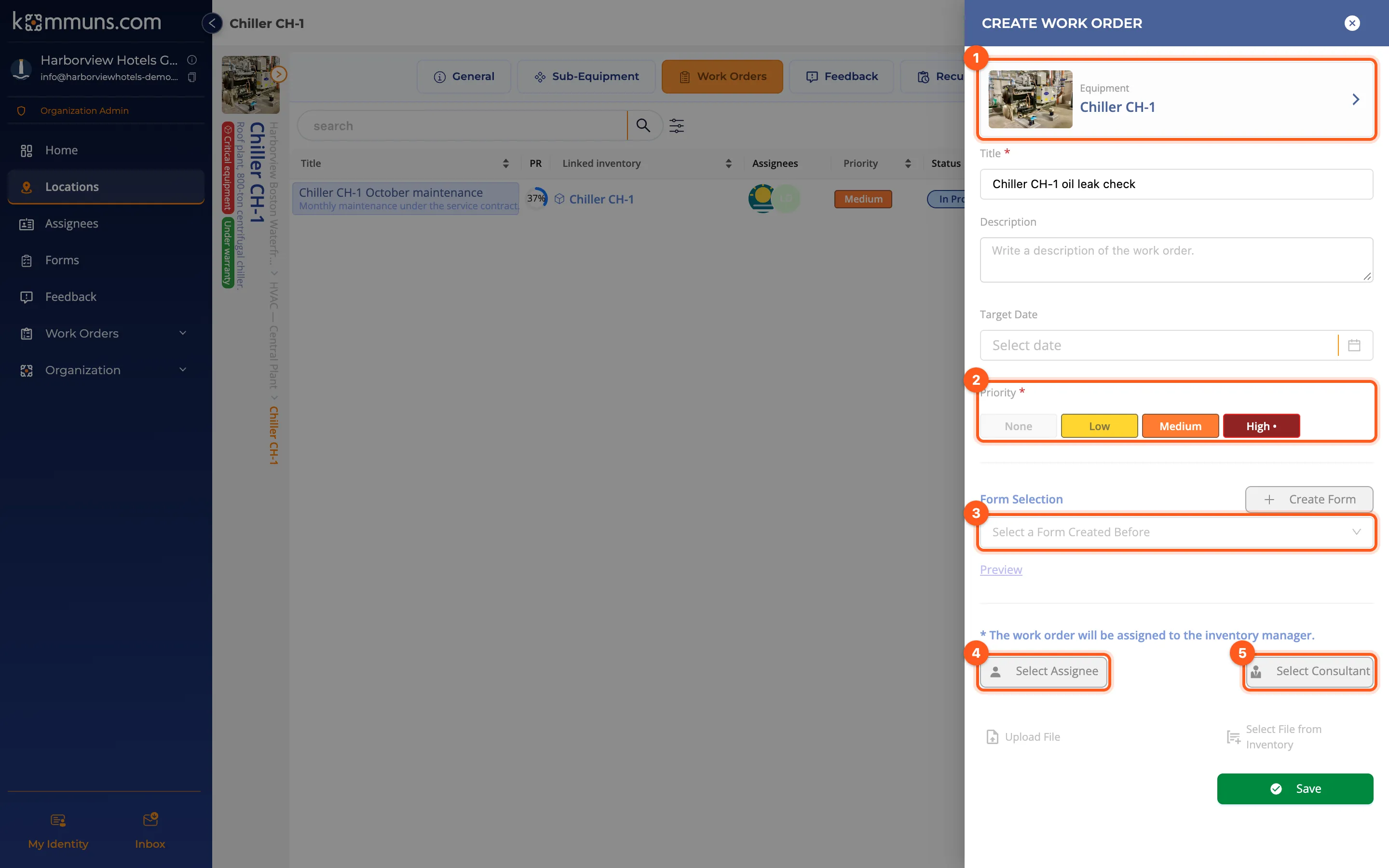
As the panel says, a work order without an assignee is assigned to the inventory's inventory manager.
Choosing the assignee and the consultant
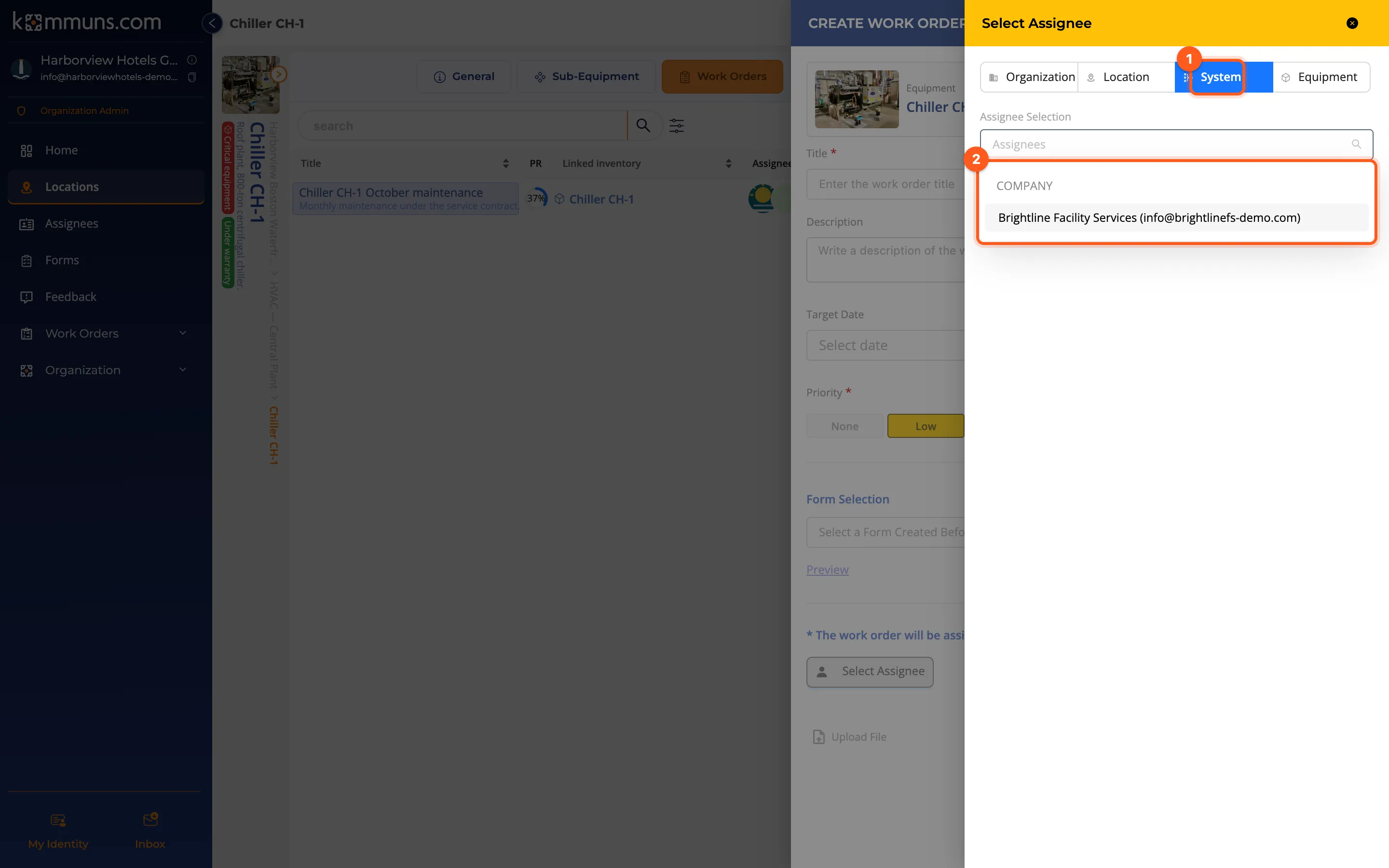
The inventory tree is at the top of the Select Assignee window (organization › location › system › equipment). When you choose a level, the list shows the people, teams and expert companies with a permission at that level.
| On the work order | What they do |
|---|---|
| Assignee (does the work) | Works on the work order: fills in the form, adds comments and files, puts it on hold if needed, completes it. |
| Consultant (reviews) | Reviews the results after completion; approves or sends it back. See Review and approval. |
When you choose an expert company as the assignee, the work order lands in the company's Incoming Work Orders and the company forwards it to its own employee. See Working as an expert company.
Where do I see work orders?
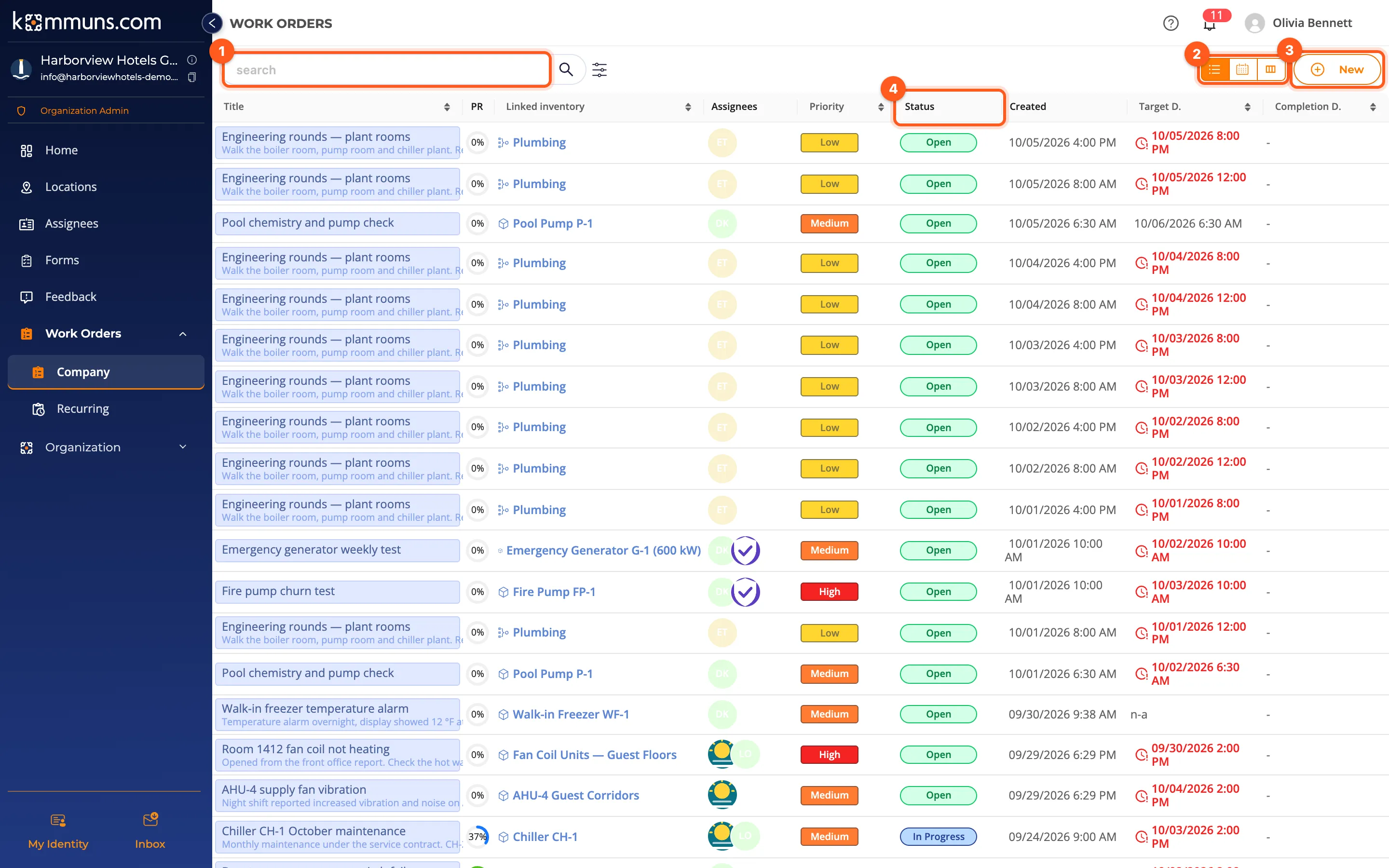
- Work Orders › Company: all ongoing work orders of the organization (Open, In Progress, On Hold, Consultant review…). Use the filter to see the completed and cancelled ones.
- The Work Orders tab of inventory pages: the work orders of that inventory and everything below it.
- Home › My Work Orders: the work orders assigned to you.
Each of these can be shown as a list or as a calendar: see The list and calendar view.
Routine work
Don't open routine work such as monthly maintenance one by one; define a recurring work order rule and kommuns creates the work orders on time.