The form lifecycle
Forms are versioned so that the records filled in on work orders stay reliable. The questions of a published form can not be changed; if a change is needed, you create a new revision of the form. The answers on past work orders always stay with the questions of the version they were filled in with.
| Status | Meaning | Editable? |
|---|---|---|
| Draft | Being prepared; can not be attached to a work order | Yes |
| Published | Can be attached to work orders and recurring work orders, and filled in | No |
| Withdrawn | Replaced by a newer revision | No |
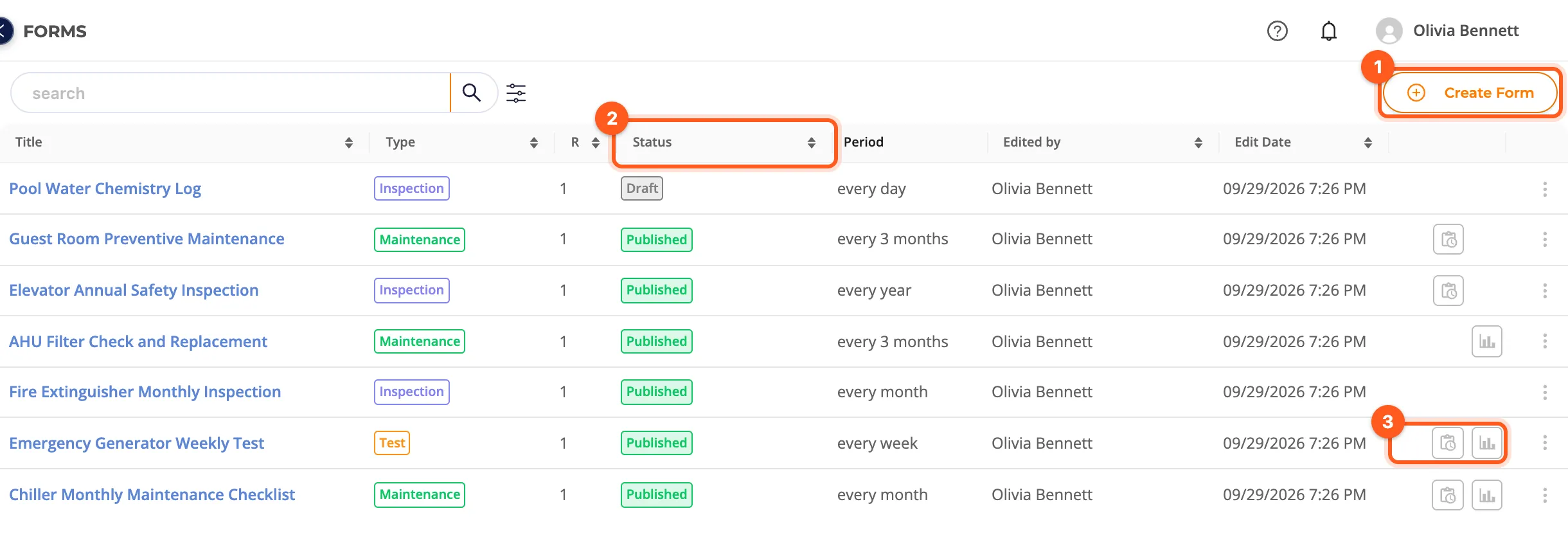
In the demo, Harborview's Pool Water Chemistry Log is still a draft while all its other forms are published.
Revisions
In the Forms list, open the ⋮ menu on the form's row and choose New Revision. A copy of the form opens as a draft with the next revision number (R1 → R2); edit the questions and publish it. When the revision is created, the old published revision becomes Withdrawn. Withdrawn forms are hidden in the list by default; use the status filter to see them.
- A new revision is always created from the form's latest revision.
- If the form already has a draft revision, publish or delete it first.
The same menu also has Delete.
A form stays Published when it is filled in on work orders. You see that a form is in use from its usage icons.
Where a form is used: the usage icons
In the Forms list (left of the row's actions) and on the View Form page (left of Edit), two icons can appear:
| Icon | When is it shown? | Click it to… |
|---|---|---|
| Clipboard with a clock (recurring work order) | A recurring work order rule uses the form | open Recurring Work Orders filtered to the rules using this form |
| Bar chart (statistics) | At least one work order was completed with this revision | open the Form statistics |