Integrations (API)
Organization › Integrations connects external systems to kommuns through its API: an ERP that keeps inventory and work orders in sync, a building automation system (BMS) or sensor that opens feedback when it raises an alarm, a reporting tool, or a service company's own software. Each integration gets its own credentials and works on your organization's data within the permissions you give it.
How an integration gets its permissions
An integration is an identity in your organization, like an employee — there are no special "API users":
- When you create it, it joins the organization with an Organization permission definition (e.g. Organization Employee).
- Its permissions on locations, systems and equipment come from Assign, the same way as a person's (see The permission model). In Assign it is listed as INTEGRATION; it has no consultant option. A location's Assignees tab lists them under Integrations.
- Scopes narrow it further. Its effective permission is the scopes and its computed permission together: with
inventory:readbut assigned only to the Boston hotel, it reads only the Boston hotel. people:readgives names, e-mail addresses and phone numbers — personal data. Choose it only when the external system needs them.
The Integrations page
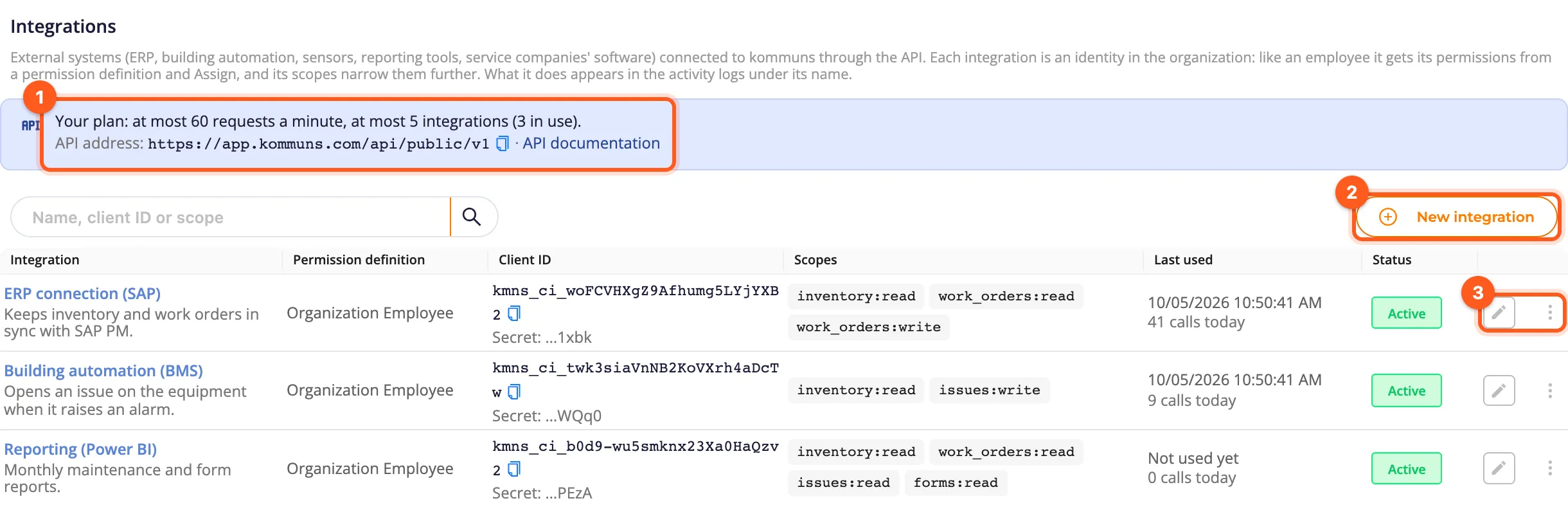
- The blue strip shows your plan's limits (requests a minute, integrations at most), the API address to give the external system and a link to the API documentation. If your plan doesn't include the API, the strip says so: you can't add integrations, and existing ones stop working until you move to a plan that includes it (Plans and billing).
- Each row shows the integration's permission definition, its Client ID with the last characters of its secret, its scopes, when it was last used and how many API calls it made today, and whether it is Active.
Create an integration
- Click New integration.
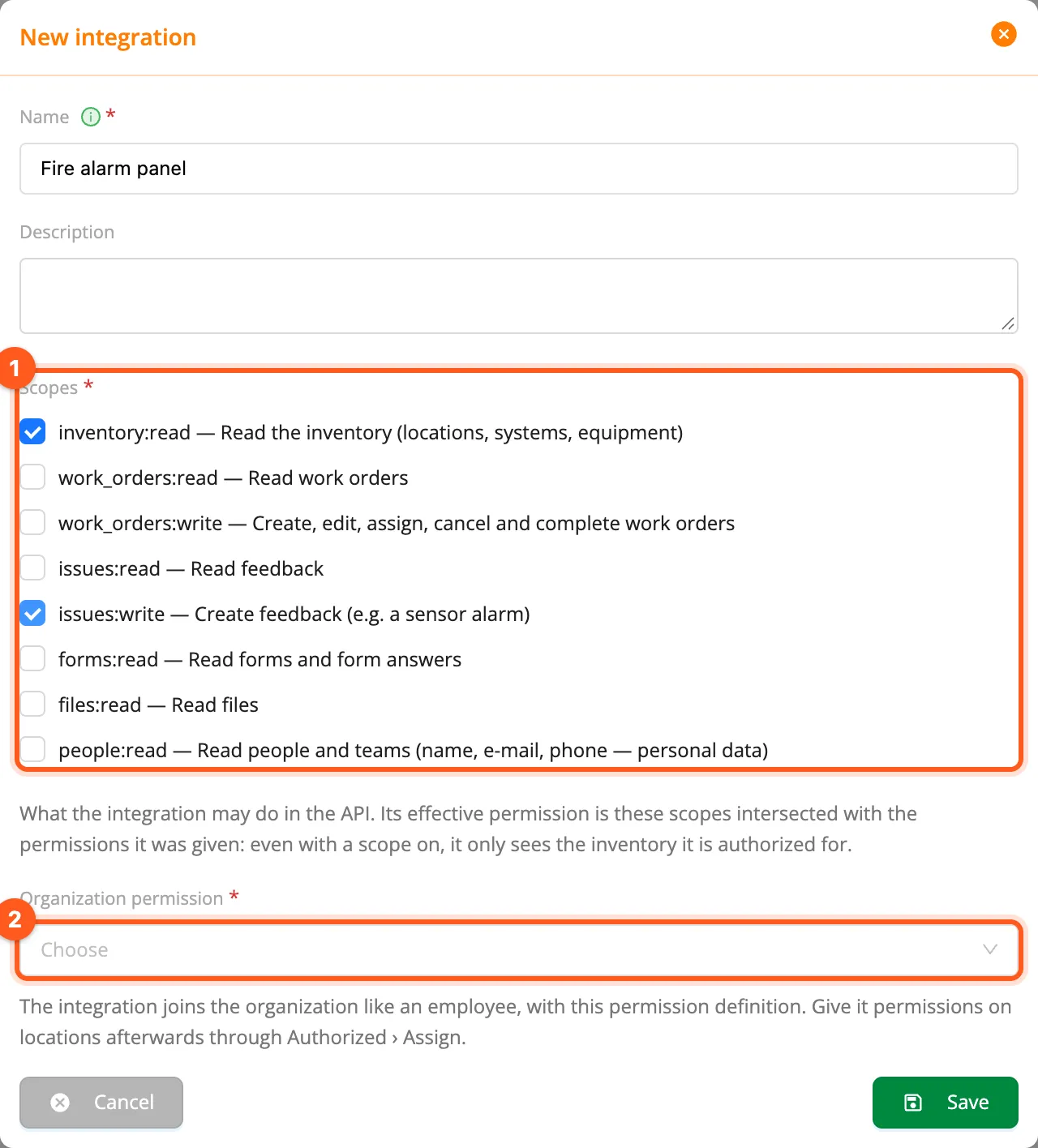
- Enter a Name — it is how the integration appears in lists and in the activity log (e.g. ERP connection (SAP)) — and, if you like, a description.
- Choose its Scopes (1) and its Organization permission (2), then Save.
kommuns then shows the Client ID and the Client secret — the secret only this once:
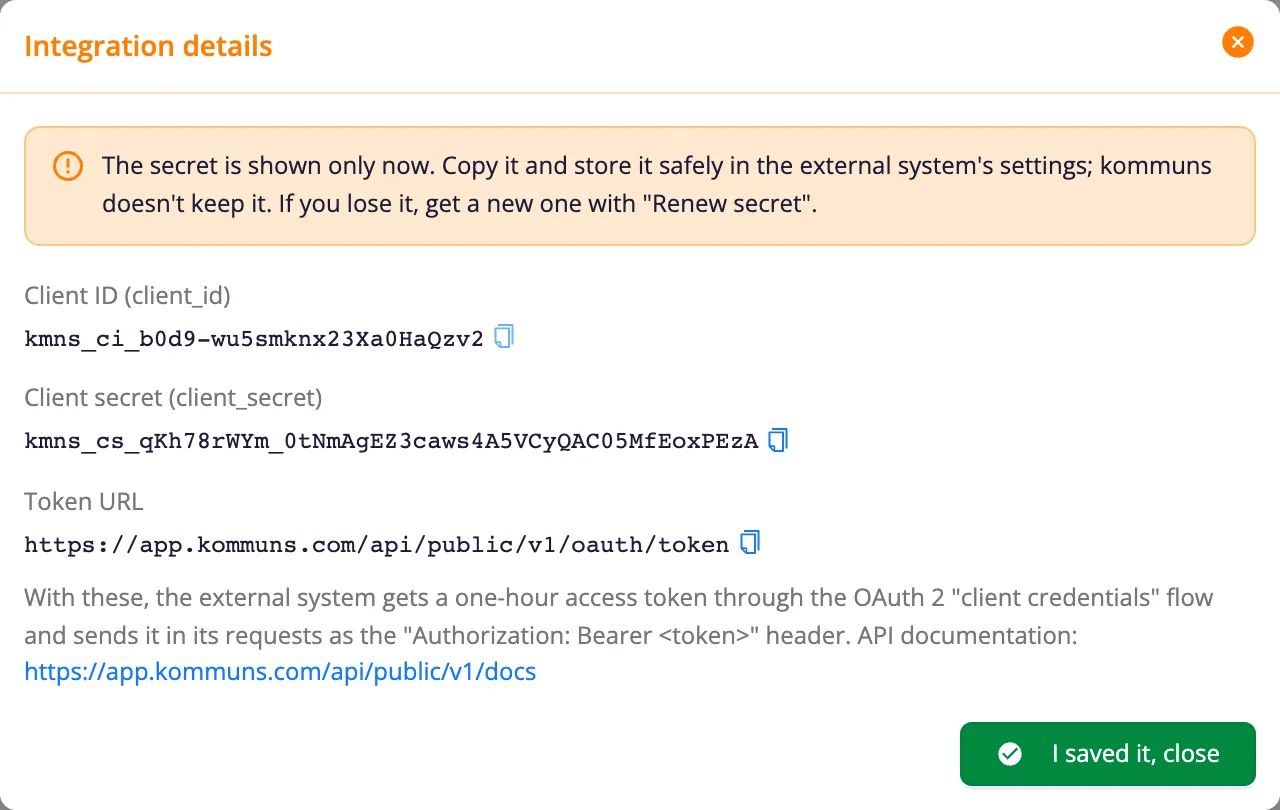
kommuns doesn't keep the secret, so it can't show it again; if it gets lost, renew it (below). With these credentials the external system gets a one-hour access token (OAuth 2 "client credentials") and calls the API — the technical part is in the developer documentation. Finally, give the integration its permissions on the locations it works on with Assign.
Edit, renew the secret, deactivate, delete
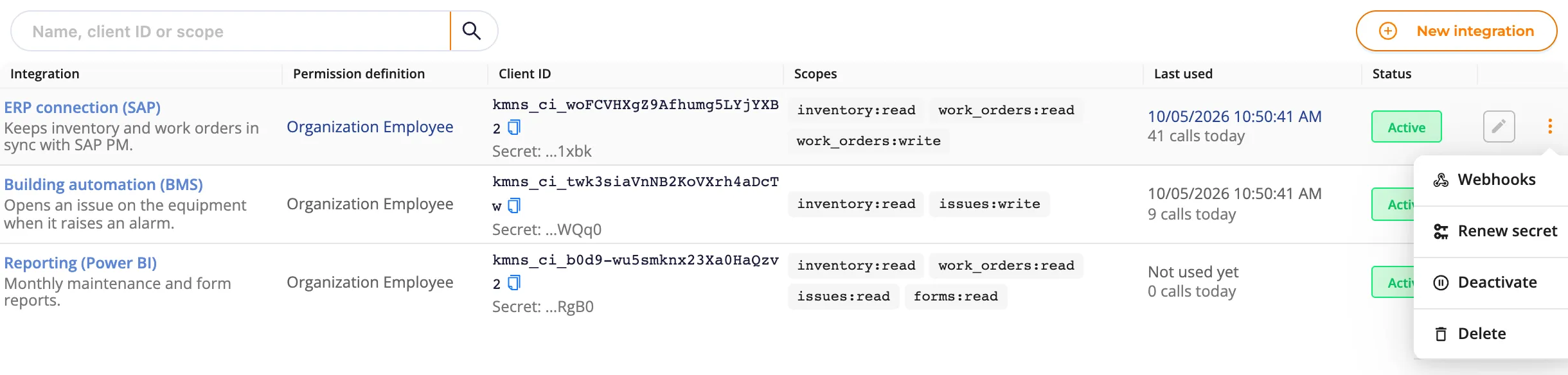
- Edit (pencil): name, description and scopes. The organization permission chosen when it was created isn't changed here; its permissions on the inventory are managed with Assign.
- Renew secret: the old secret and the tokens obtained with it stop working at once; enter the new secret in the external system.
- Deactivate / Activate: a deactivated integration can't get tokens and its tokens stop working; nothing is deleted.
- Delete: removes the integration, its identity and all its assignments. It can't be undone.
Narrowing the scopes also ends the integration's current tokens. An integration marked Disabled by kommuns was turned off by kommuns (e.g. because of misuse or a leaked secret); contact support to have it turned on again.
Webhooks: let kommuns notify the external system
Instead of asking kommuns again and again whether something changed, the external system can be notified: when an event happens, kommuns sends a signed request to the addresses you set. Open them with ⋮ › Webhooks.
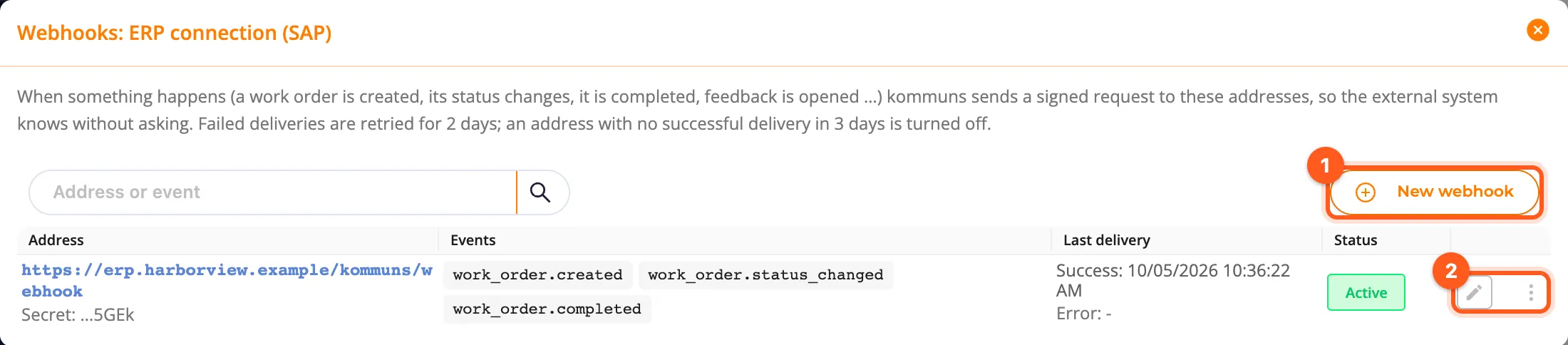
- New webhook: the address (it must start with
https://and be reachable from the internet) and the events it gets: a work order created, updated, its status changed, completed, sent to inspection, cancelled, its assignees changed; feedback created or resolved. An integration can have up to 5 addresses. - The signing secret is shown once, like the client secret; the receiving system uses it to check that a request really comes from kommuns (see the developer documentation).
- The integration only gets the events of records it may read (scopes and permissions).
- ⋮ › Send test sends a test event (ping) and shows the result in the row.
- A failed delivery is retried for about two days. An address that hasn't received anything successfully for three days is deactivated, with the reason shown under it; fix the receiver and Activate it again.
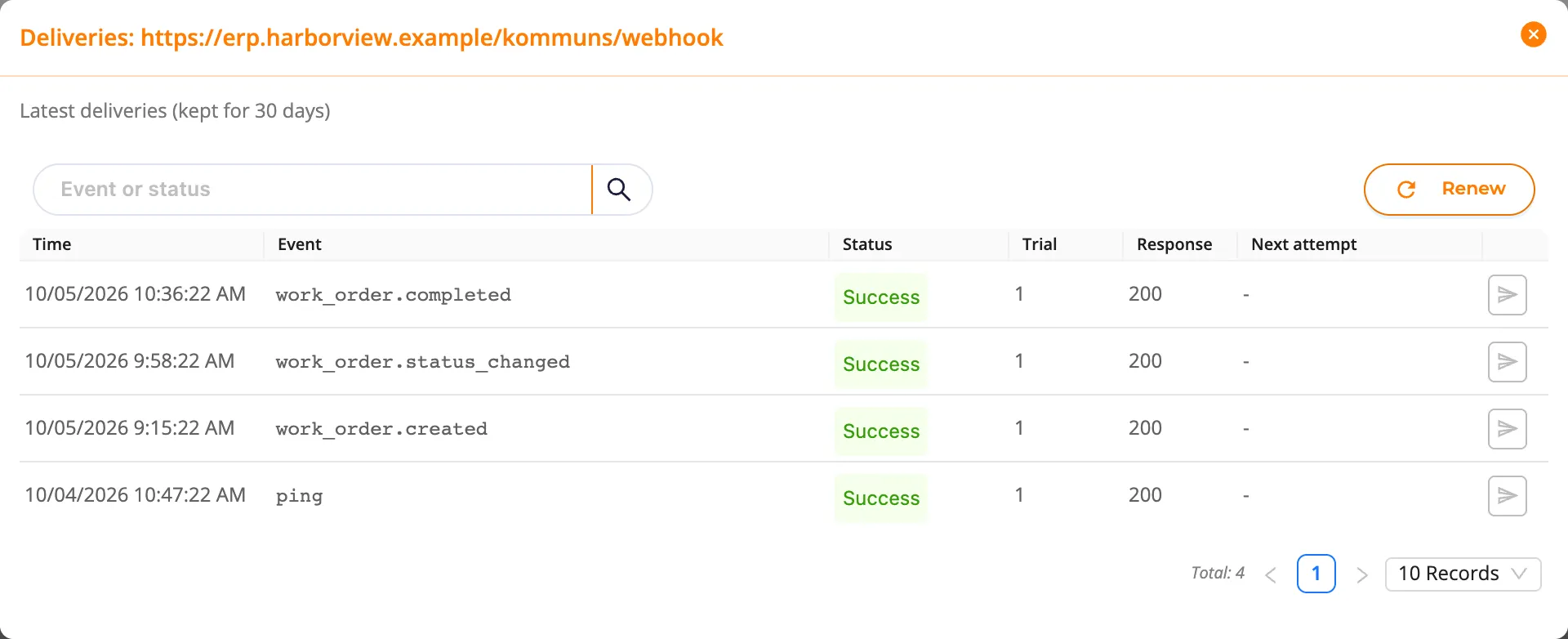
- ⋮ › Deliveries lists the last deliveries (kept for 30 days) with their status, attempts and response code; Redeliver sends one again.
External system number
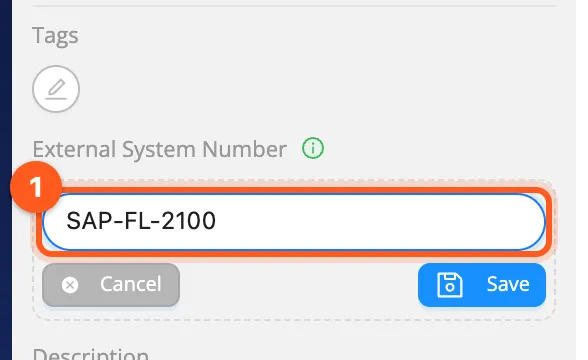
ERP and maintenance systems give the inventory their own numbers (e.g. an SAP functional location). Enter that number under External System Number in the detail panel of a location, system or equipment (open it with the arrow next to its picture; the number is under the tags, and its ⓘ icon explains it): click the pencil, type the number (1) and Save. Integrations then find the item by it in the API.
The number must be unique within your organization. People who may edit the item may change it.
What integrations do in kommuns
What an integration does through the API is shown under its name followed by "(API)" — e.g. ERP connection (SAP) (API): the work orders and feedback it creates, its changes in a work order's Updates, and the activity log. An integration can also be an assignee of a work order and complete it.
For developers
Authentication, scopes, endpoints, webhook signatures and code samples are in the developer documentation; the full endpoint reference is linked from there and from the API documentation link on the Integrations page.