Teams
A team is a group of people who work together: a maintenance crew, a shift, a branch's staff… Instead of giving a work order or a permission on a location to each person, you give it to the team. A new member automatically sees the work orders assigned to the team; the permission given to the team on the inventory is used if their In Team permission allows it (in the default definitions: Team Captain).
Creating a team
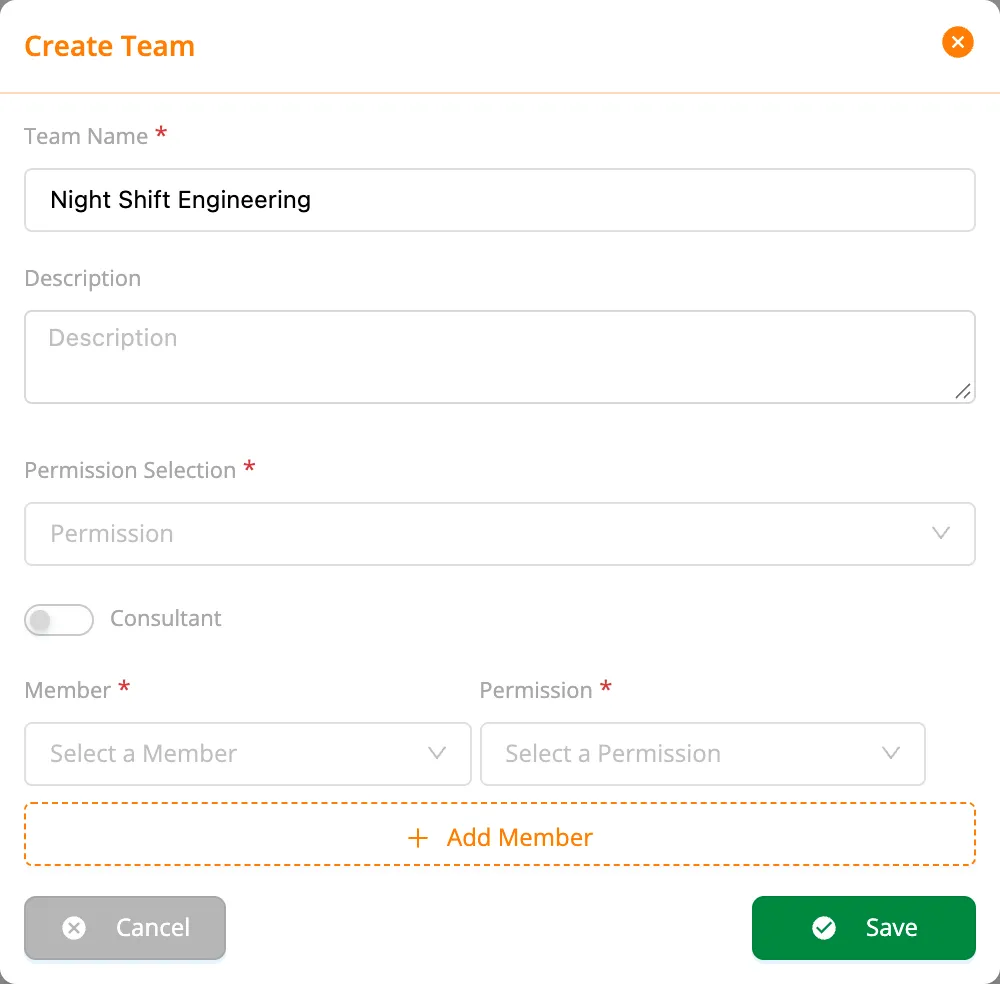
- Open Assignees › Teams and click New.
- Enter the Team Name and, optionally, a Description (e.g. Engineering Team — Boston engineering crew, three shifts).
- Choose the team's permission in the organization under Permission Selection.
- Turn on Consultant if the team reviews work orders.
- Add members with Add Member: for each, pick an employee of the organization and their In Team permission (Team Captain or Team Member).
- Click Save.
Only your organization's employees can be added to a team. Invite the employee first.
Assigning a team to inventory and work orders
- Inventory: on the location's (or system's) Assignees tab, choose the team with Assign and give it a permission. You can also make the team the inventory manager: work orders opened there without an assignee go to the team (see Inventory managers).
- Work order: teams are listed in Select Assignee when you create a work order.
Team members see the team's work orders in their own Home › My Work Orders; their teams are listed on the My Teams card. In the demo, Harborview's Engineering Team gets the daily Engineering rounds and the quarterly guest room maintenance.
In Team permissions
| Permission | Using Team Permissions | Description |
|---|---|---|
| Team Captain | On | All permissions in the team; uses the team's inventory permission and responsibility. |
| Team Member | Off | Limited permissions in the team; works on the team's work orders, does not use its inventory permission. |
If members should use the team's inventory permission too, create your own In Team permission with Using Team Permissions on, or give the members their own assignments. The calculation in detail: How your permission is computed.
Define your own In Team permissions with Organization › Permissions › Create Permission › In Team.