Notifications
kommuns tells you when something happens to a work order you are involved in: it is assigned or forwarded to you, it is completed, the consultant sends it back, it passes its target date, someone comments on it.
Where notifications appear
- Inbox (bottom left) and the bell at the top right: every notification, in every organization you work in. A new one appears at once, without reloading the page.
- E-mail: sent to your account's e-mail address.
- Push notification: sent to the kommuns mobile app.
- Desktop notification: in the corner of your screen while kommuns is open in a tab of your browser (→ Desktop notifications).
Notifications and e-mails are written in the language you chose (→ Language).
Choosing notifications per organization
Open the user menu at the top right › My Organization Settings. Under Available, the Notification Settings of the organization you are in list the work order notifications, each with an E-mail, a Push notification and a Desktop box.
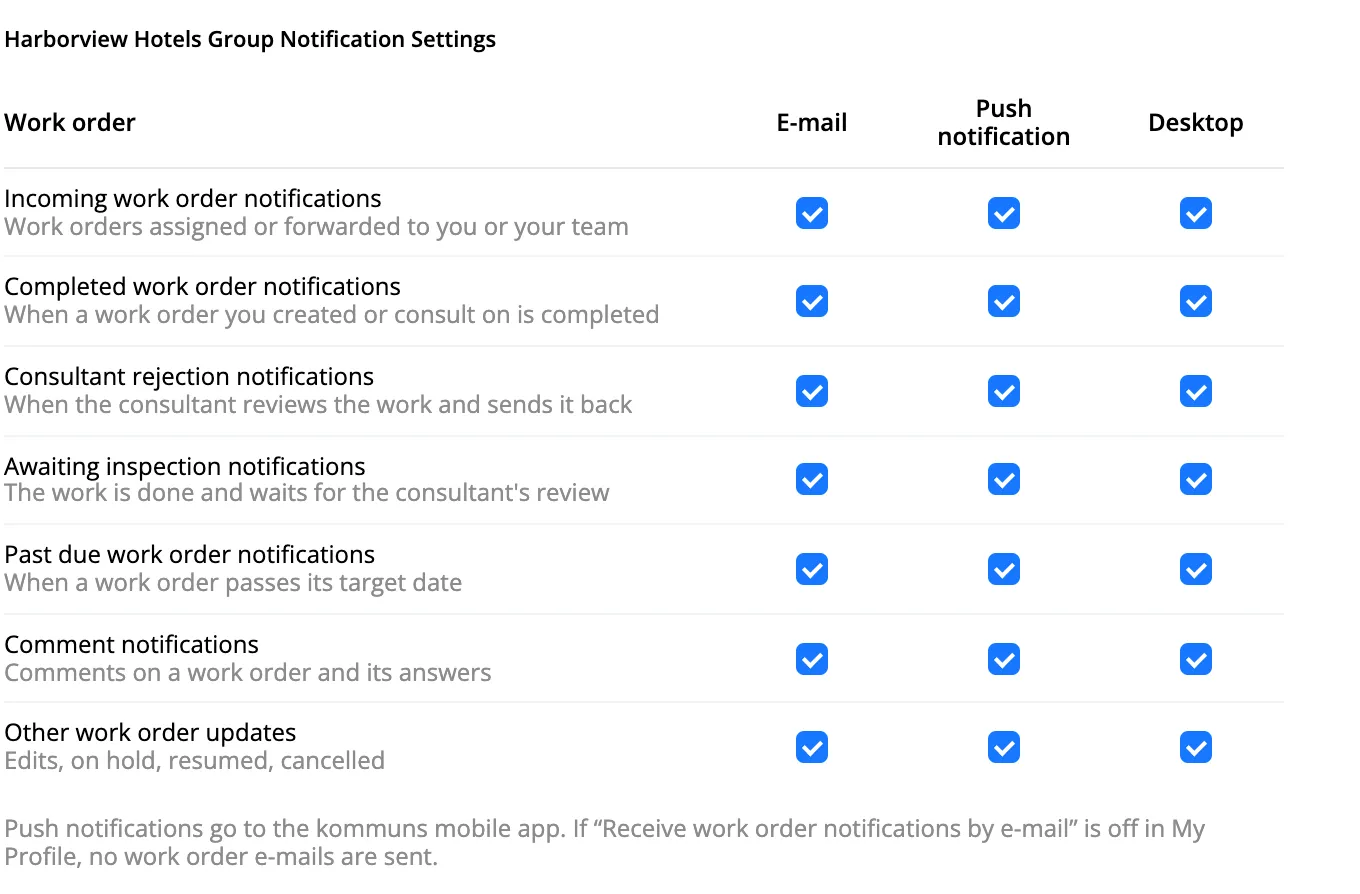
| Notification | When |
|---|---|
| Incoming work order notifications | A work order is assigned or forwarded to you or your team |
| Completed work order notifications | A work order you created or consult on is completed |
| Consultant rejection notifications | The consultant reviews the work and sends it back |
| Awaiting inspection notifications | The work is done and waits for the consultant's review |
| Past due work order notifications | A work order passes its target date |
| Comment notifications | Comments on a work order and its answers |
| Other work order updates | Edits, on hold, resumed, cancelled |
- Every box is ticked at first: you get everything until you turn something off.
- A change is saved as soon as you click the box.
- The settings belong to you and to this organization. If you work in several organizations (for example as a partner), choose them in each one. Nobody else sees or changes them: the card is shown only on your own settings page.
- The notification still appears in the Inbox; the boxes decide only the e-mail, the push and the desktop notification.
Desktop notifications
While kommuns is open in a tab of your browser but you are looking at something else (another tab or another program), a notification also appears in the corner of the screen, like other notifications of your computer. Click it to open the work order. While you are looking at kommuns, the bell shows it instead.
Turning them on. A few seconds after you open kommuns in a browser for the first time, a small card at the bottom right asks Turn on desktop notifications?
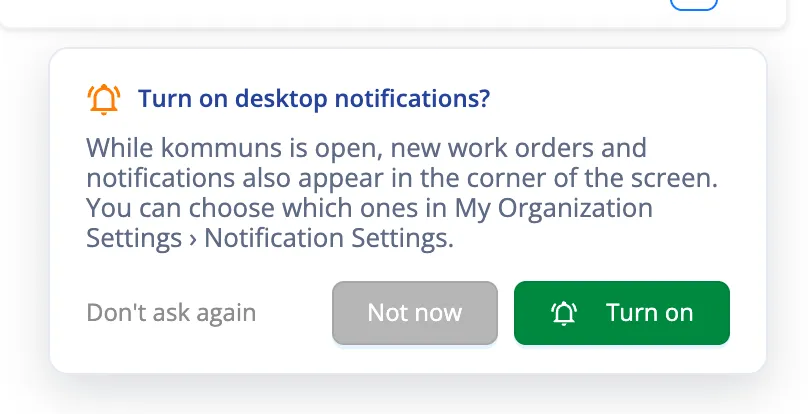
- Turn on: your browser asks for permission — choose Allow. A test notification confirms that it works.
- Not now: the card comes back in 30 days. Don't ask again: it doesn't come back in this browser.
You can also turn them on or off any time: user menu › My Organization Settings › Desktop notifications in this browser, right under Available. The ⓘ next to it explains it.
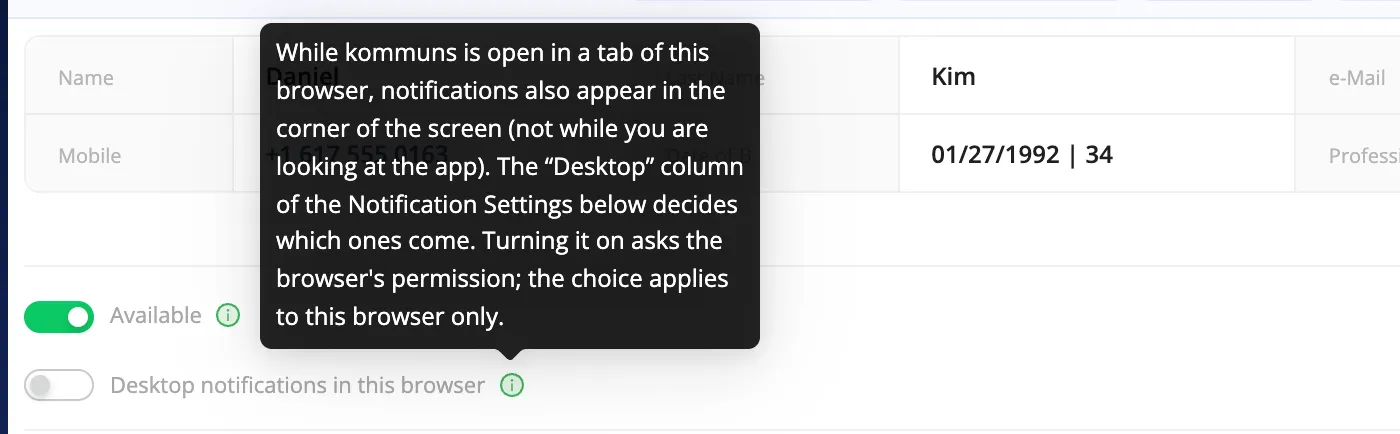
- Which notifications come to the desktop is decided by the Desktop column of the Notification Settings above.
- The choice belongs to this browser: turn it on in each computer and browser you use. It works only while a tab of kommuns is open; on the phone, the mobile app's push notifications do this job.
- Blocked? If you once chose Block in the browser, the switch is greyed out and says so. Allow notifications for the site in the address bar (the icon left of the address) and reload the page.
Turning off all work order e-mails
User menu › My Profile › Edit › Receive work order notifications by e-mail. When it is off, no work order e-mails are sent to you from any organization, whatever the boxes above say.