A tour of the app
This page introduces the main screens of kommuns: the Lobby you see after signing in, the side menu inside an organization, the Home page, the user menu at the top right, the language setting, My Identity and the Inbox.
The side menu depends on the organization type (Inventory Owner, Expert Organization), on your permissions and on the organization's plan. The screens on this page belong to an Organization Admin; an employee's menu is much shorter.
Lobby
The Lobby opens when you sign in. Under my organizations it lists every organization you belong to, with your organization permission there (e.g. Organization Admin). Click the organization you want to work in.
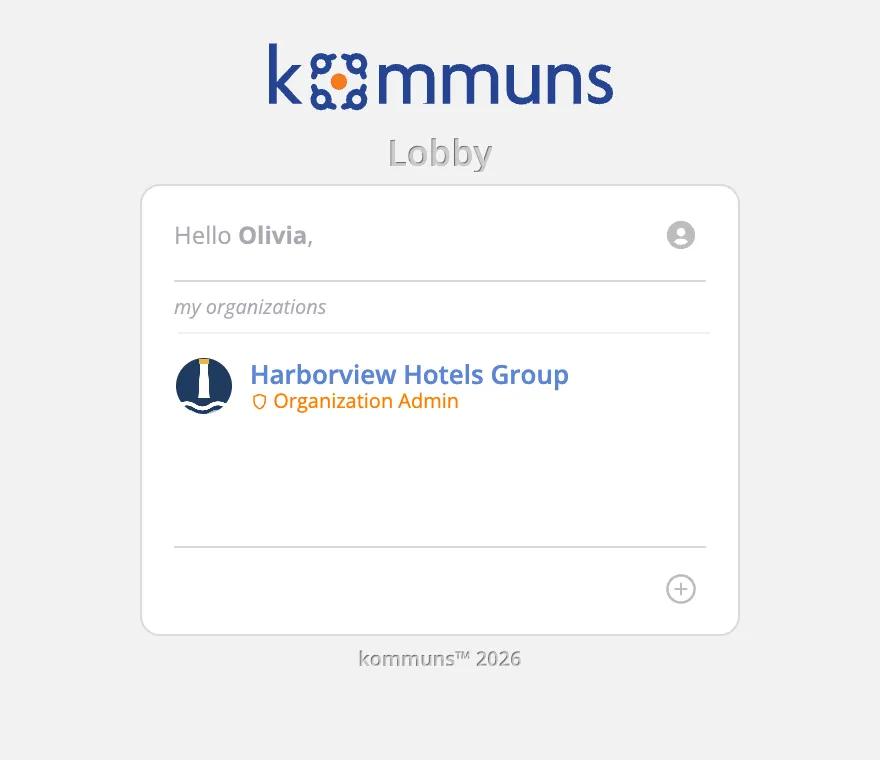
If you have been invited to an organization, the invitation also appears in the Lobby. Open it and click Accept to add the organization to your list (see Inviting employees).
Inside an organization
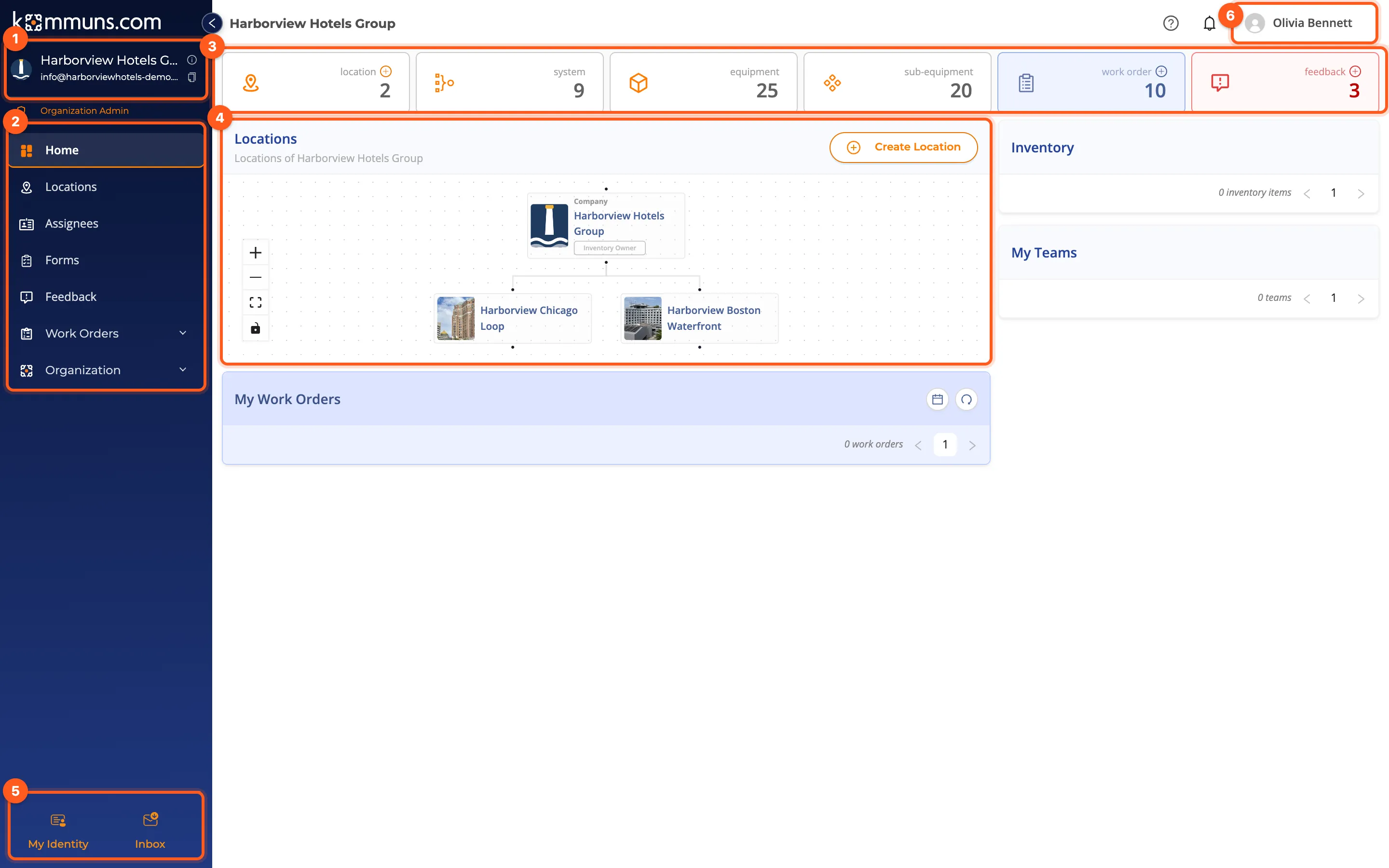
- Organization card: the organization's name, its identity e-mail address and, below it, your permission (e.g. Organization Admin). Click the card to go back to Home.
- Side menu: Home, Locations, Assignees, Forms, Feedback, Work Orders (Company, Recurring) and Organization (settings). Admins of expert organizations also have an Expert group (see Working as an expert company). The round button on the menu's edge collapses it to icons on wide screens.
- Counters: the number of locations, systems, equipment, sub-equipment, open work orders and feedback. The + on some cards adds a record quickly.
- Locations diagram: your organization's inventory tree. Click a location to open it, or add one with Create Location.
- My Identity and Inbox (below).
- User menu (below).
Below and to the right of the diagram are the My Work Orders (work orders assigned to you), Inventory (locations and systems you are an assignee of) and My Teams cards.
An employee's Home page
For someone working in the field, Home is a to-do list. The screen below belongs to a maintenance technician: the menu has only Home and Feedback, and the work is followed from here.
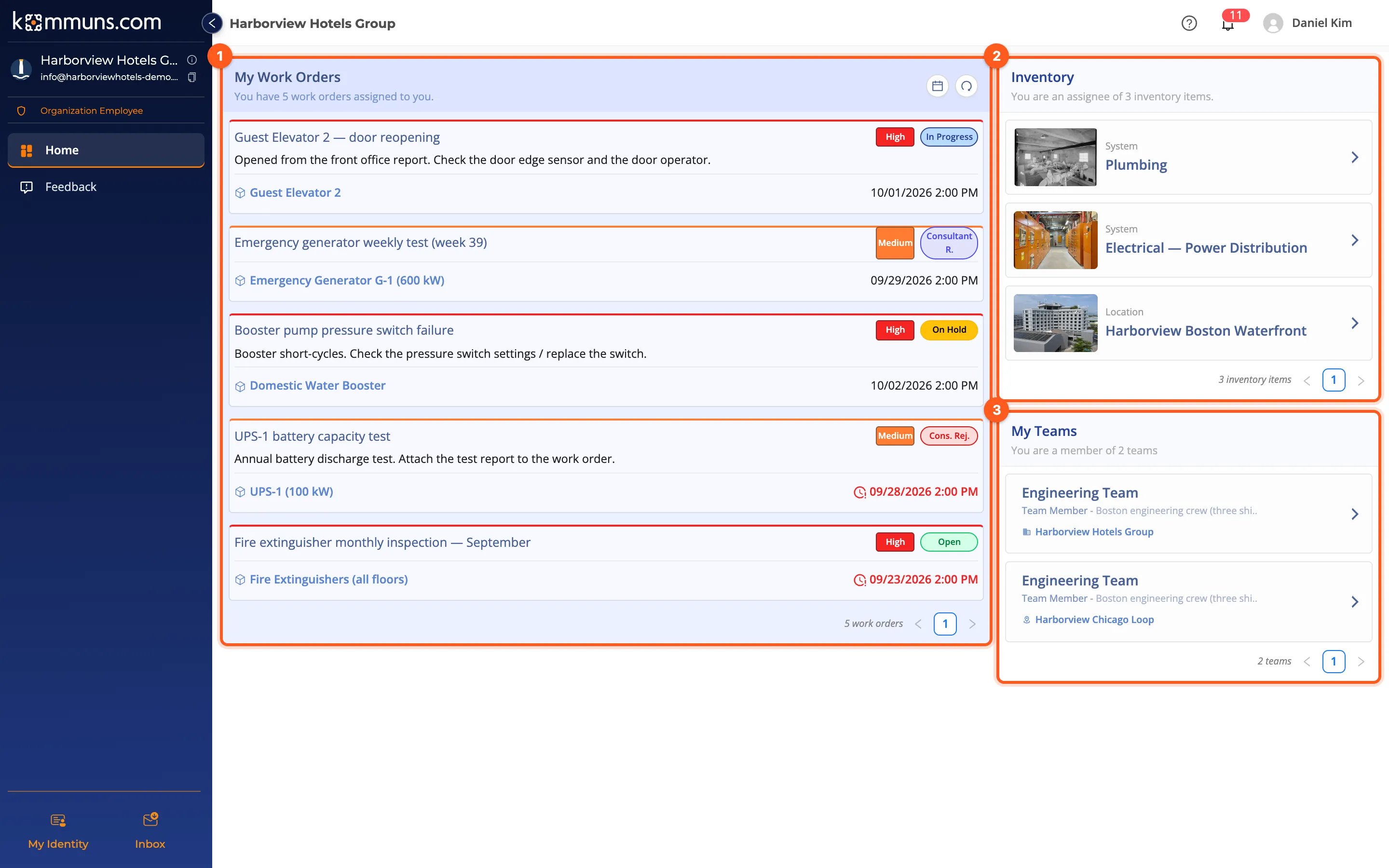
- My Work Orders: the work orders assigned to you, each with its priority, status, linked inventory and target date. An overdue target date is shown in red with a clock icon. Click a card to open the work order. The calendar button at the top of the card switches to a calendar view.
- Inventory: the locations, systems and equipment you are an assignee of.
- My Teams: the teams you belong to and your permission in each (Team Captain, Team Member).
The top bar
- ? opens this user guide in a new tab, in the app's language.
- The bell shows your notifications; the badge counts the unread ones.
- While you work on a form, a timer shows the running work time.
User menu
Click your name at the top right. The menu has:
- organizations: the Lobby and the organizations you belong to — switch between organizations here.
- My Organization Settings and My Profile
- Language (below)
- Sign Out
Language
kommuns is available in English and Turkish. The first time you open the app it uses your browser's language (English if the browser language is neither). To change it, open the user menu, point to Language and choose one. The page reloads in the new language.
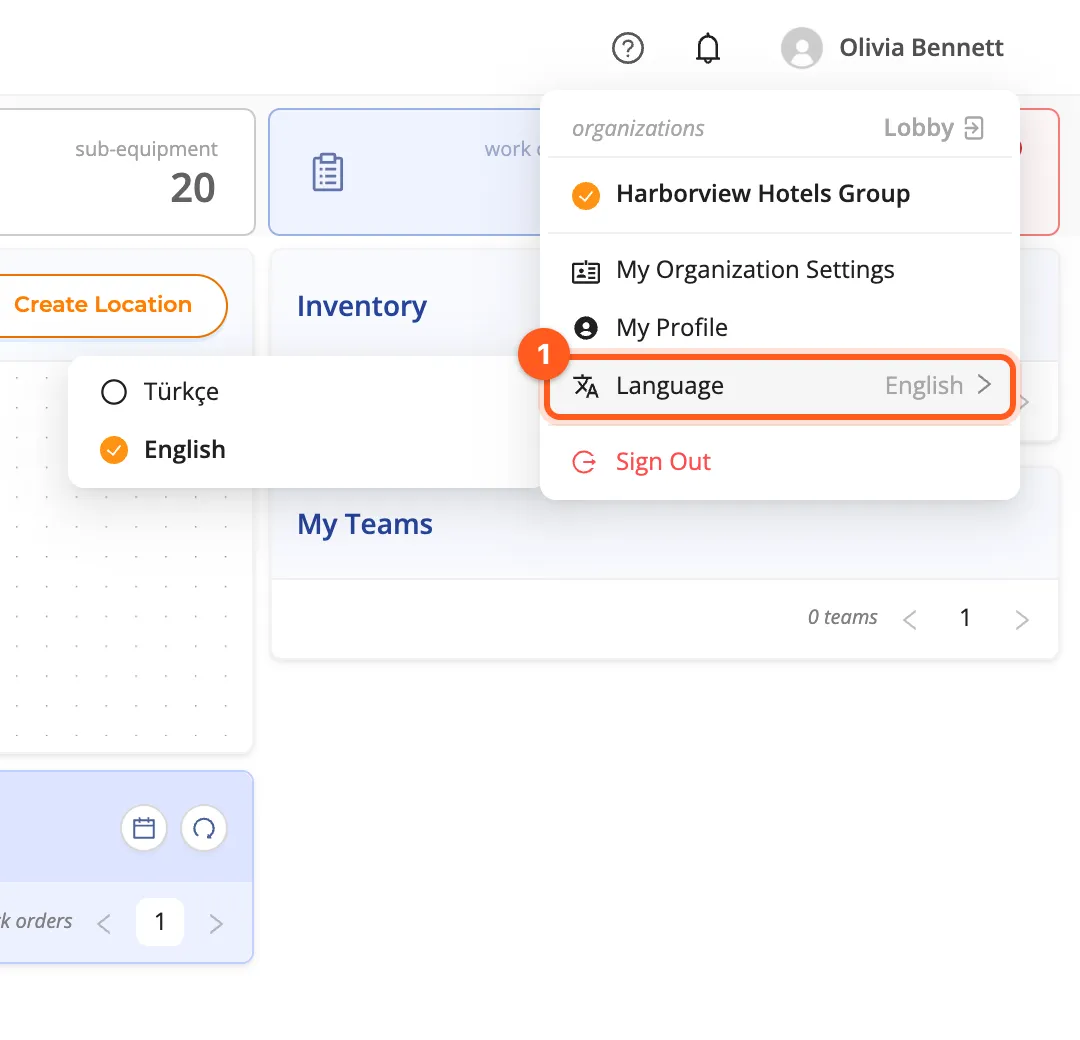
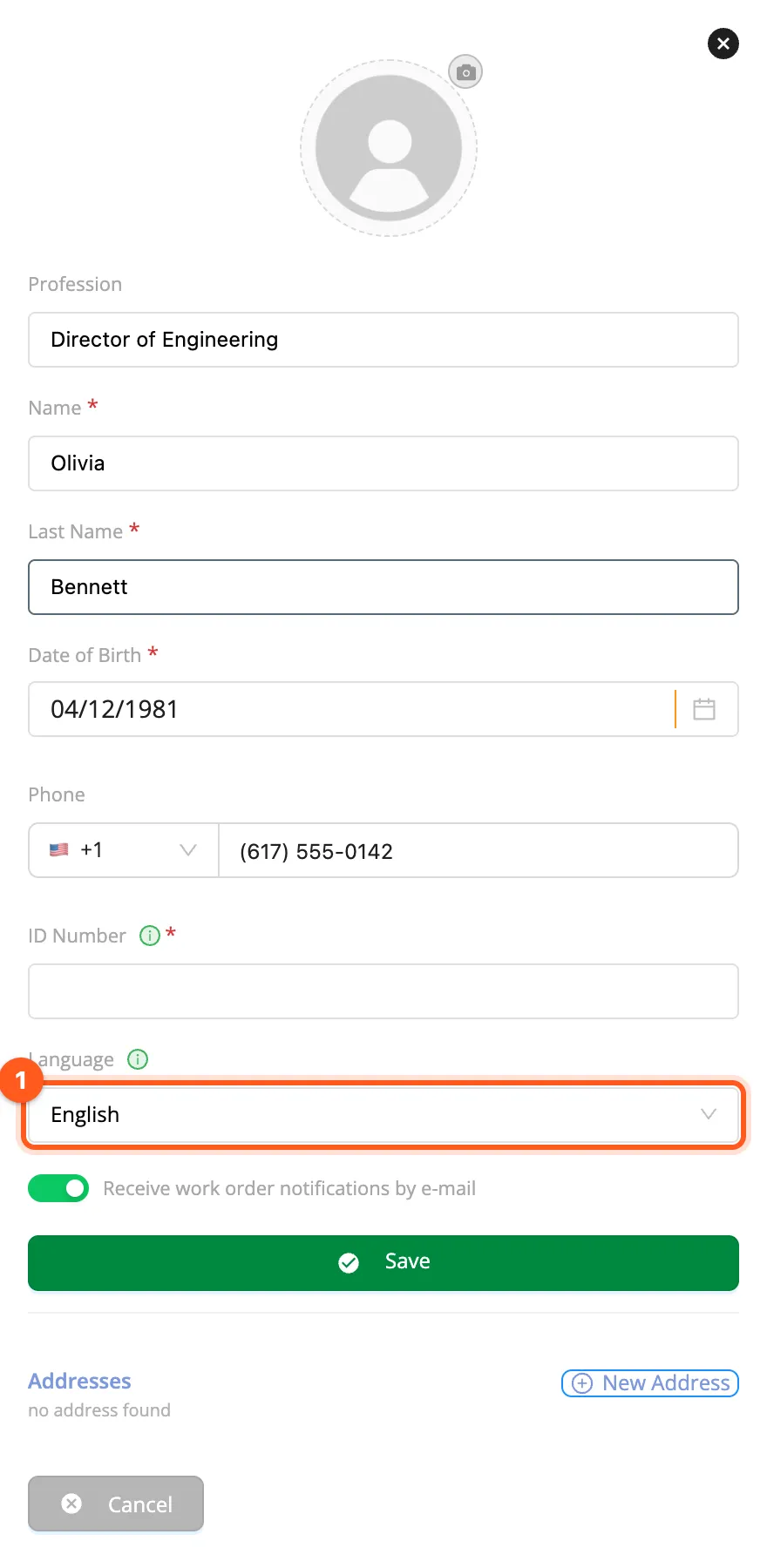
Your choice is saved in your profile: when you sign in on another browser or device, kommuns opens in it, and the notifications and e-mails you get are written in it. You can also change it in user menu › My Profile › Edit › Language (then Save).
Dates and numbers follow the language too: in English they follow your browser's region (e.g. 09/29/2026 2:00 PM in
the US, 29/09/2026 14:00 in the UK).
Your own data — names of locations, equipment, forms, permission definitions, tags — stays exactly as it was entered. Some messages that come from the server (for example error messages) may still appear in Turkish.
My Identity
My Identity, at the bottom left, shows your identity in this organization: your name, profession and permission. Its tabs:
- Work Orders: the work orders assigned to you
- Inventories: the inventory you are an assignee of
- Teams
- Permission Tree: which permission you have on which inventory
- Settings
Inbox
The Inbox lists your notifications: when a work order is assigned or forwarded to you, when its status changes, when someone comments on it. Notifications are also sent by e-mail. Which ones you get by e-mail or push, you choose for each organization in user menu › My Organization Settings › Notification Settings → Notifications.
The app updates itself
You don't need to reload pages to see what others do. While kommuns is open:
- Notifications reach the bell and the Inbox at once (→ Notifications).
- Work order lists, the Home cards and the kanban board: a work order that changes is updated in its row within a couple of seconds, and a new one appears at the top of the list.
- An open work order: when someone else changes it, a bar says Someone else updated this work order.; click Refresh to see the new version. Your own changes don't bring the bar.
- The work order timer at the top appears or stops when you start or stop it on the phone or in another tab.
- Your organization's state: banners (for example read-only) appear and go away by themselves; so does the "being updated" mark of a company calendar item and the deliveries of a webhook.
A tab in the background catches up when you come back to it. If the connection drops, kommuns reconnects by itself and meanwhile refreshes the lists every few minutes.