The work order lifecycle
Every work order has a status. The status changes by itself with what is done on the work order: the form is completed, the work is put on hold, the consultant reviews it. The one exception is the kanban board: people with the Edit right on Work orders can drag a work order to any status there, with a reason that is written to its history.
Statuses
| Status | Meaning | Who does what? |
|---|---|---|
| Open | Created, nobody has worked on it yet. | The assignee starts the form or puts the work on hold. |
| In Progress | The assignee saved part of the form (Pause). | The assignee continues and completes it. |
| On Hold | The assignee (or the consultant) stopped the work for a reason (Put on Hold). | A manager clicks Mark as resolved when the obstacle is gone; the work order returns to its previous status. |
| Consultant review | The work is completed and waits for the consultant's review. | The consultant approves it or sends it back. |
| Consultant rejected | The consultant sent the work back. | The assignee corrects it and completes it again. |
| Completed | The work is closed. | View only. |
| Cancelled | The work will not be done; the reason is recorded. | View only. |
In lists, Consultant review is shortened to Consultant R. and Consultant rejected to Cons. Rej.
Hold and cancel
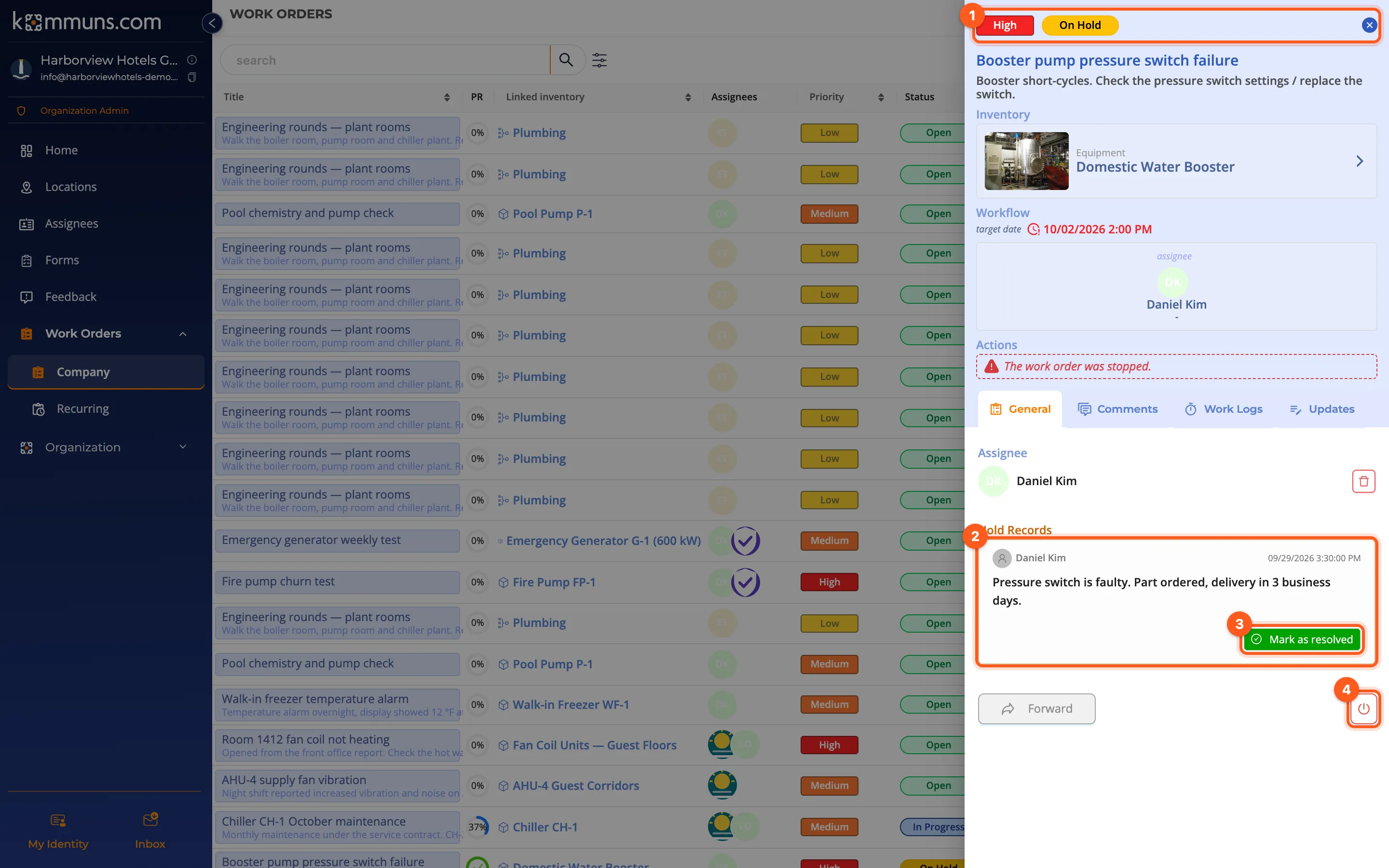
- Put on Hold: used by the work order's assignee; a reason is required. See Putting the work on hold.
- Mark as resolved: on the hold record; the work order returns to the status it had before.
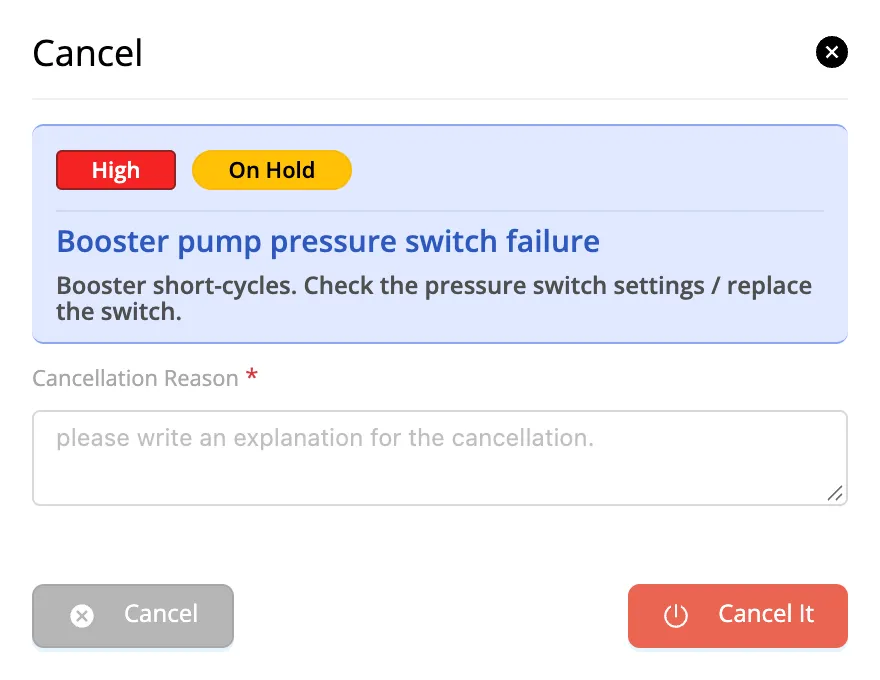
- Cancel: the red power icon at the bottom right of the work order panel. A Cancellation Reason is required. Cancelling needs the permission to delete work orders on the inventory. A cancelled work order can be reopened only on the kanban board, by someone with the Edit right on work orders.
Overdue work
Work orders that are past their target date and still ongoing are shown with a red date and a clock icon. kommuns checks for overdue work regularly and sends notifications about it. In the calendar view overdue days get a red dot.
History
Every change to a work order (creation, assignment, forwarding, status change) is listed with its date and author on the Updates tab of the work order panel. Changes made by an external system through the API show the integration's name followed by "(API)" (see Integrations (API)).