Locations
A location is the first level of your inventory tree: a building, a hotel, an office tower, a branch, a warehouse or a plant. Systems and equipment are added under a location.
Creating a location
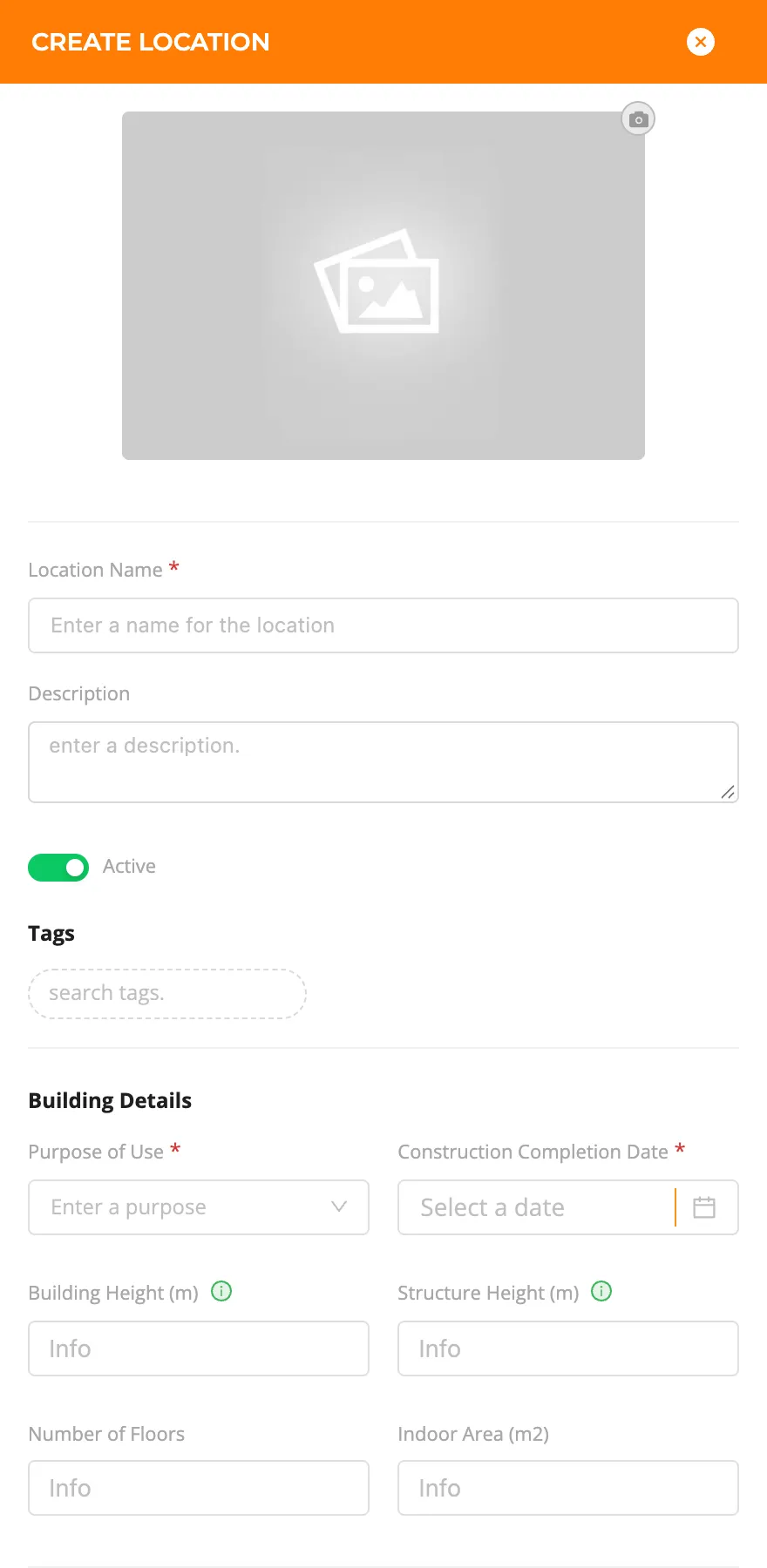
- Go to Locations in the side menu and click New (Create Location on the Home page opens the same form).
- Optionally click the area at the top to upload a photo of the building.
- Enter the Location Name (e.g. Harborview Boston Waterfront) and a Description; add Tags if needed.
- Building Details: Purpose of Use (Hotel, Office, Factory, Warehouse / Logistics, Restaurant / Café…) and Construction Completion Date are required. Building and structure height, number of floors and indoor area are optional.
- Address: country, province/state, district/city, postal code and street address. When you choose the region, the map moves there.
- Place the marker on the map (Add a marker at the center), zoom in and drag it onto the building. The map position is required.
- Click Save.
tip
The person who creates a location automatically becomes its inventory manager. To make someone else the manager, use the location's Assignees tab (see Inventory managers).
Units
Heights are in meters and the indoor area in square meters for now.
The location list and the location page
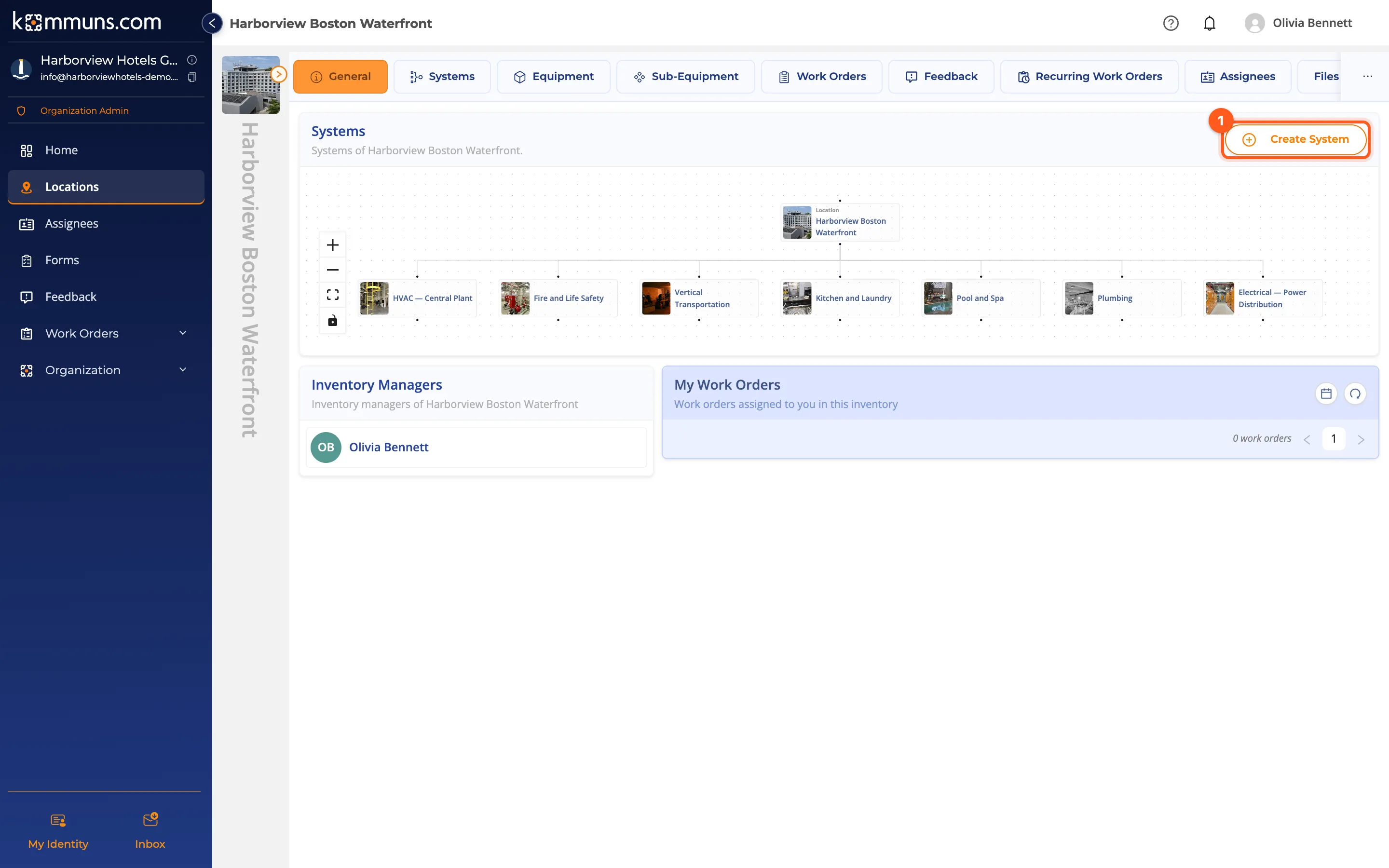
Locations lists your locations in a Table or on a Map. Click a location to open its page. The tabs at the top:
| Tab | Contents |
|---|---|
| General | The systems diagram, Create System, the inventory managers, your work orders here |
| Systems, Equipment, Sub-Equipment | Lists of the inventory at the location |
| Work Orders, Feedback, Recurring Work Orders | Records of the location and everything below it |
| Assignees | The people, teams and expert companies with a permission here |
| Files, Tags | Drawings, documents; the location's tags |
The arrow next to the photo at the top left opens a panel with the location's details (address, building details).