Guest reports
A hotel guest, a shopper or a tenant notices a problem: the elevator doesn't come, the room is too cold, there is a leak by the pool. With guest reports they scan the QR label on the spot with their phone camera and report it without signing in. The report reaches the team you choose at once, as an issue tagged Guest.
Guest reports are off until you turn them on: first for the organization, then in each location where guests may report. Inside a location, systems and equipment can be left out (e.g. a technical room).
Turning guest reports on
Go to and open Guest reports.
- Turn on Guests who scan a QR label may report without signing in. This allows it; it isn't on anywhere yet.
- Under Which locations it is on in, turn it on for the locations where guests may report. (It can also be turned on from a location's QR Codes tab.)
- Who gets them: one or more teams (members who join later get them too) or people. If no one is chosen, the reports go to the organization's managers.
- The guest's name and e-mail: the guest may leave them; they are deleted 30, 90 or 365 days after the report is resolved. The report itself stays.
- Topics: the choices on the guest's form; the chosen topic becomes the issue's title. kommuns' list is shown until you write your own (Back to kommuns' list returns to it).
- The guest must pick a topic: off, a topic, a note or a photo is enough (without a topic the first line of the note is the title); on, a topic is required.
- Privacy notice: shown on the guest's form; empty, kommuns' template is shown.
- Click Save on the bar at the bottom.
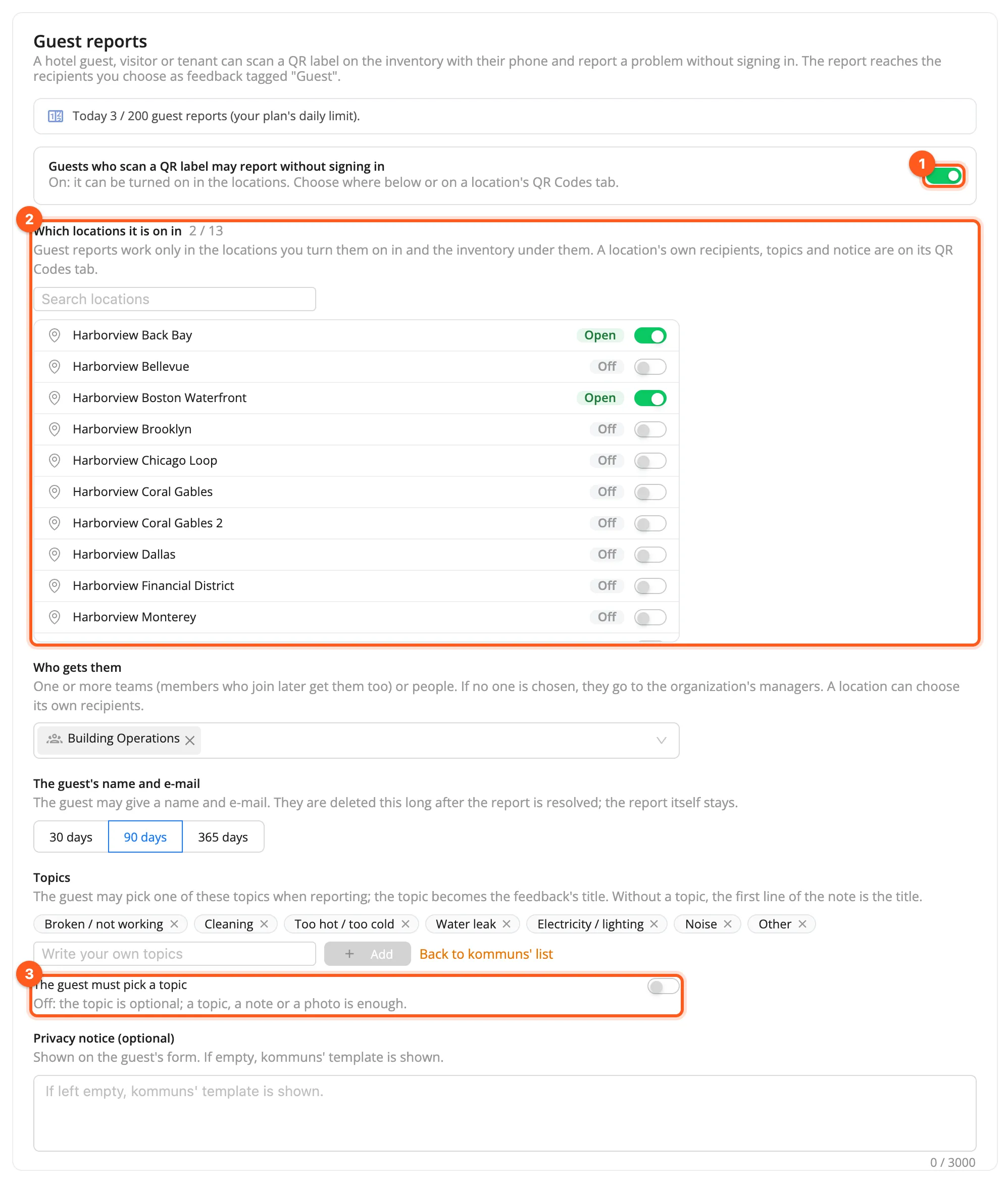
The box at the top shows today's guest reports against your plan's daily limit (Today 3 / 200 guest reports).
A location's own settings
A location's QR Codes tab has a Guest reports card:
- its switch turns guest reports on or off at this location and everything under it;
- the card says which settings are the location's own and which come from the organization;
- Items with their own setting lists the systems and equipment where guest reports were turned off (or turned back on under a closed system); Turn on there opens one again.
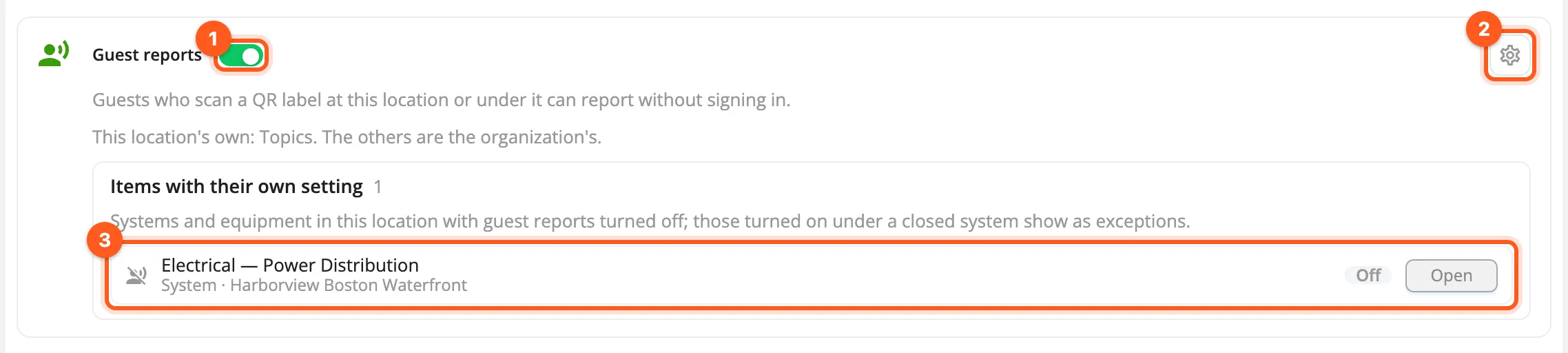
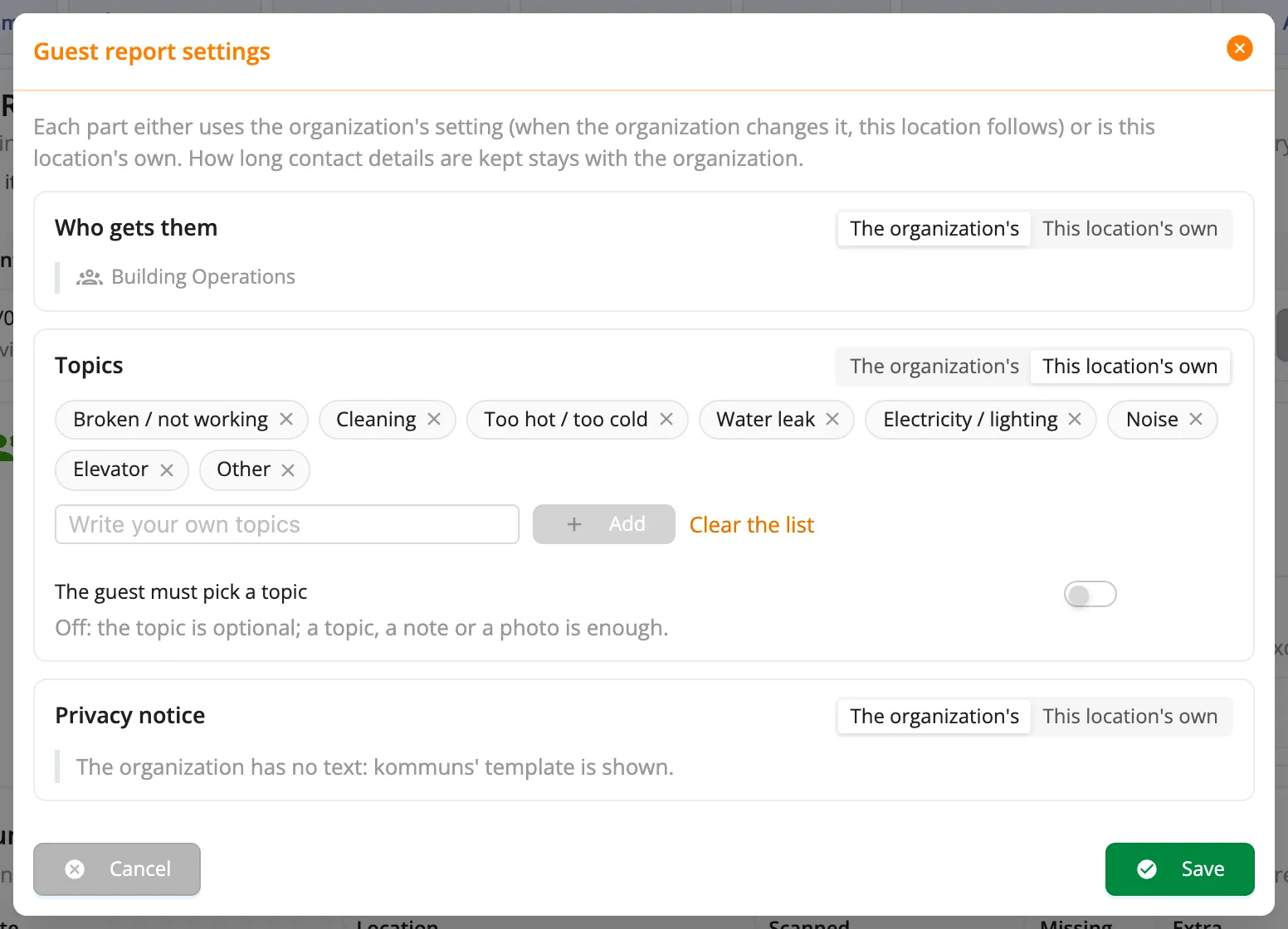
The ⚙ button opens Guest report settings. For Who gets them, Topics and Privacy notice, choose The organization's (the location follows when the organization changes it) or This location's own. A hotel can add an Elevator topic for its towers only; the spa can send its reports to its own team. How long the guest's name and e-mail are kept is always the organization's.
Systems and equipment
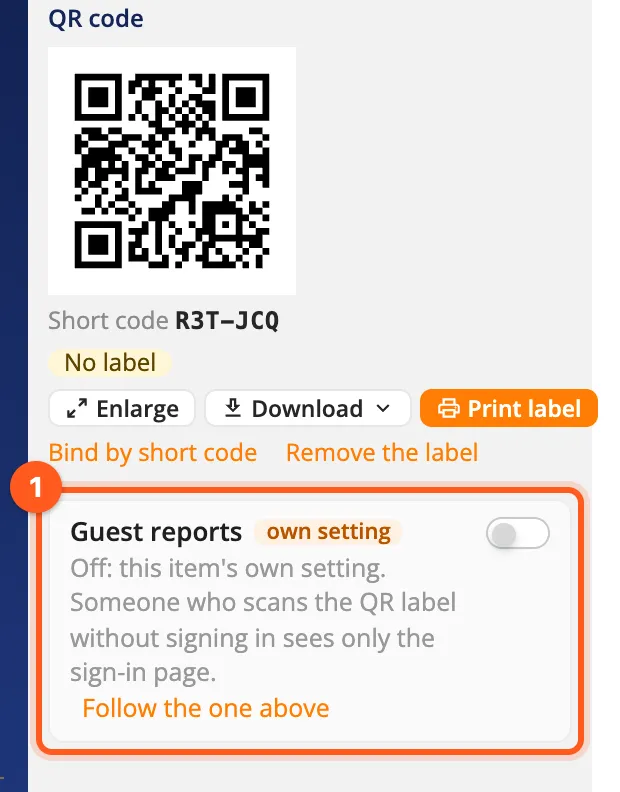
The QR card of a system, equipment or sub-equipment has a Guest reports switch (shown while guest reports are on at its location):
- Turning a system off turns off everything under it too: someone who scans its labels without signing in only sees the sign-in page.
- Under a closed system a piece of equipment can be turned on alone.
- Each item follows the nearest setting above it. An item with a setting of its own says own setting; Follow the one above drops it.
To turn many items on or off at once, select them in an inventory list and use Guest reports › Turn guest reports off / Turn guest reports on on the bulk bar (→ Bulk actions).
What the guest sees
The guest scans the label with their phone camera; no app, no account:
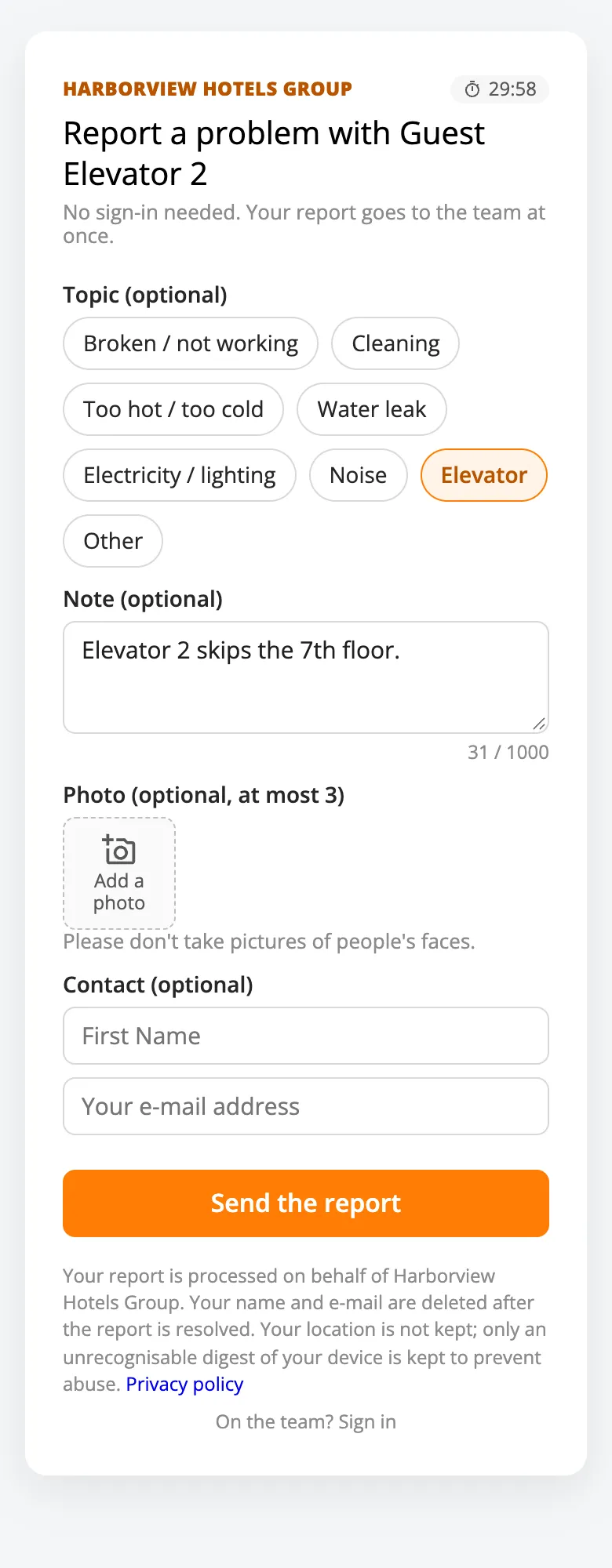
- The form names the item and the organization: Topic, Note (what happened, where), up to three photos and, if they like, their name and e-mail under Contact.
- A small timer shows how long the form stays open (30 minutes); when it runs out, Refresh the form gets a new one and what was written stays.
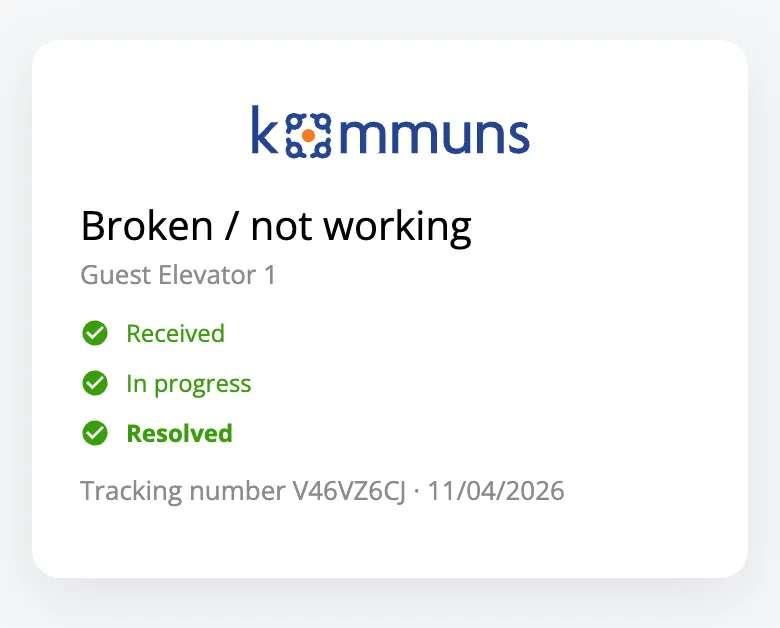
- Send the report: the guest gets a tracking number and a link to follow it.
The tracking page shows Received, In progress and Resolved: no comments, no names of your team. The link works for 30 days.
Where guest reports are off, the same scan only shows the sign-in page. A guest sees no names or records beyond the item's and the organization's names.
On the team's side
A guest report is an ordinary issue of the item: the recipients are notified at once, and it is turned into a work order the usual way.
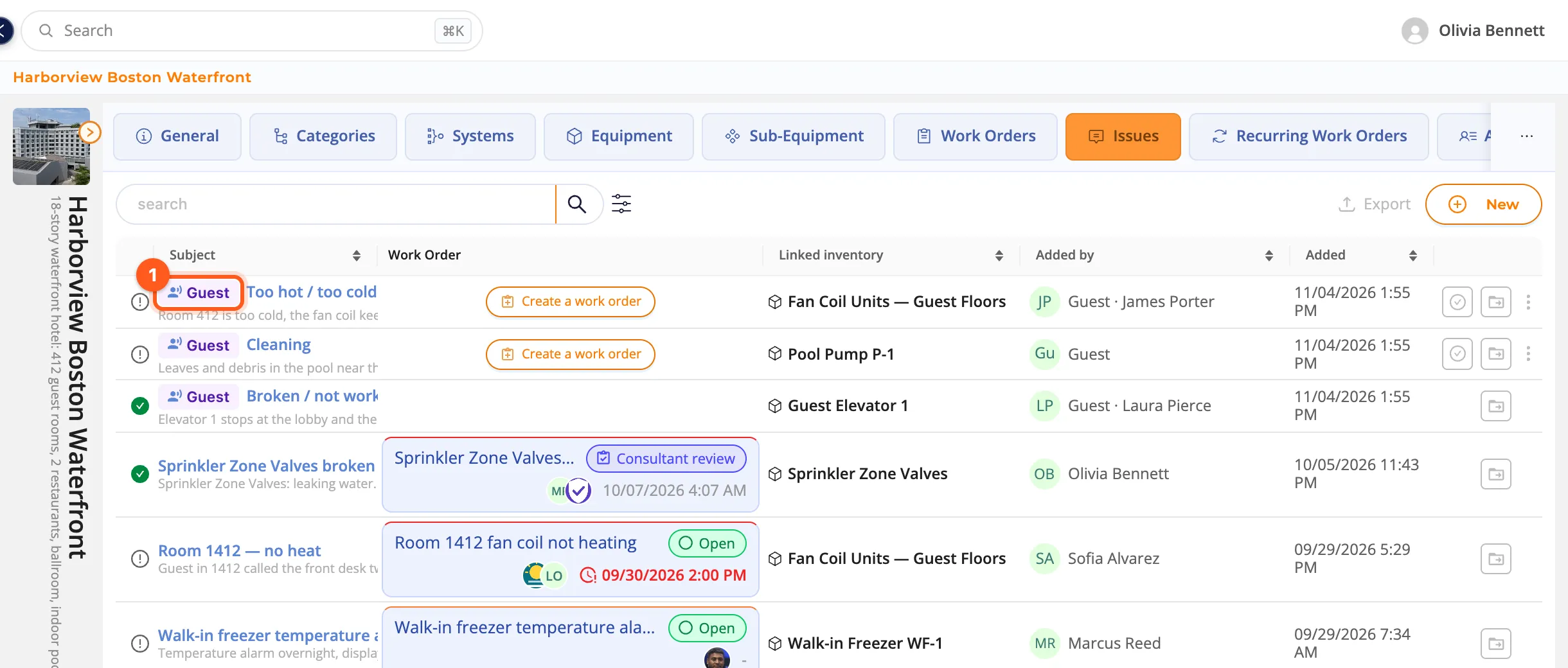
- In the Issues lists it carries the Guest tag; Added by shows Guest and the name the guest left. The filter's Source shows guest reports or the team's only.
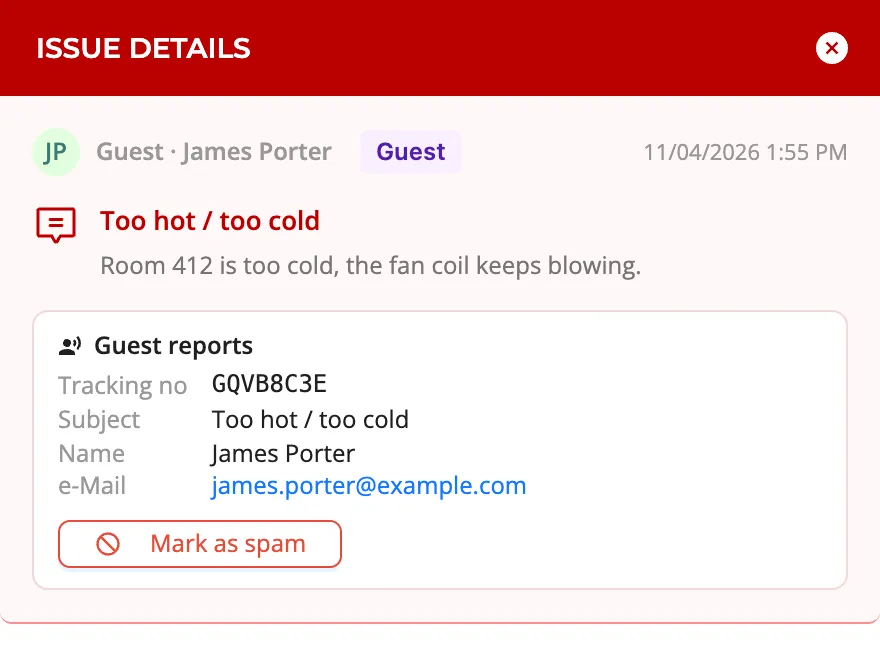
- Its drawer has a Guest reports box: the tracking number, the topic, the guest's name and e-mail.
- Mark as spam resolves the report and silences that device for 30 days; Remove the spam mark undoes it.
Each recipient decides how they hear of them in their notification settings (When a guest reports: e-mail, push).
kommuns limits how often a device, an address and a label may report, and your plan's daily limit applies. When the limit is reached, the guest is asked to contact the front desk instead. Photos are re-encoded: their location and camera data are removed.