QR codes and labels
Every location, system, piece of equipment and sub-equipment in kommuns has its own QR code. Stuck on the item as a QR label, it takes whoever scans it straight to that item: a technician to its page, a guest to the guest report form when you allow it.
What a label carries:
- The address
app.kommuns.com/q/<code>: any phone camera opens it. Someone signed in to kommuns lands on the item; someone else sees a short page that names nothing of the item and asks them to sign in (below). - The short code, six letters and digits such as ZJR-FPU (no 0 / O or 1 / I to mix up). If a label can't be scanned, the code can be typed instead.
- The organization's name, the item's name and, on bigger labels, where it is (Place) and its serial number. Under the QR, kommuns' domain.
A code is made the first time it is shown, downloaded or printed. It stays the item's code until you bind another label to it or remove it.
The QR card
Open an item's page; its QR code card is in the details panel on the left (open the panel with the arrow at the top if it is closed).
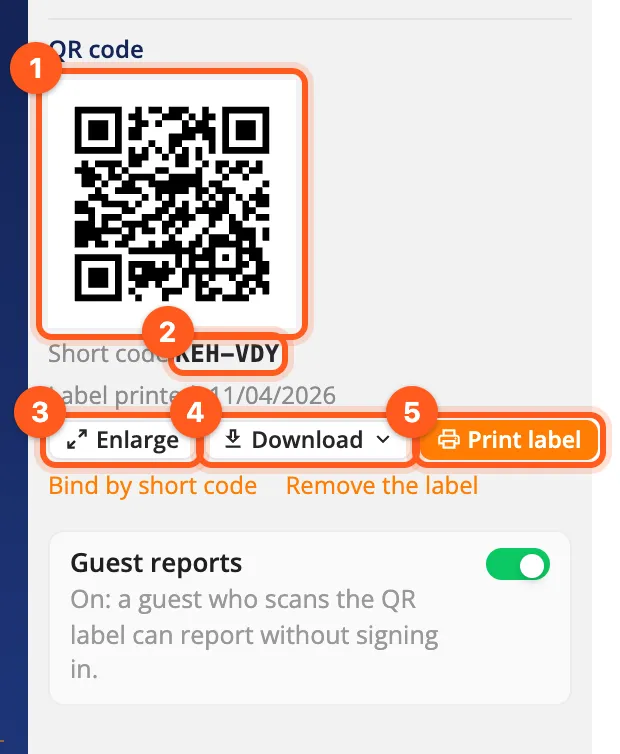
- Under the short code, Label printed: with a date tells when its label was last printed, or No label if it never was.
- Enlarge shows the code big on the screen: a phone can scan it from there.
- Download: SVG (for a print shop or a sign), PNG (for a document or an e-mail) or Label (PDF)…, which opens the label window.
- Print label opens the label window (below).
- Bind by short code and Remove the label (Binding a label); a system's or equipment's card also has its guest report switch.
Printing one item's label
- Click Print label on the item's QR card.
- Pick a Size: Small · 40×25 mm (QR, name, short code), Medium · 70×40 mm (+ place) or Large · 100×60 mm (+ "Scan to report an issue.").
- Under On the label, choose what is printed: Organization name, Item name, Place, Serial no, Short code.
- Check the preview on the left and click Download PDF. Print it at 100 % (actual size), not "fit to page".
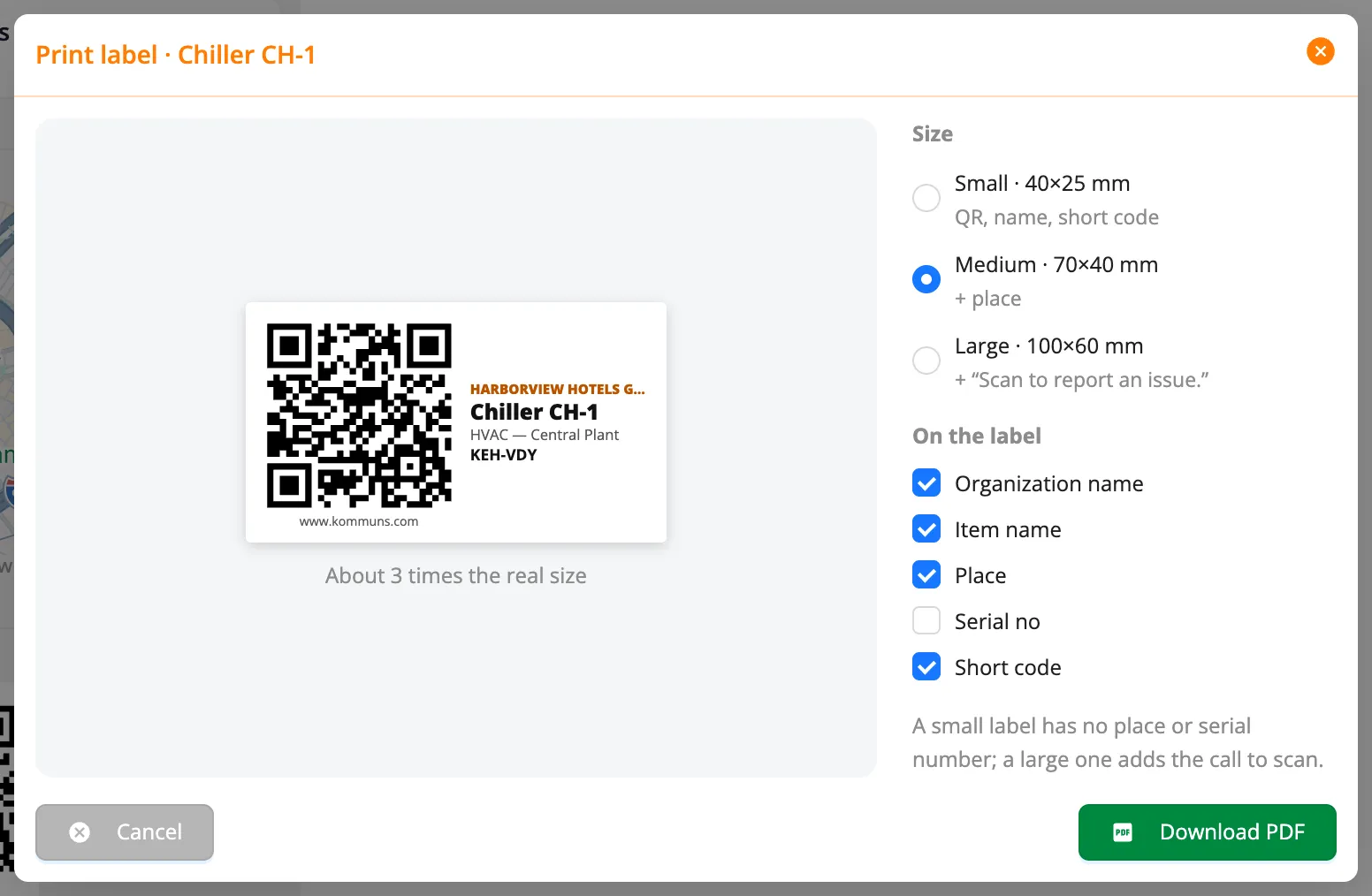
Your choices are remembered in this browser for the next label.
Labels for many items
Labels of many items come out on one PDF from the inventory lists (the Systems, Equipment and Sub-Equipment tabs):
- Click Select several left of Export and select the items (→ Bulk actions).
- Click QR label on the bar.
- Pick the Paper: A4 · 3×8 (70×37 mm), A4 · 2×7 (99×38 mm) or Label printer · 50×30 mm.
- To use a sheet that already has labels missing, write how many to skip in First empty label.
- Click Download PDF.
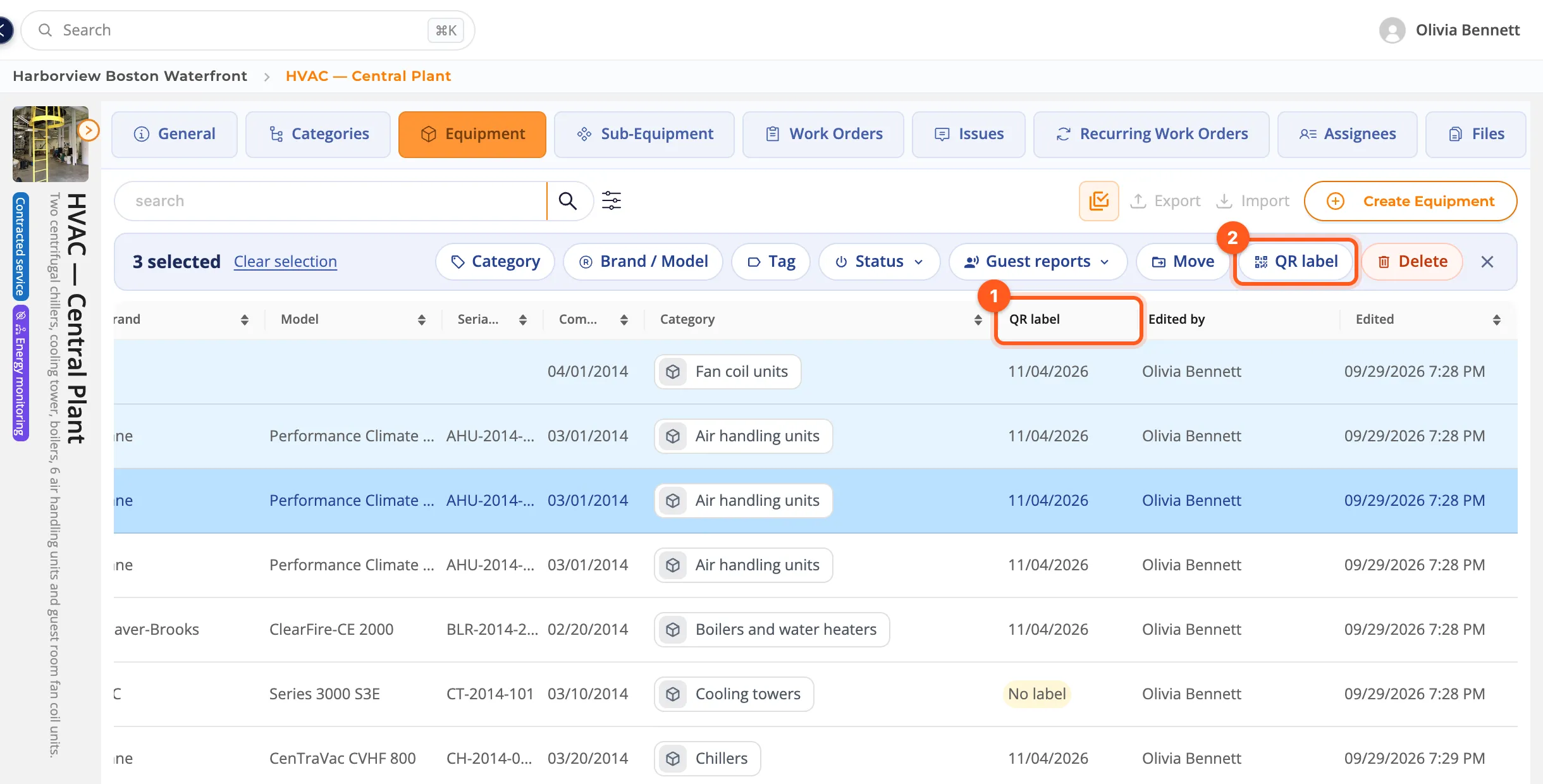
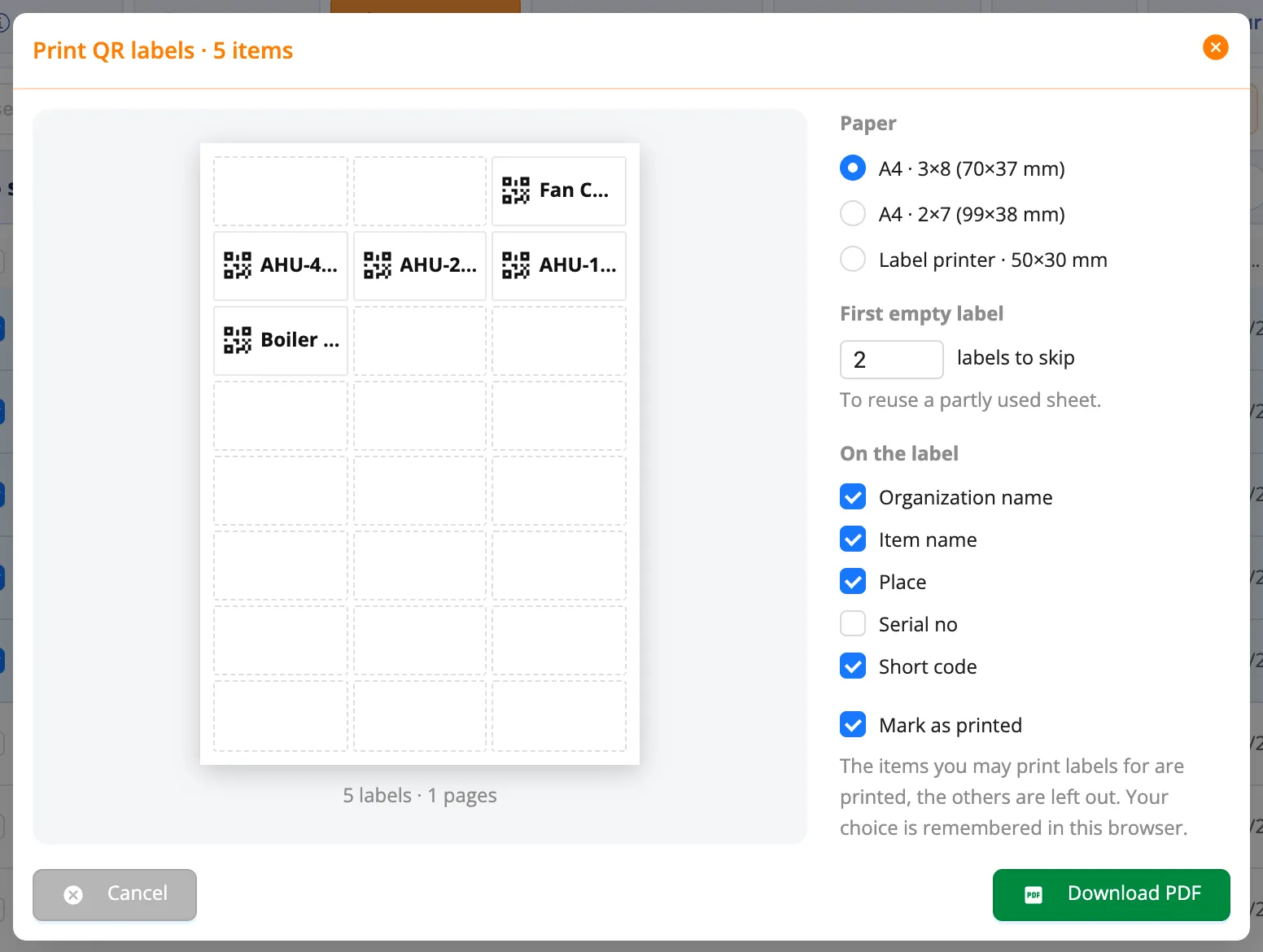
Mark as printed (on by default) writes the date on each item, so the list knows which items have a label. Items you may not see are skipped.
Which items have no label?
The lists' QR label column shows the date each item's label was last printed, or No label. Filter the list by it to find the items that still need one, then print them as above. A location's QR Codes tab counts them for you and prints them with one click.
Blank labels
Walking the site with a list of names and a label for each is slow. Print blank QR labels instead: they carry a code but no item yet. On site, stick one on the item and bind it there.
The QR Codes tab
A location's QR Codes tab (and Organization › QR Codes, which lists every location's batches) shows:
- how many items there are at the location and how many have no printed label, with Print the unlabelled to print them all at once;
- Print blank QR labels;
- the batches printed so far: when and by whom, how many labels, how many are bound and how many still blank, the note; Print again and Retire the blank ones (a lost roll: its blank labels stop working, the bound ones keep working).

Printing blank labels
- Click Print blank QR labels on the location's QR Codes tab.
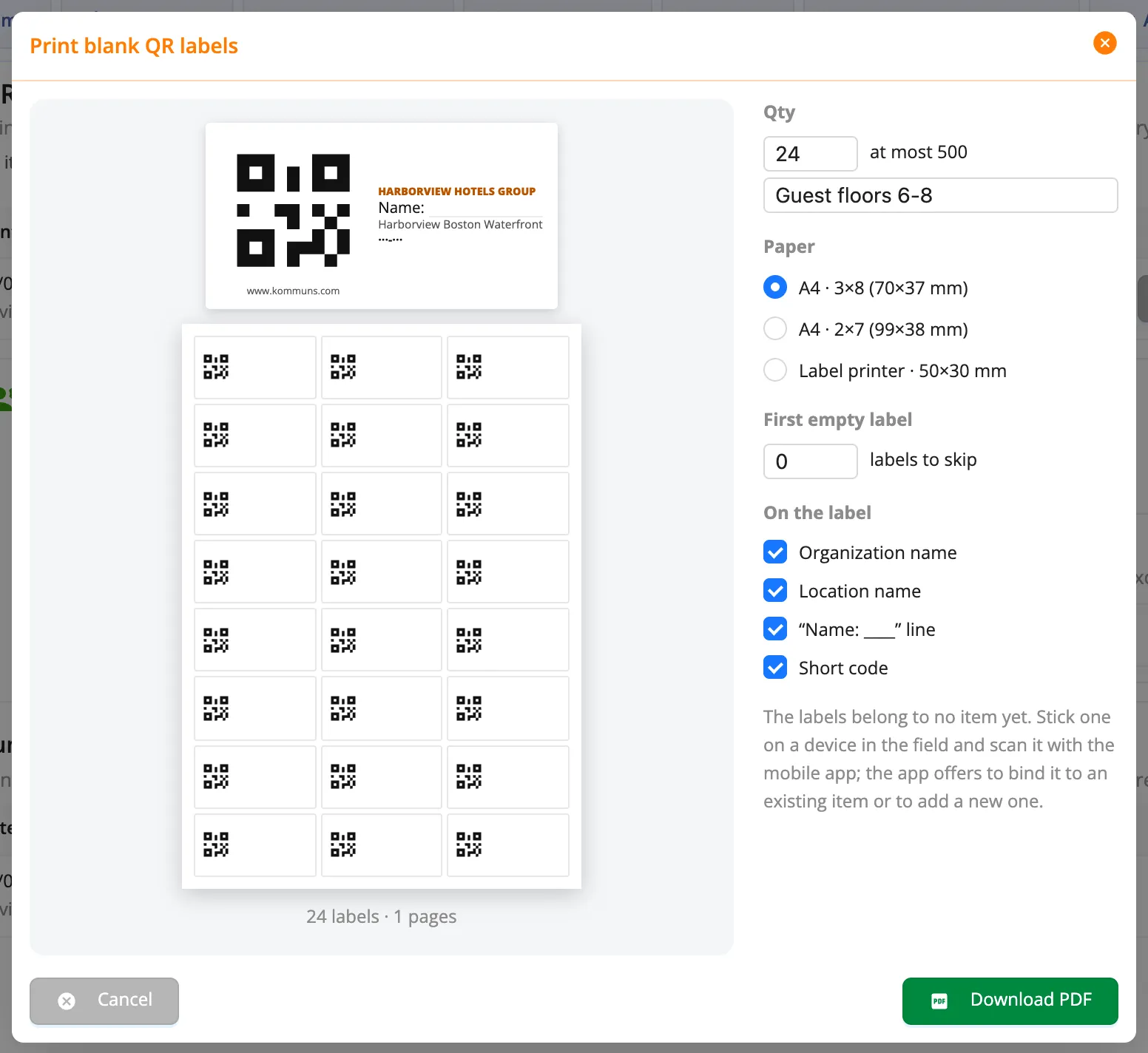
- Write the Qty (at most 500) and, if you like, a note (e.g. Guest floors 6-8).
- Pick the paper and what is on the label. “Name: ____” line leaves a line to write the item's name on.
- Click Download PDF.
Binding a label
On site, the technician sticks the label on the item and binds it with the kommuns mobile app: scanning a blank label asks whether to bind it to an existing item or to open a new one there. The batch's location is offered first.
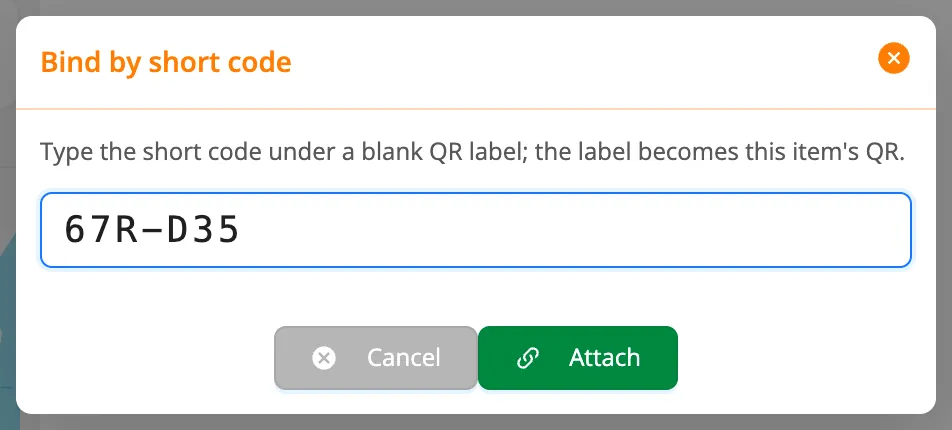
On the web, open the item's QR card and click Bind by short code: type the code under the label and click Attach.
- If the item already has a code, kommuns asks first: Replace it makes the new label its code and the old one stops working.
- If the label is on another item, kommuns asks whether to move it here (Move and bind).
- Remove the label takes the label off the item: a label from a batch becomes blank again.
- A manufacturer's barcode (EAN-13, Code 128, DataMatrix) can be bound to an item too: scanning it then opens the item. The item's barcodes are listed under Barcodes on its QR card.
Binding, moving and removing a label are written to the item's activity log.
Counts
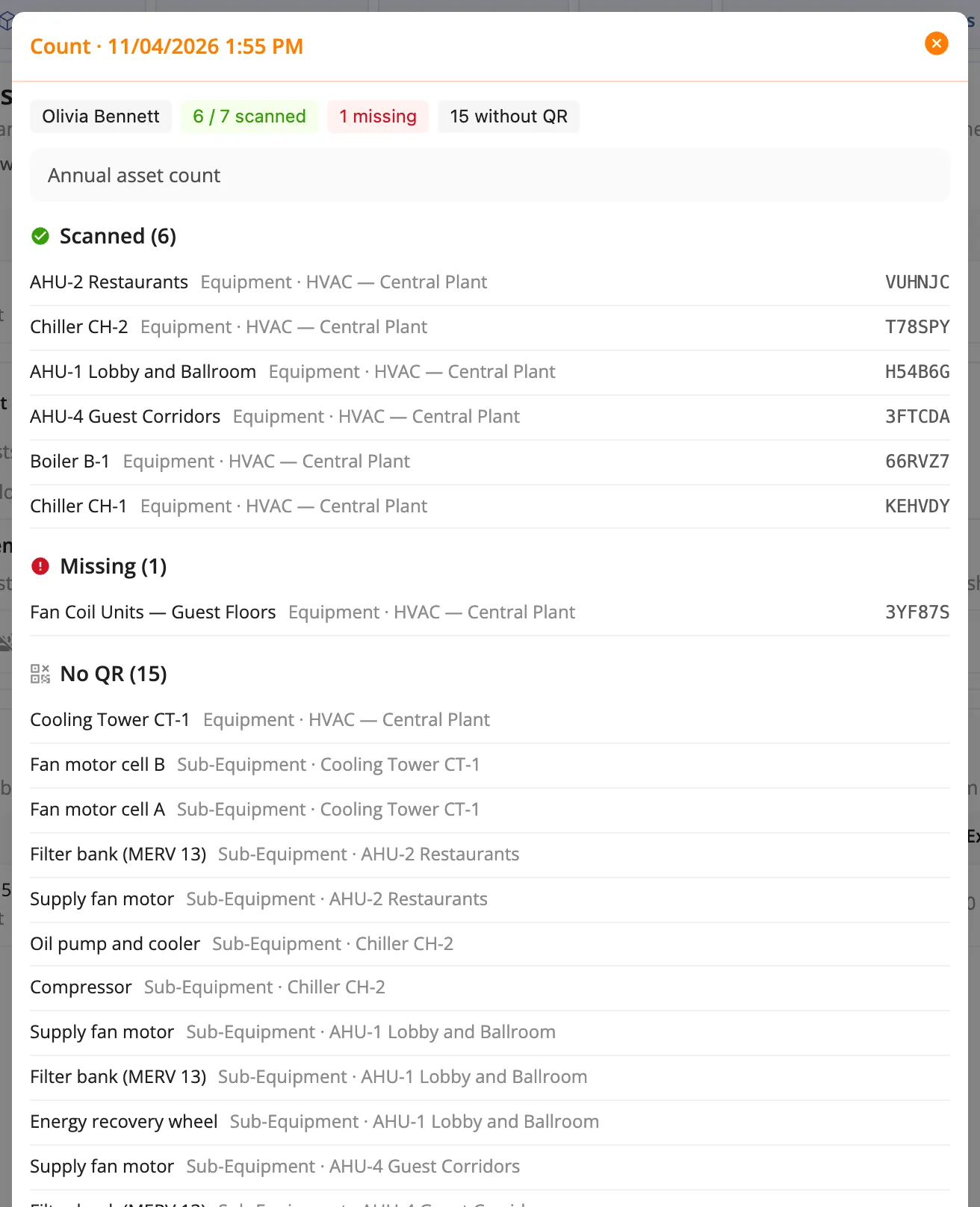
A count checks that what is recorded at a place is really there: the technician scans the labels of a location (or a system) one after the other with the mobile app, and the app tells what was found, what is missing and what came from somewhere else. The results stay on the location's QR Codes tab under Counts: the date and who counted, the place, Scanned, Missing, Extra, No QR and the note. Click a row to see the items.
A phone camera that isn't signed in
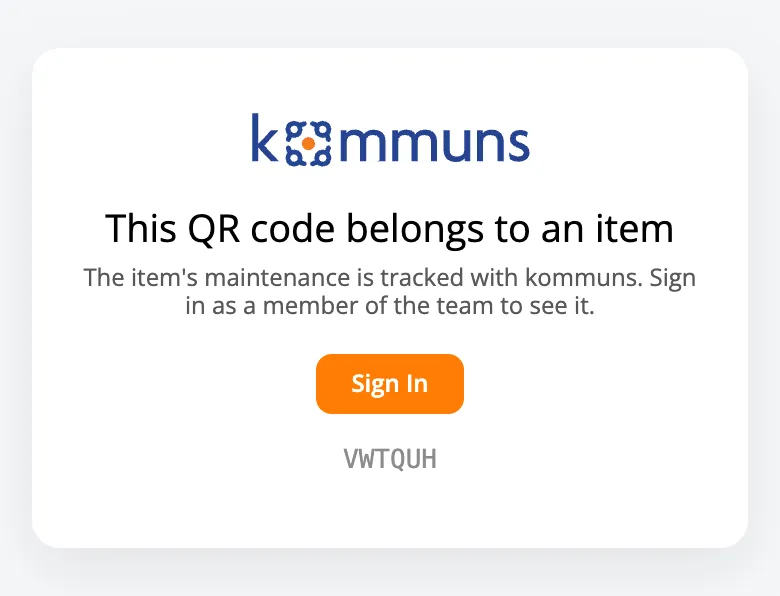
Someone who scans a label with their phone camera and isn't signed in to kommuns sees a short page: the item belongs to an organization that tracks its maintenance with kommuns, and Sign In takes them to the item once they are signed in. The item's name isn't shown. When guest reports are on there, they see the report form instead.