Bulk actions
When the same change goes to many items, don't open them one by one: select them in the list and give them all a category, a brand / model, a tag or a status, move them or delete them. This works on the Systems, Equipment and Sub-Equipment tabs of a location, system or equipment, and on the Categories tab (below).
Selection mode
- Open the Systems, Equipment or Sub-Equipment tab of a location, system or equipment.
- Click the Select several icon left of Export. The icon turns orange and checkboxes appear at the start of the rows. The list isn't loaded again; the rows stay on the screen as they are.
- Select items with their checkboxes. The checkbox in the header selects every row on that page.
- The bar above the table says how many items you have selected; choose the action with the buttons on its right (Actions).
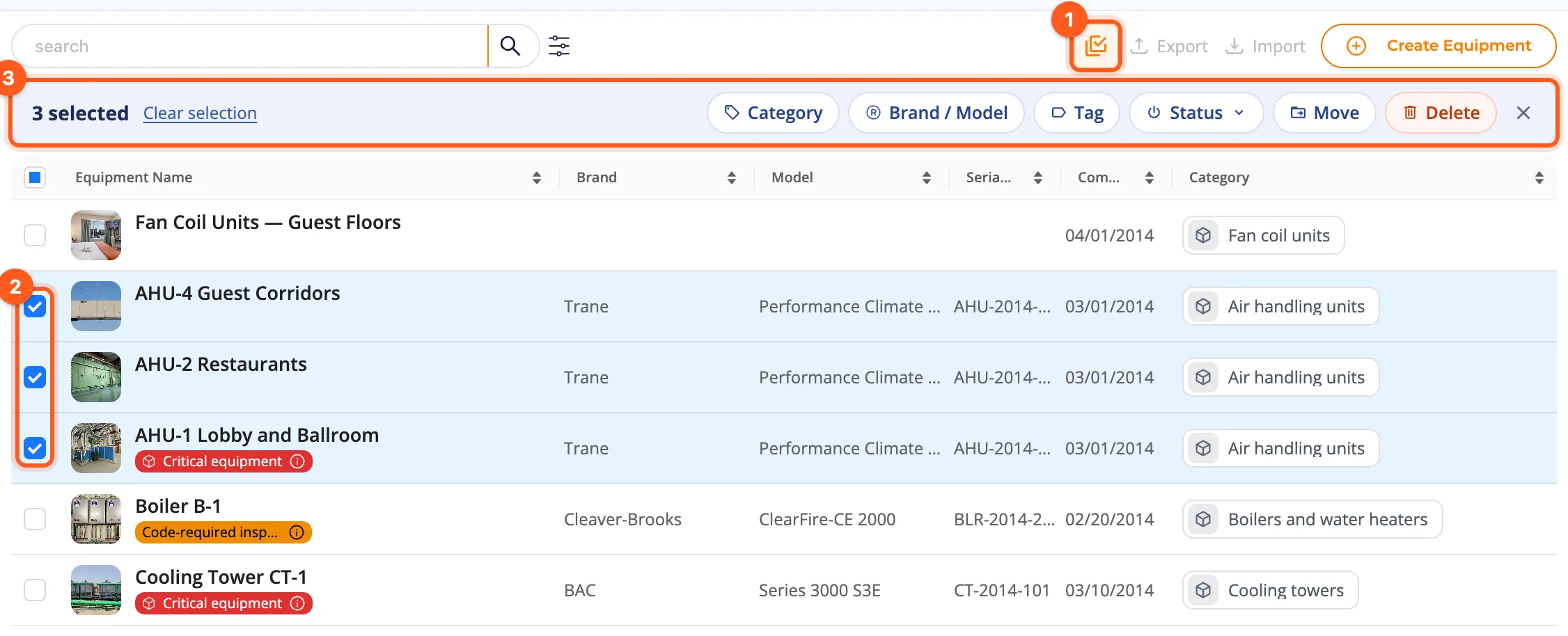
- The selection is kept across pages and when you change the search or the filter: you can select items found with different searches together. Clear selection drops them all.
- In selection mode, clicking an item's name still opens its page; use the checkbox to select it.
- You can select up to 500 items at a time.
- Click the icon again or the bar's ✕ to leave selection mode; the selection is dropped.
Rows you can't do anything on have their checkbox turned off; hovering it says You have no permission to change this item. When you may do an action on only some of the selected items, its button shows on how many (e.g. Delete 3/5).
Actions
Each button opens a window. It says how many of the selected items the action applies to, and its button carries the count (e.g. Apply (3)). Cancel changes nothing.
| Button | What it does |
|---|---|
| Category | Add: the categories you pick are added to the existing ones. Change: the existing categories are removed and the ones you pick put in their place; pick none and all categories are removed. Remove: the categories you pick are taken off, the others stay. |
| Brand / Model | Pick a brand and, if you like, a model. Without a model, items whose brand changes lose their model and items whose brand stays keep theirs. Clear the brand and model empties both. The window sums up the selected items' current brands (Now: …). Equipment and sub-equipment only; the Systems list has no such button. |
| Tag | Add: pick from the location's and the organization's tags; tags an item already has stay as they are. Remove: pick from the tags the selected items have. Hidden tags are added and removed only by people who may see them (→ Tags). |
| Status | Make inactive or Make active. Only the selected items change; what is under them keeps its own status. An inactive item carries the red Passive tag everywhere and can't be picked in pickers (→ Passive inventory). |
| Guest reports | Turn guest reports off or Turn guest reports on for the selected items: a closed item closes what is under it too (→ Guest reports). |
| QR label | Prints the selected items' QR labels on one PDF: A4 sheets or a label printer (→ Labels for many items). |
| Move | Moves the selected items to another place (below). |
| Delete | Deletes the selected items with everything under them (below). |
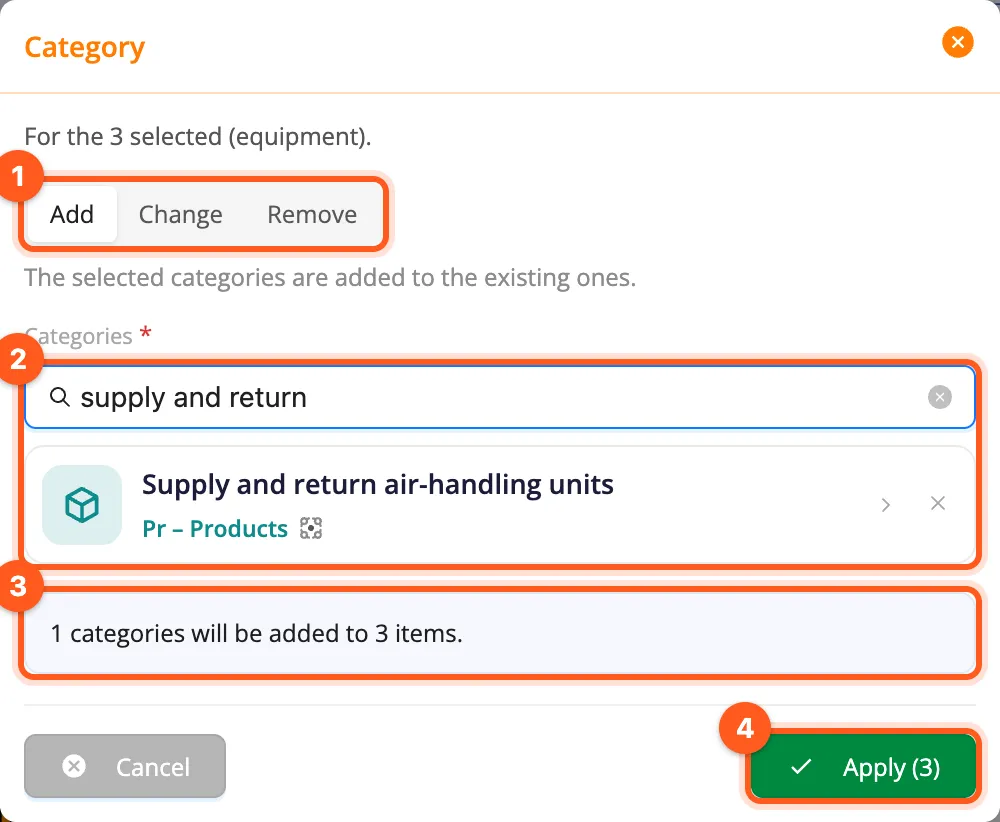
When the action is done, the items it was done on leave the selection and the list reloads; selection mode stays on, so you can go on with the next action.
Moving several items
Move works like moving a single item, for many at once:
- Click Move and choose the New place. Only the type one level up can be chosen: a location for systems, a system for equipment, an equipment for sub-equipment.
- Read the summary: how many items move (and how many in all with everything under them) and how many open work orders go with them. If the location changes, the assignments that will be removed and the recurring work order rules that will stop opening work orders on these items are listed too.
- Click Move.
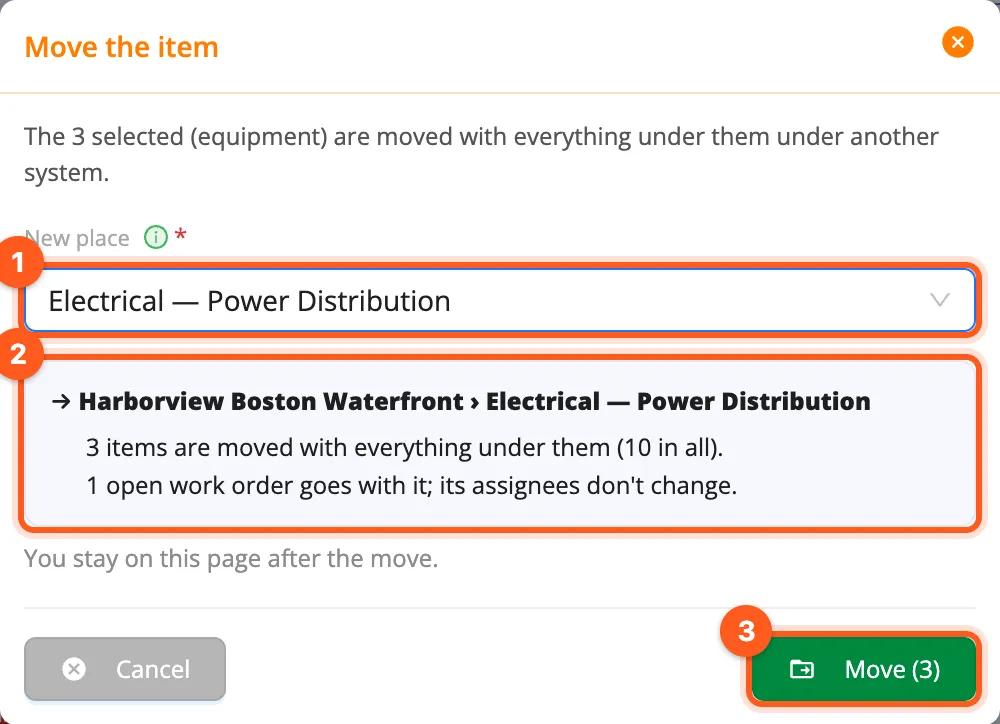
Items already at that place and items you may not move are skipped. Each item is moved on its own: if one can't be moved, the others still are. Unlike moving a single item, you stay on this page; the list reloads.
Deleting several items
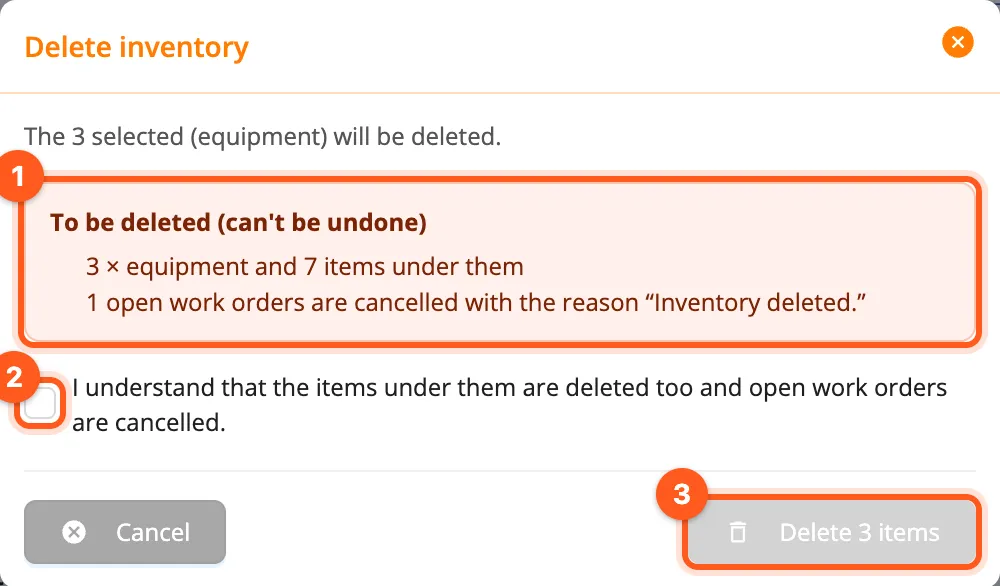
The Delete window says what will be deleted: the selected items and the inventory under them, the open work orders that will be cancelled with the reason “Inventory deleted.” and the issues that will be deleted. When there is inventory or an open work order under the selected items, the button stays off until you tick I understand that the items under them are deleted too and open work orders are cancelled. Deleting can't be undone.
On the Categories tab
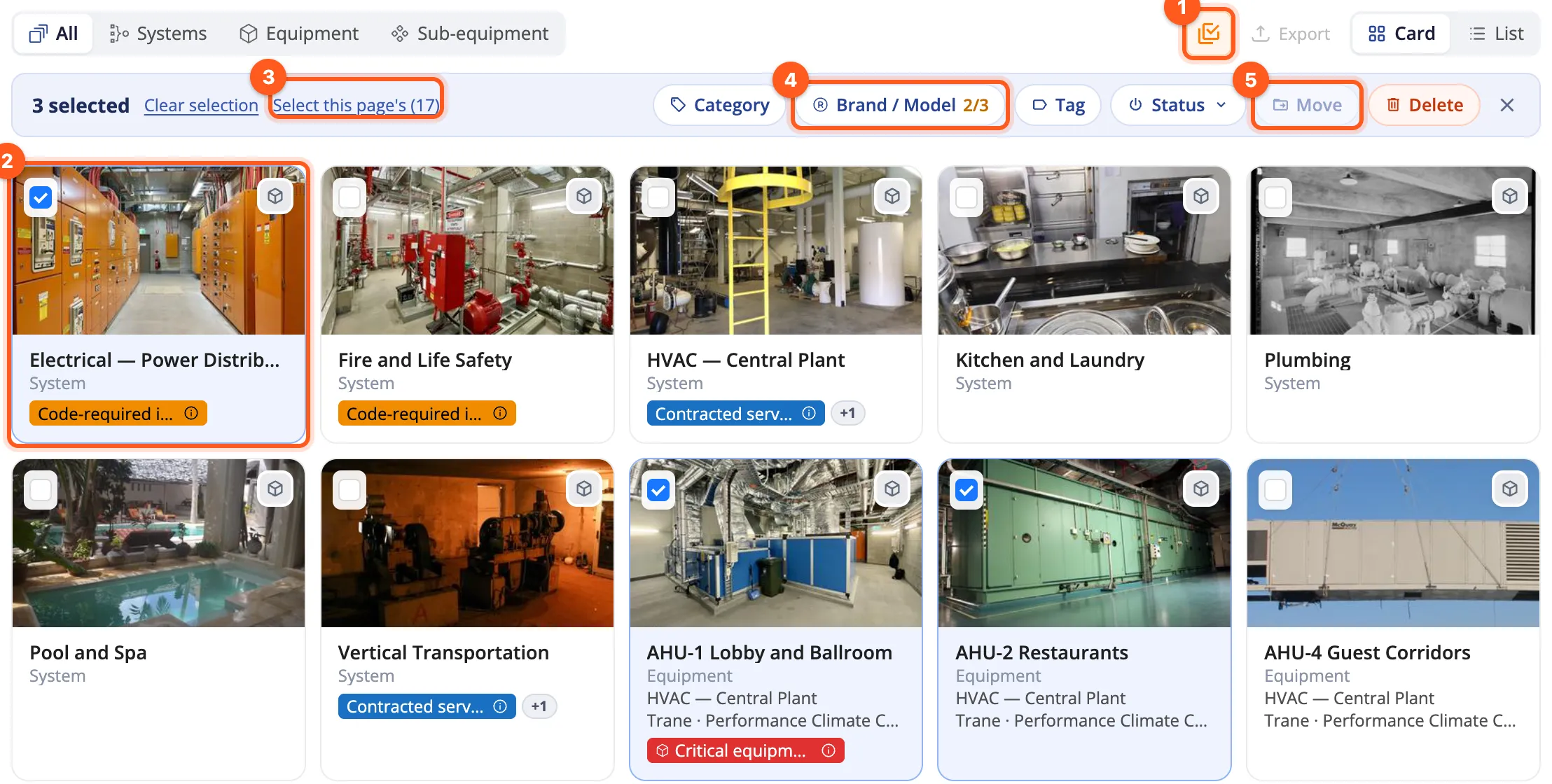
The Categories tab of a location, system or equipment has the same mode: the Select several icon is left of Export. In selection mode a checkbox appears in the corner of each card's picture (at the start of each row in the List view); clicking a card or a row selects it instead of opening the item. The bar's Select this page's selects every card on that page.
Systems, equipment and sub-equipment can be selected together on this tab:
- Brand / Model applies to equipment and sub-equipment only; its button shows on how many (e.g. 2/3) and the selected systems are skipped.
- Move is on only while the selected items are all of one type (To move, select items of one type.).
- The Tag window offers the tags that can be given to any kind of inventory.
Skipped items
kommuns checks every selected item again when the action runs. The ones it can't be done on are skipped; the others are done:
- The window lists the items that will be skipped beforehand, with their names and the reason (e.g. a system in the Brand / Model window, or an item you may not edit).
- After the action a success message tells how many items were changed. The skipped ones are listed with their names and reasons in a notice that stays until you close it (… items skipped), and they stay selected: remove the cause and try again, or take them out of the selection.
There are no bulk actions on the Locations list or in the mobile app. You can't select every item that matches a search in one go: select them page by page. Bulk actions can't be undone; reverse a change the same way (e.g. Category › Remove).