Who is assigned where
A person's own Assignments tab shows one person's assignments (See it on the Assignments tab). The Assignments tab of Assignees turns this around: it shows the whole inventory tree with everyone assigned on it. Use it to see at a glance who is attached where and where no one is responsible.
It is in (after Expert Organizations) for the whole organization, and on a location's Assignees tab (after Integrations) for that location and everything under it.
Reading the tree
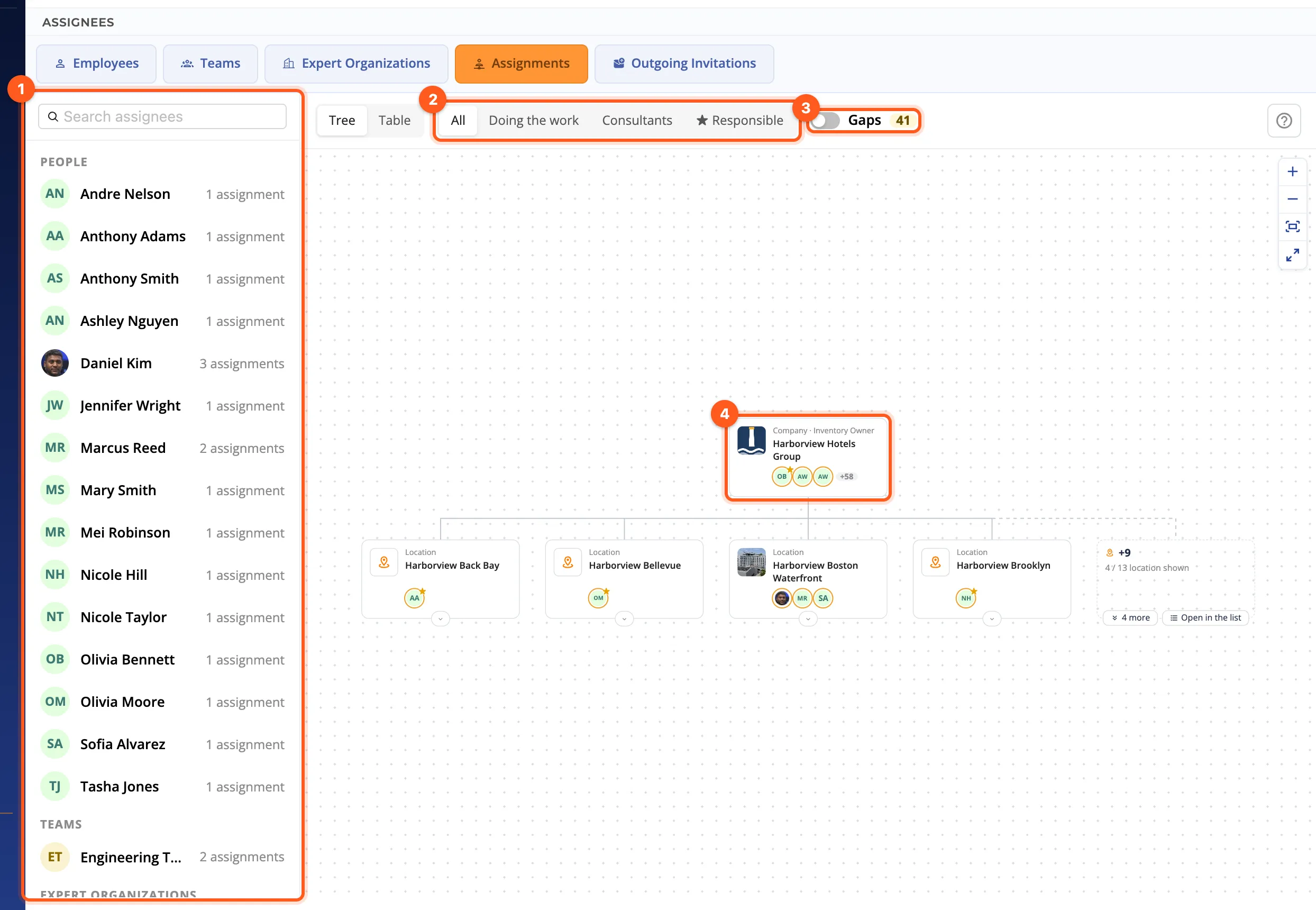
- Cards are the inventory: the organization, its locations and, as you open them with the counter under a card, their systems and equipment.
- A card shows the people, teams and Expert Organizations assigned directly there, as avatars. The ring is the assignment type: amber for Does the work, blue with a D for a Consultant; ★ is the person Responsible for that place (→ Inventory managers). A grey, struck-through avatar is inactive. Beyond three avatars a card shows +N.
- ↓ N on a card counts the assignments coming from the levels above, which work there too.
- The assignments on the organization's own level (usually everyone's Organization Employee) are left out of these counts: they would be on every card.
The assignees on the left
The list on the left groups everyone with an assignment here or above: People, Teams, Expert Organizations, Integrations, each with how many assignments they have. Those with nothing but a plain assignment on the organization's level are folded at the end, under Only at the organization's level. Search assignees finds anyone by name.
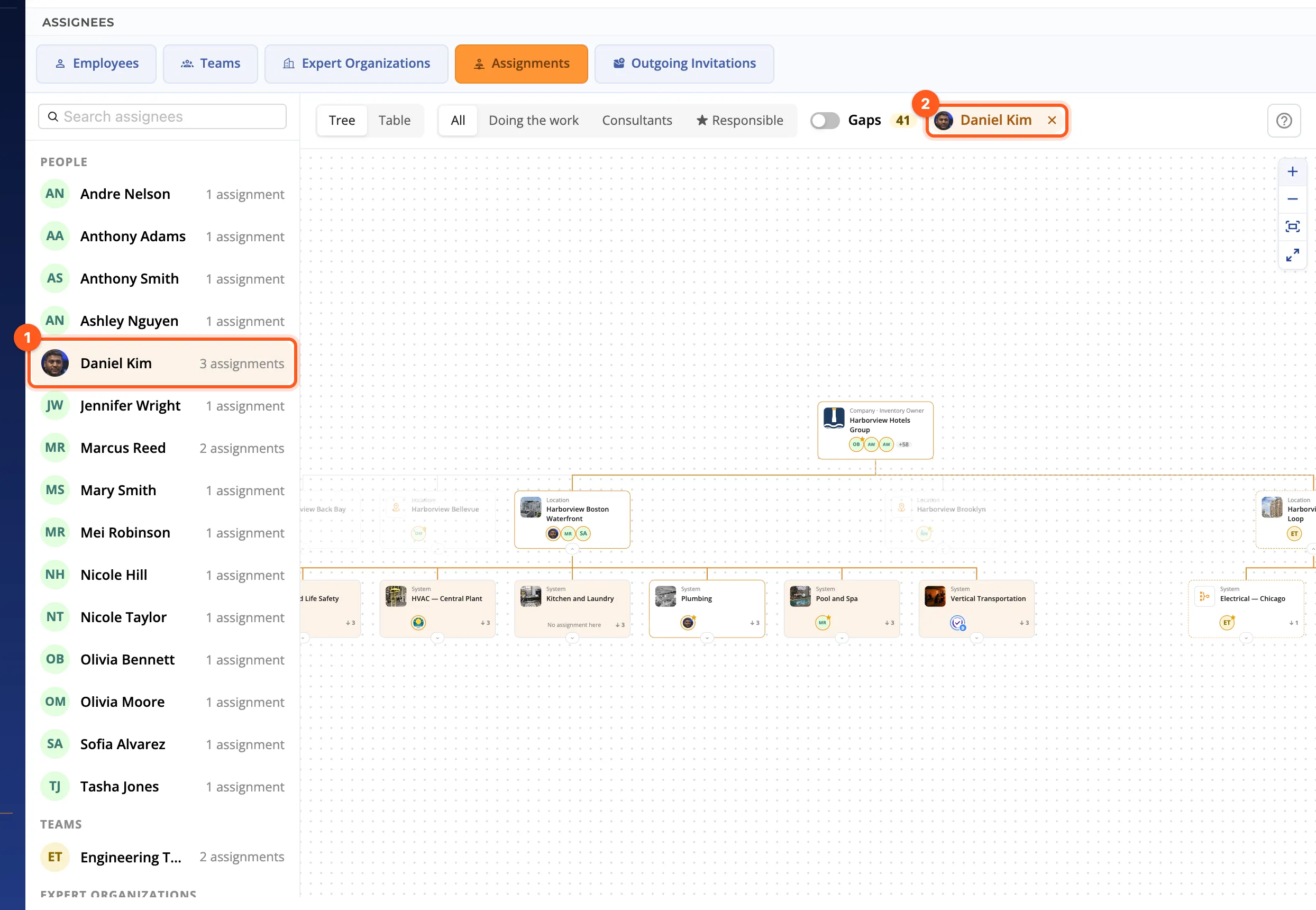
Click a name to see where they are: the tree opens the paths to their assignments (up to eight) and paints the cards:
- The selected one is assigned here,
- Through their team: a team they are on is assigned here,
- Covered from above: an assignment above reaches this place.
Cards they don't reach fade. A closed card that holds some of their assignments gets an orange dot. Click the name again, or the ✕ by it on the bar, to drop the selection.
Kinds and gaps
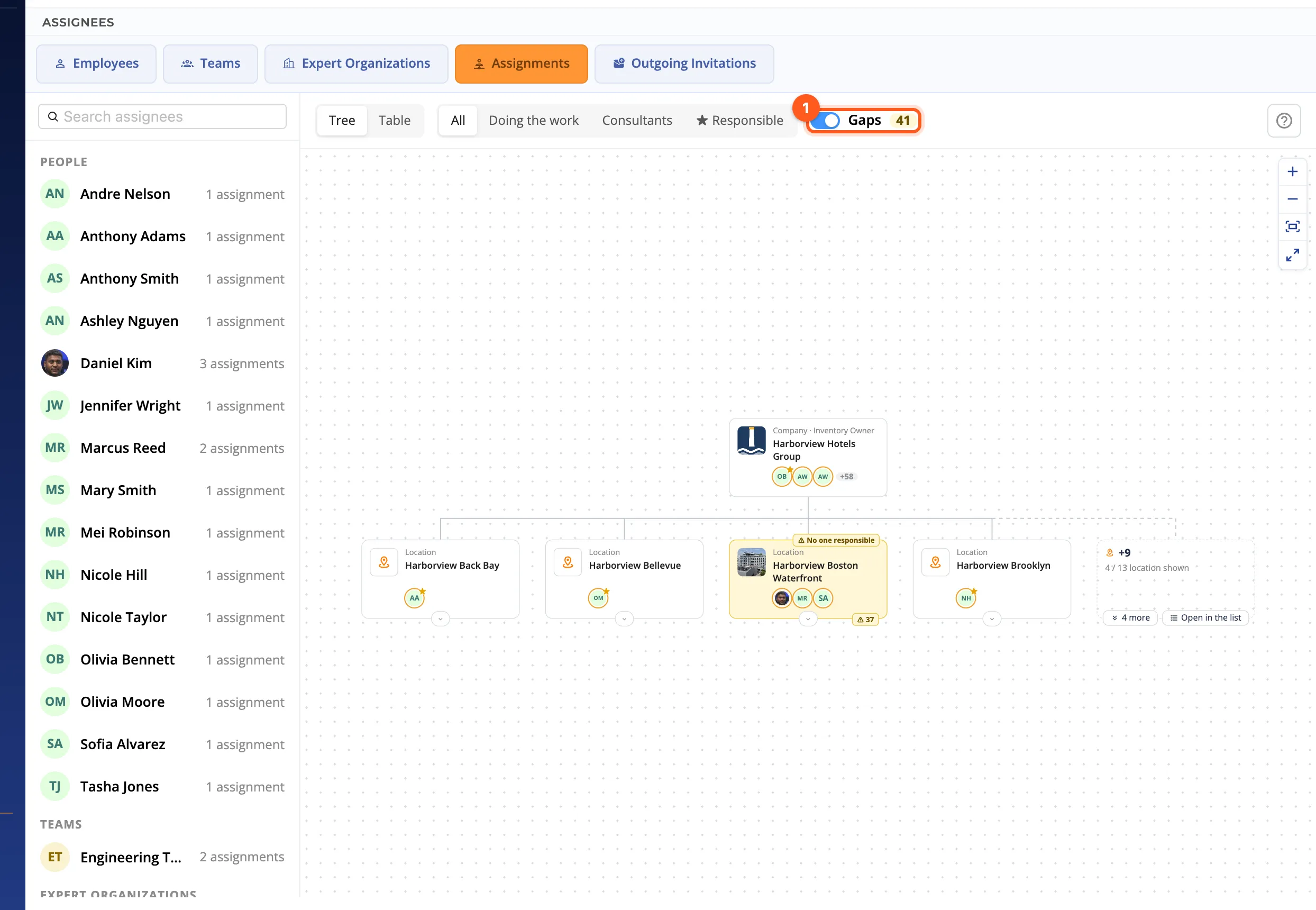
The bar's All · Doing the work · Consultants · ★ Responsible shows only the assignments of that kind on the cards and the table.
Gaps marks the places at a location or below where no one is responsible, or where the responsible person or team is inactive (Responsible inactive). The number next to it counts them; a closed card with gaps inside shows how many. The organization's own responsible person doesn't close a gap: new work orders opened there without an assignee go up to them, which the drawer says.
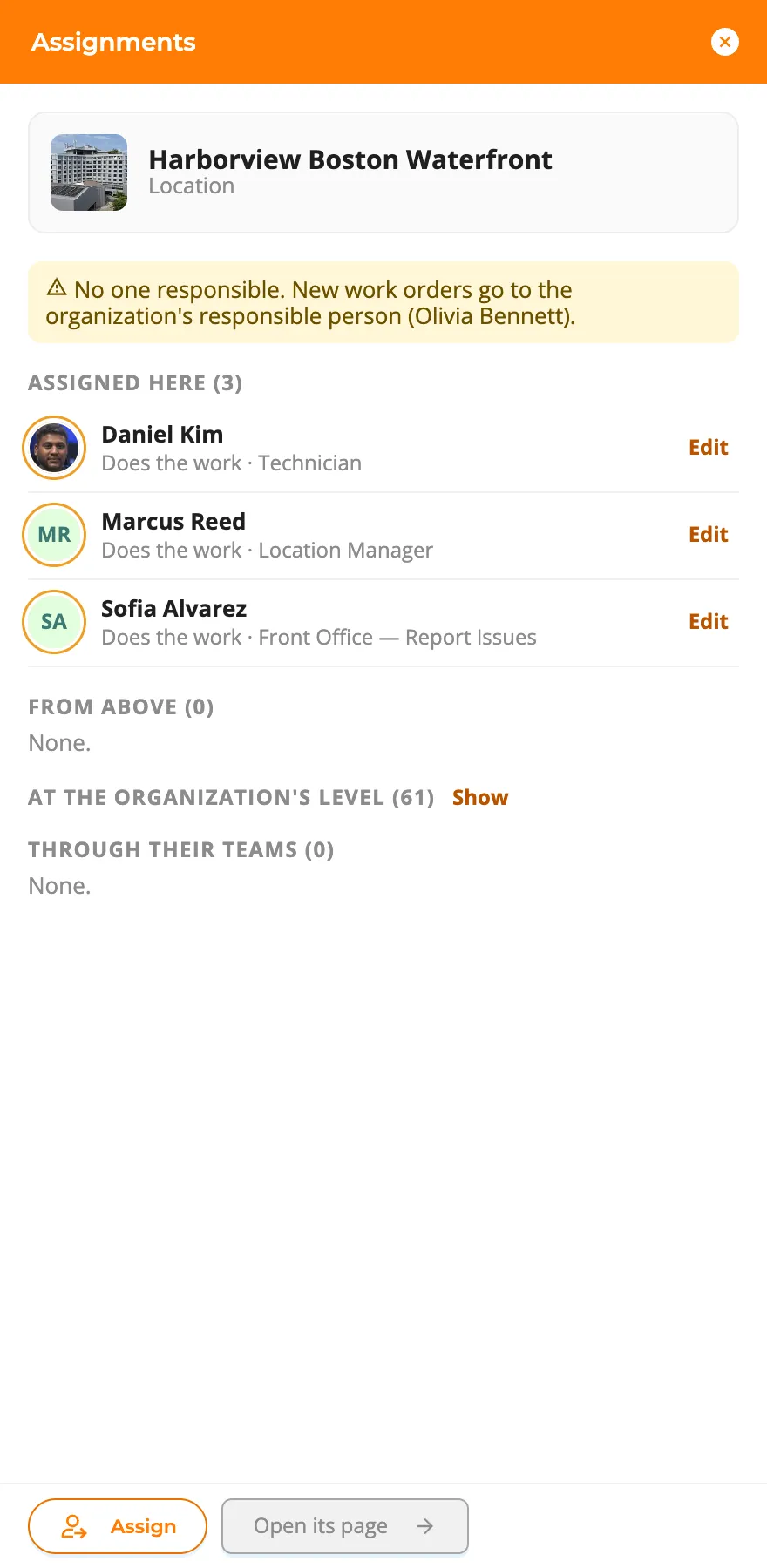
A place's drawer
Click a card to open its drawer:
- a warning when no one is responsible there;
- Assigned here with Edit on each, which opens the assignment's drawer;
- From above: the assignments of the levels above and the level each comes from;
- At the organization's level, folded (Show);
- Through their teams: the people reached through a team, with their permission in the team;
- Assign (the Assign window, this place chosen) and Open its page.
Drag to assign
In the tree, drag a person, team or Expert Organization from the list on the left onto a card. If they aren't assigned there, the Assign window opens with them chosen, at its settings step; if they are, the assignment's drawer opens. Integrations can't be dragged, and nothing is assigned on the organization's card itself (invite people there instead).
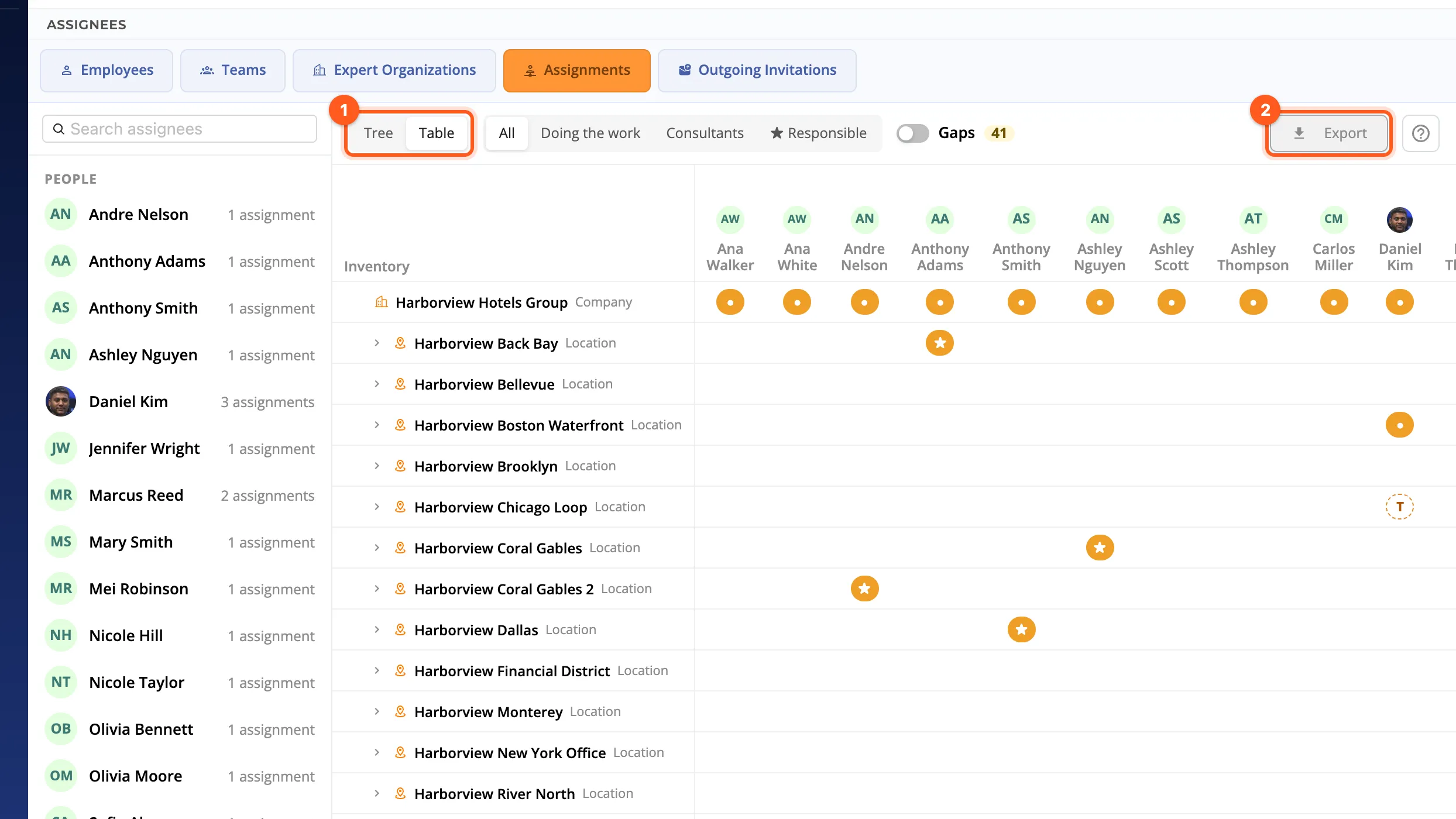
The table
Table shows the same thing as rows and columns: the open inventory down, the assignees across. A cell shows an assignment there (● Does the work, D Consultant, ★ Responsible, in its colour), ↓ one from above, T one through a team. Hover a cell to see the permission and where it comes from. Export saves the table as a CSV file for Excel.