Recurring work orders (planned maintenance)
For routine work — monthly chiller maintenance, the weekly generator test, the annual elevator inspection, the daily forklift pre-shift check — you don't open a work order every time. You define a recurring work order rule; kommuns creates the work order at the times you set, assigns it and sends the notifications.
Creating a rule
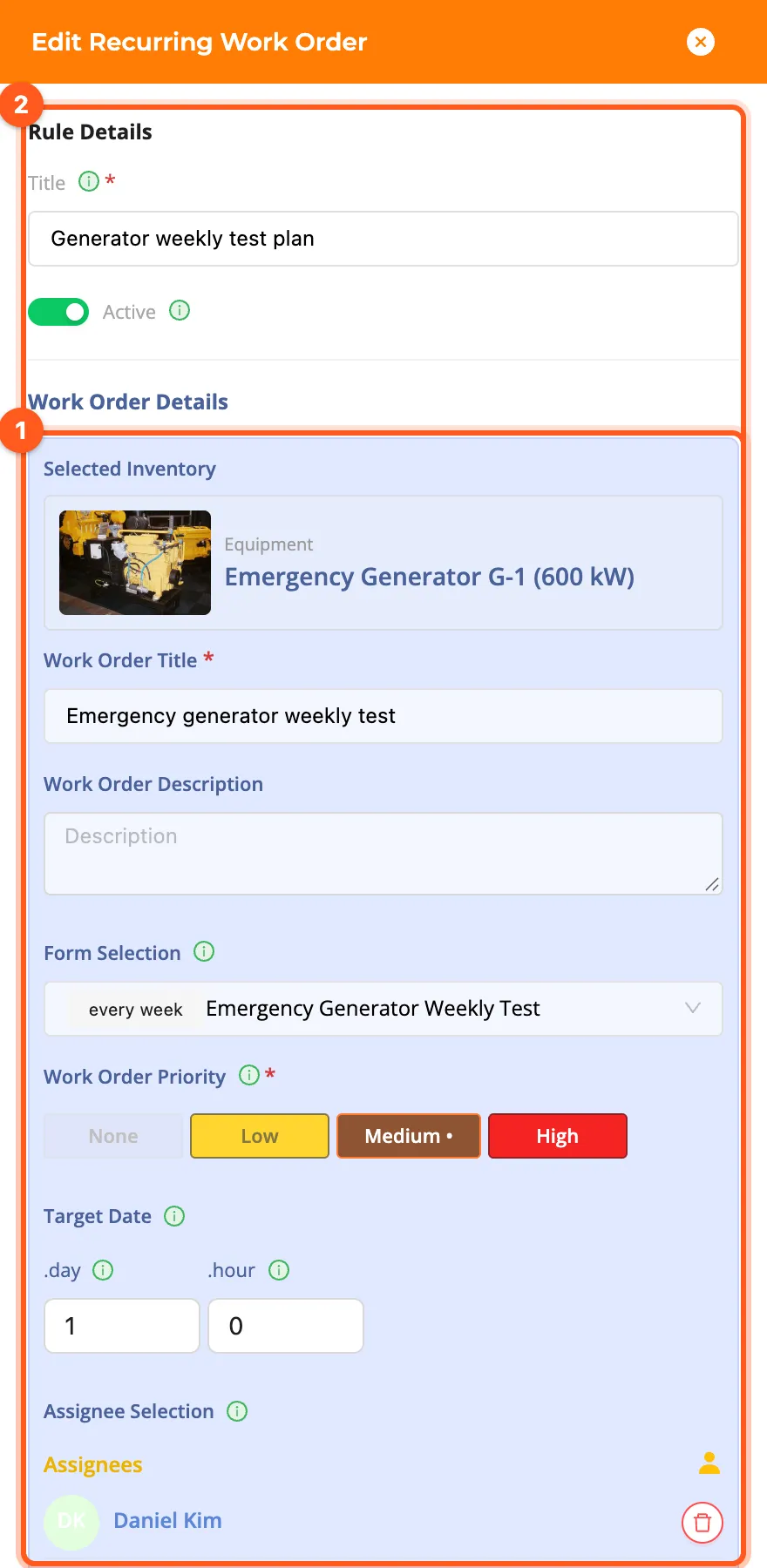
- Open the inventory the rule is for (e.g. Emergency Generator G-1) and click New on its Recurring Work Orders tab.
- Rule Details: give the rule a Title (e.g. Generator weekly test plan) and make sure it is Active.
- Work Order Details: the title, description, form and priority of the work orders to create.
- Target Date: how many days and hours after its creation the work order should be done.
- Choose who does the work (person, team or expert company) with Select Assignee, and if needed the reviewer with Select Consultant.
- Repeat Settings: choose the Period (table below), the Unit (every how many periods) and the Time. On the Date Range tab set the Repeat Start Date (and optionally an end date or a number of repeats). The times are in your organization's time zone (Organization details).
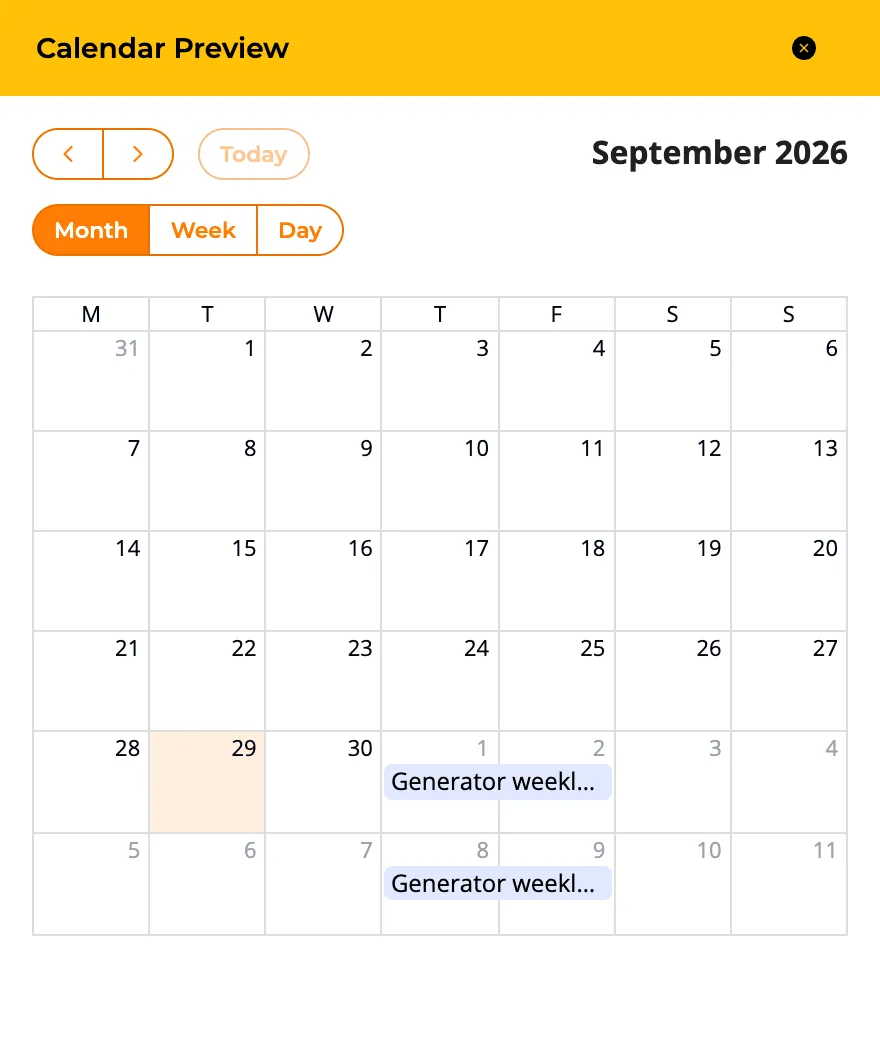
- Use Preview to see the work orders the rule will create on a calendar.
- Click Save.
Period options
| Period | Example |
|---|---|
| once a day | Forklift pre-shift check, every day at 5:45 AM |
| once a week | Emergency generator test, every week at 10:00 AM |
| once a month (Unit: 3 → every three months) | Chiller monthly maintenance; guest room preventive maintenance every three months |
| once a year | Elevator annual safety inspection |
| Every day at the selected times | Engineering rounds of the plant rooms, 8:00 AM and 4:00 PM |
| On the selected days and times of the week | Pool chemistry and pump check, Monday and Thursday 6:30 AM |
| On the selected days and times of the month | Fire pump churn test, the 1st and 15th of each month at 10:00 AM |
| On the last working day of the month, at the selected times | UPS monthly battery and alarm check |
| On the last day of the month, at the selected times | End-of-month meter readings, 5:00 PM |
Exceptions
In Exception Settings you define periods when no work order is created:
- Excluded Date Ranges: a description and a date range (e.g. Holiday freeze, Dec 24 – Jan 1).
- Company Calendar Entries: holidays and shutdowns you defined in the company calendar.
A work order whose creation time falls into an exception is not created.
Where do I see the rules?
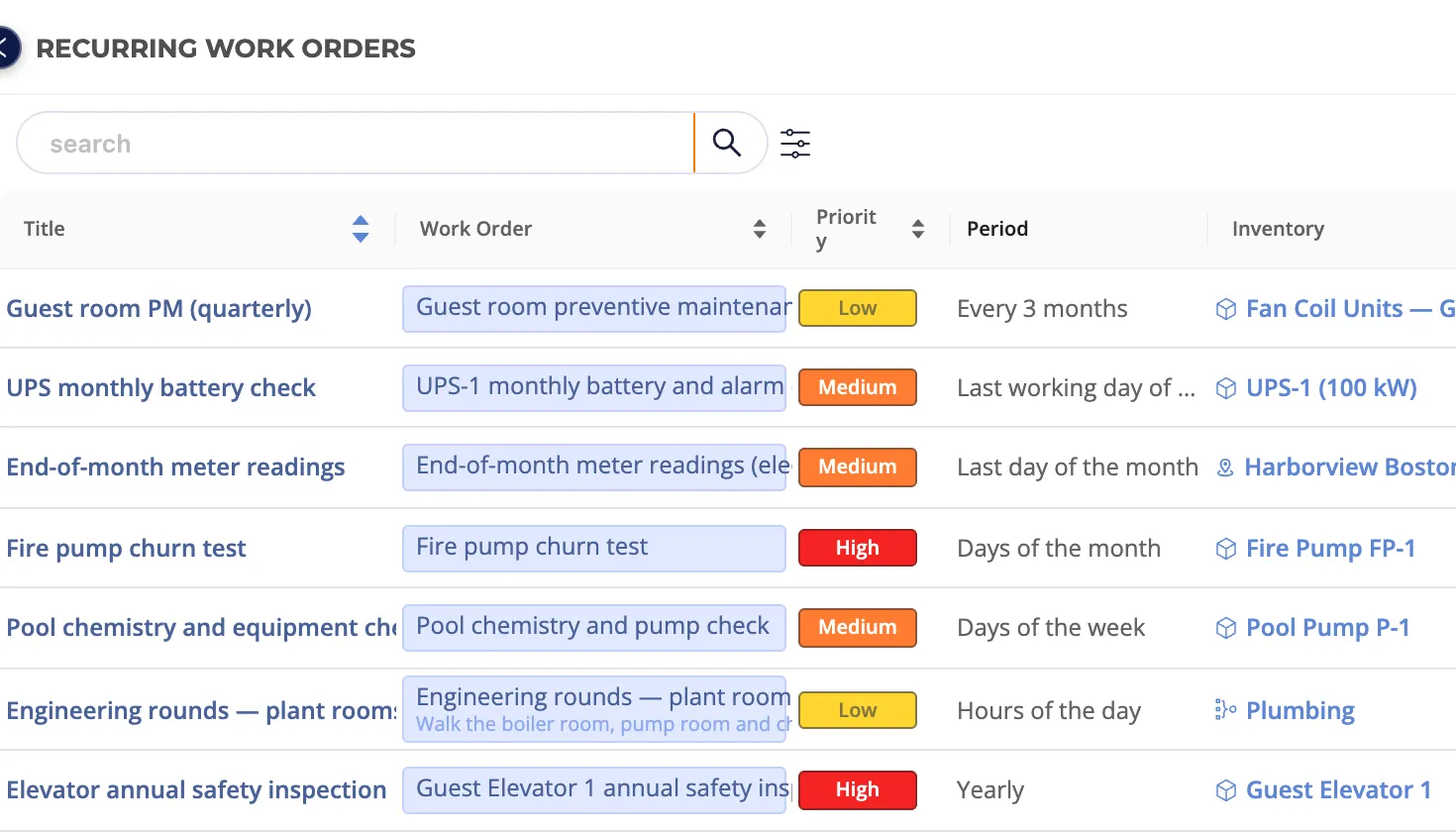
- Work Orders › Recurring: all rules of the organization with their period, inventory, Next Run and form.
- The Recurring Work Orders tab of inventory pages: the rules of that inventory and everything below it.
- From a form: the recurring work order icon in the Forms list opens the rules that use the form (see the form lifecycle).
Work orders created by a rule are listed and worked on like any other. To pause a rule, turn off Active; to delete it, use Delete in its edit panel (work orders already created are kept).