List, calendar and kanban views
Every work order list in kommuns can also be shown as a calendar, and the full-page tables also as a kanban board. The calendar works in Work Orders › Company, the Work Orders tab of locations, systems and equipment, the Incoming Work Orders of an expert company and the My Work Orders card on Home. The calendar places each work order on its target date, so you see at a glance which days are busy and what is overdue.
Switching views
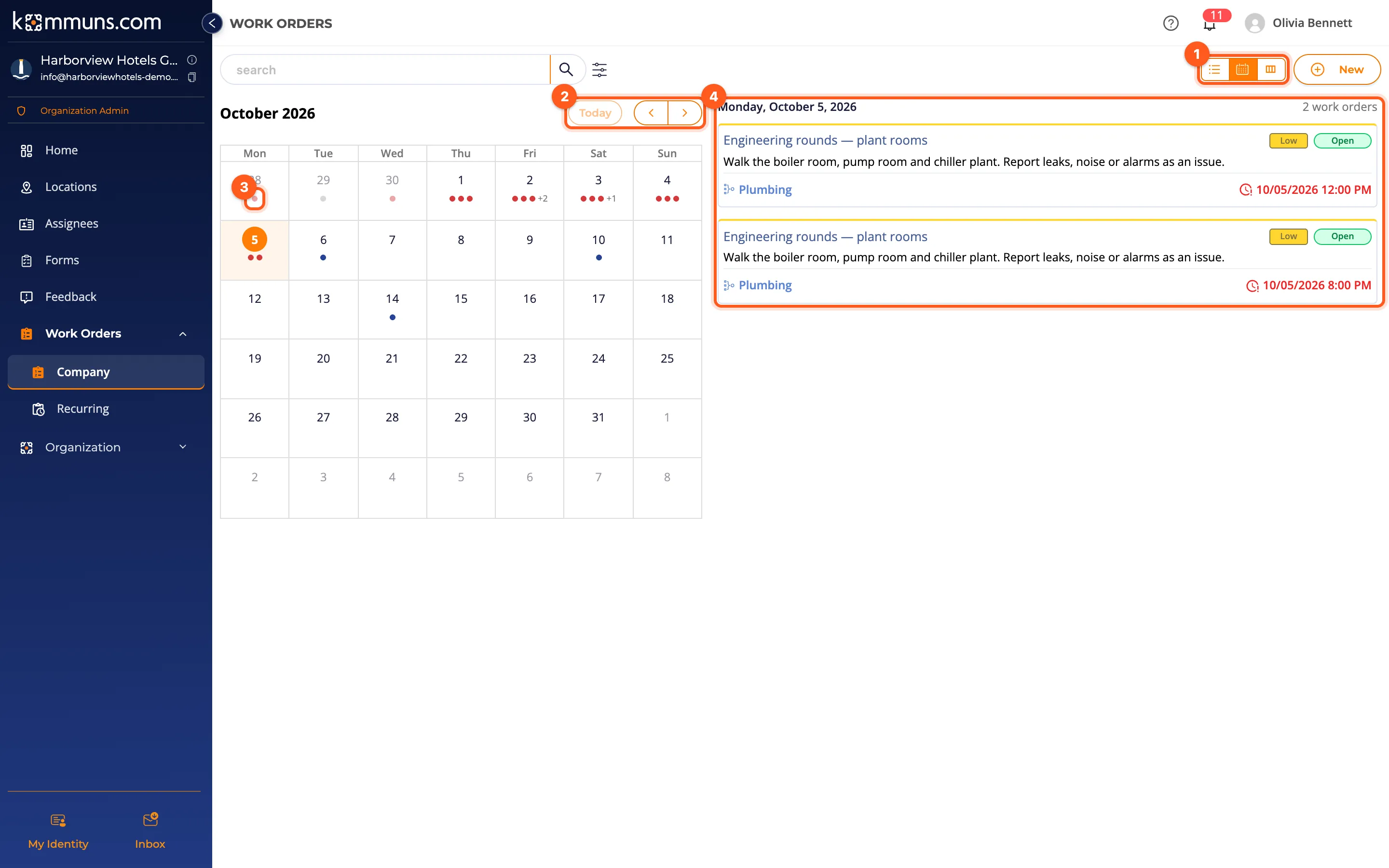
- In a table (Work Orders › Company, the inventory tabs, a person's work orders, Incoming Work Orders): the three buttons to the left of New — List, Calendar and Kanban. The one in use is orange.
- On a Home card (My Work Orders, and Incoming Work Orders for expert companies): the round calendar button next to the refresh button switches between the list and the calendar.
Each list remembers its view on your browser: a list you left in calendar mode opens in calendar mode next time.
Reading the calendar
- The buttons next to New switch to the list or the kanban board.
- Today jumps to the current month; the arrows move between months.
- Each day shows up to three dots, one per work order. A red dot is an overdue work order; the others have the priority color. Today is highlighted.
- Click a day to list its work orders on the right with their priority, status, inventory and target date; on a wide screen they fill several columns. Click a work order to open its panel, as in the list. On a phone the list is under the calendar.
The calendar shows the same work orders as the list: the search box and the filters apply to both.
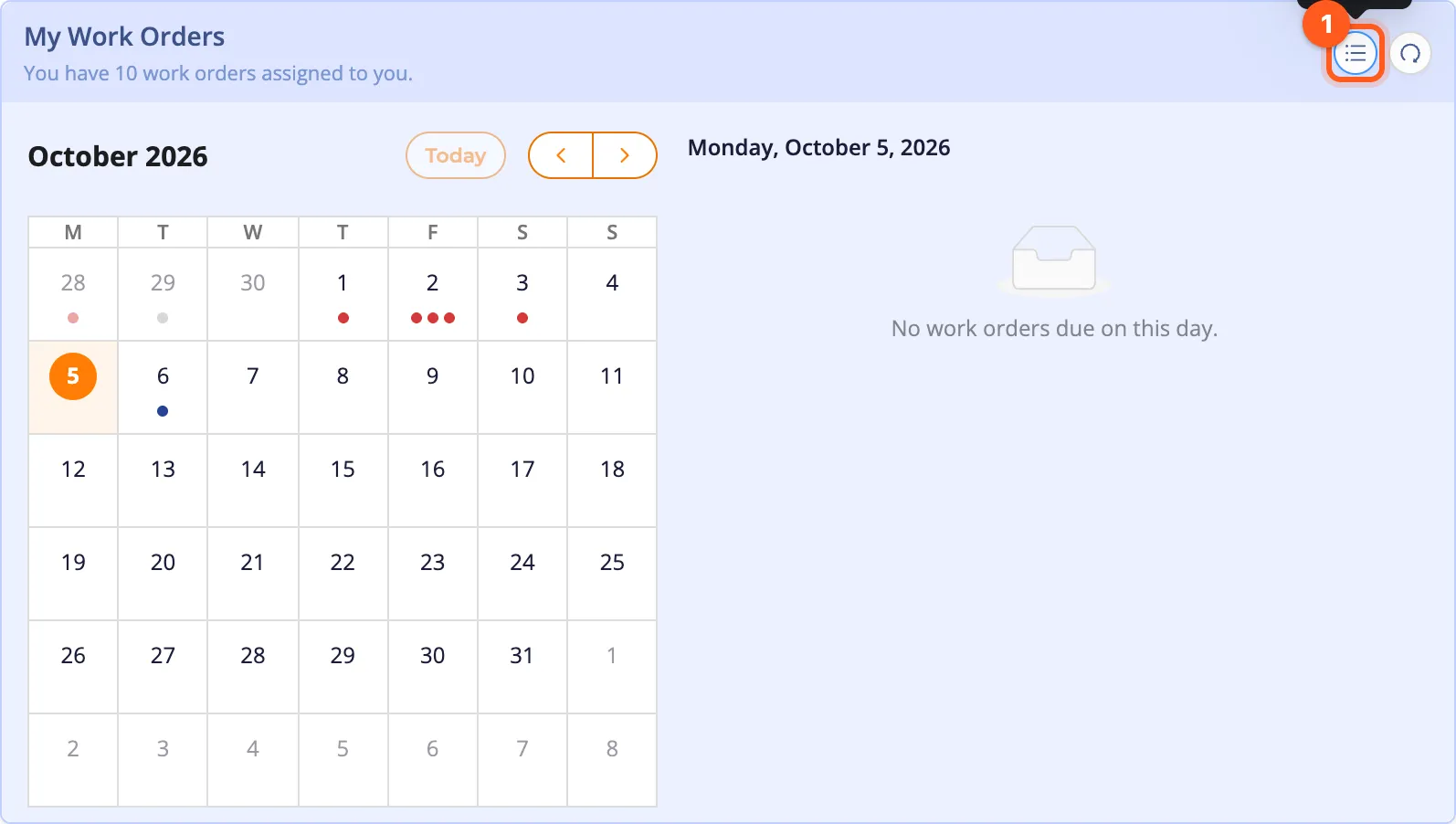
Use the calendar of Work Orders › Company in the Monday meeting: overdue days stand out in red, and a click on a day shows who is doing what. For work that repeats, the calendar of a recurring work order rule (Preview) shows the future dates.