Doing the work
This page is for the person a work order is assigned to (technician, field staff, an expert company's employee).
1. Open the work order
Your work orders are in Home › My Work Orders; when one is assigned to you, a notification also arrives in your Inbox and by e-mail. Click the work order to open its panel on the right.
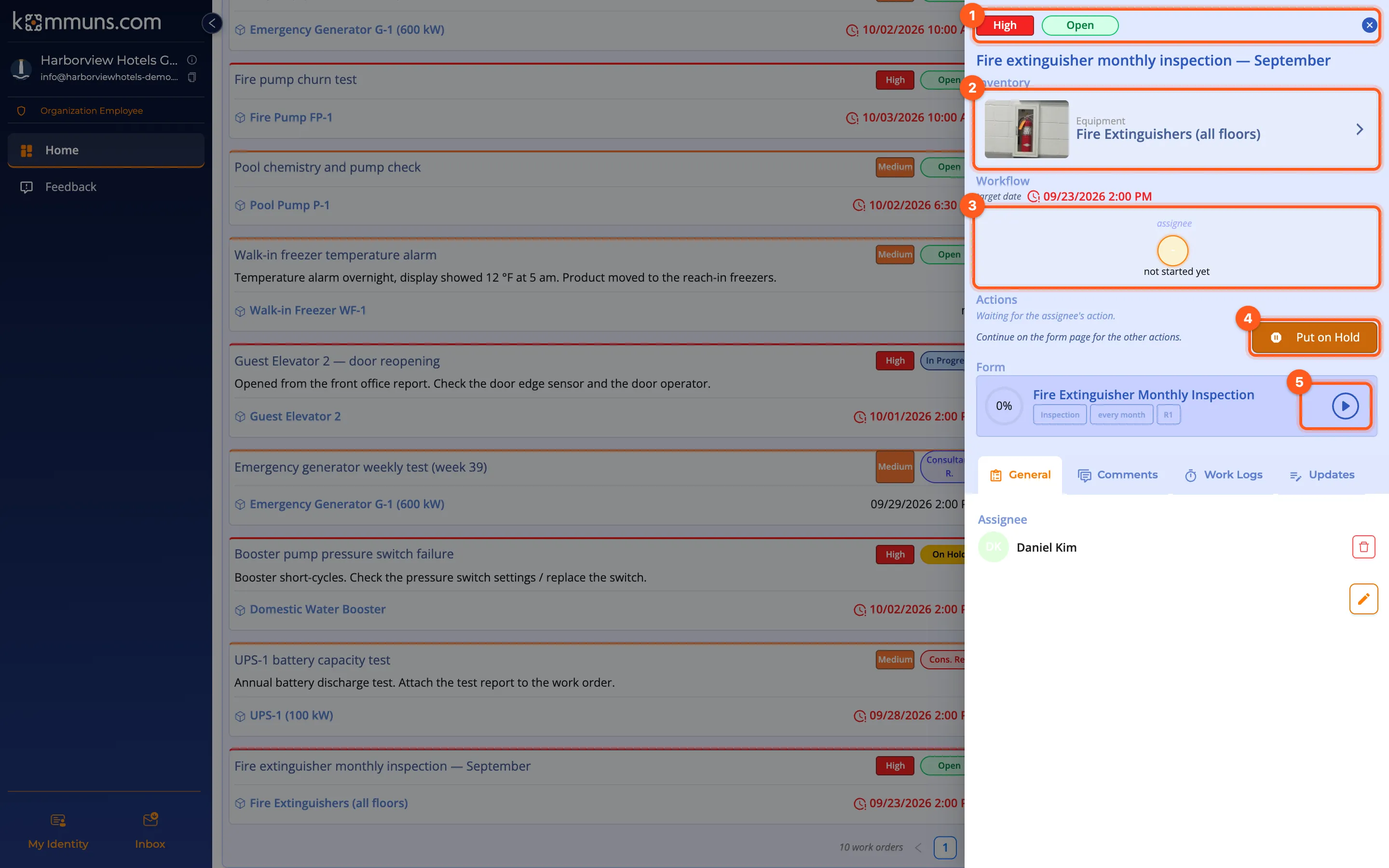
- Priority and status
- Inventory: the location, system or equipment where the work is done. Click it to open the inventory's page.
- Workflow: the target date, the assignees and (if any) the consultant.
- Actions: what you can do now, e.g. Put on Hold.
- Form: the attached form and how much of it is filled in. The ▶ icon opens the form page.
The tabs at the bottom of the panel: General (assignees, linked feedback), Comments, Work Logs (who worked how long) and Updates (the work order's history).
2. Fill in the form
- Click ▶ on the form card. A preview of the form opens.
- Click Start Working. The form page opens and a timer starts; the time you spend is added to the work order's work logs.
- Answer the questions. The ⓘ icon next to a question shows the instructions of the form's author. Use the comment icon under a question to add a note to an answer.
- If you need a break, click Pause. Your answers are saved and the work order becomes In Progress. You continue where you left off later.
- When you are done, click Completed and choose Yes, complete in the confirmation.
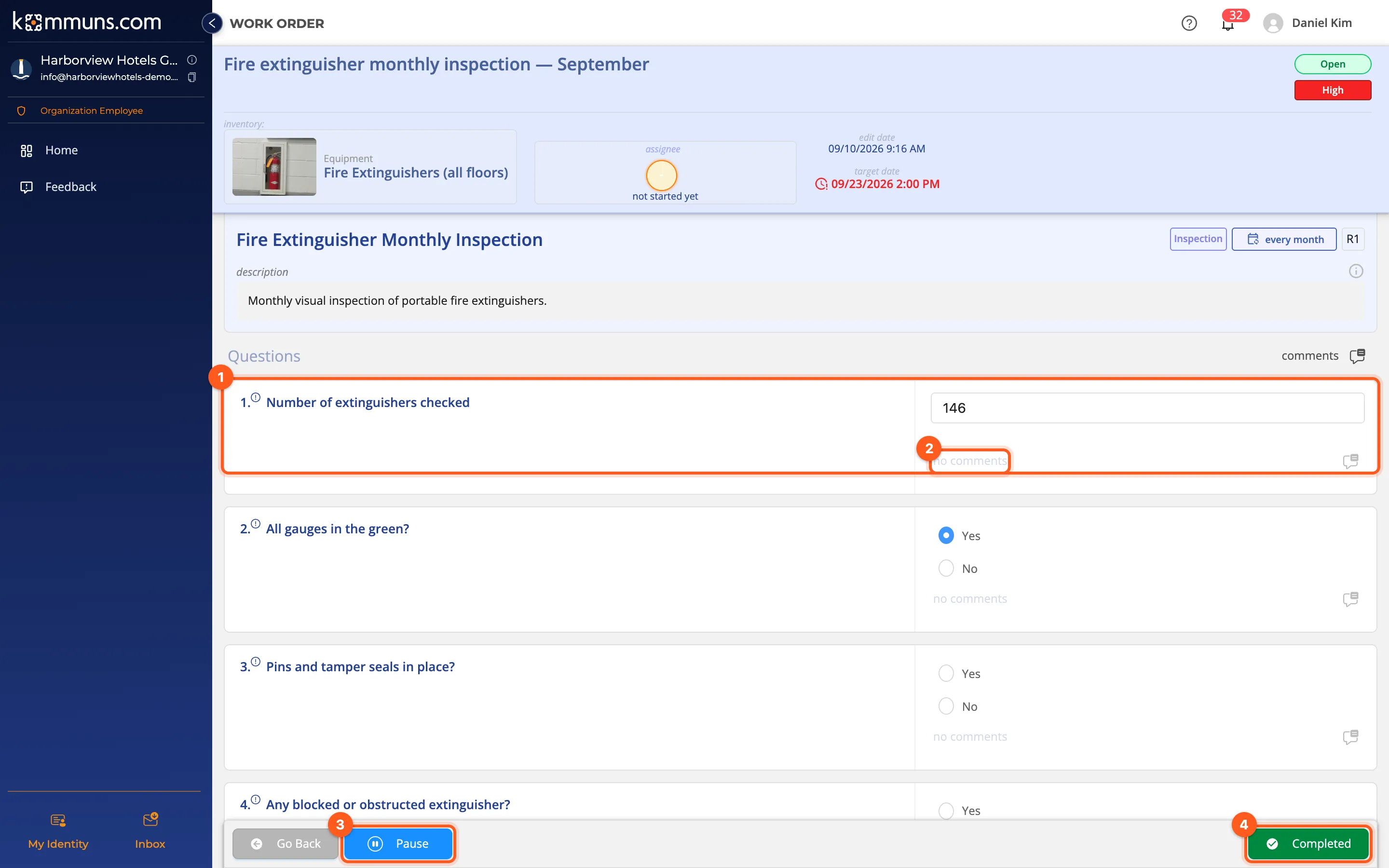
A work order can not be completed until the questions its author marked as required are answered; the warning says which one is missing. Optional questions can be left empty.
If the work order has no form, the Completed button is right in the Actions section of the panel.
What happens after completion?
- Without a consultant, the work order becomes Completed.
- With a consultant, it goes to Consultant review and waits for approval. If the consultant sends it back, it becomes Consultant rejected; you correct the form and complete it again. See Review and approval.
Comments and files
- To add a note to the work order as a whole, use the Comments tab of the panel. The other assignees are notified.
- For a note on one question, use that question's comment icon on the form page.
Putting the work on hold
If you can't continue because you are waiting for a spare part, an access permit or other work:
- Click Put on Hold in the work order panel.
- Write why (e.g. Pressure switch is faulty. Part ordered, delivery in 3 business days.) and attach files if needed.
- Save. The work order becomes On Hold and the reason is shown under Hold Records in the panel.
When the obstacle is gone, a manager clicks Mark as resolved on the hold record; the work order returns to its previous status and you carry on.