The kanban board
The kanban view shows a work order list as a board: one column per status, one card per work order. You see at a glance what is waiting, what is being worked on and what is stuck, and you change a work order's status by dragging its card to another column.
Opening the board
Full-page work order tables have three buttons to the left of New: List, Calendar and Kanban (→ List, calendar and kanban views). They are in Work Orders › Company, the Work Orders tab of locations, systems and equipment, a person's work orders and Incoming Work Orders. Each table remembers its view in your browser.
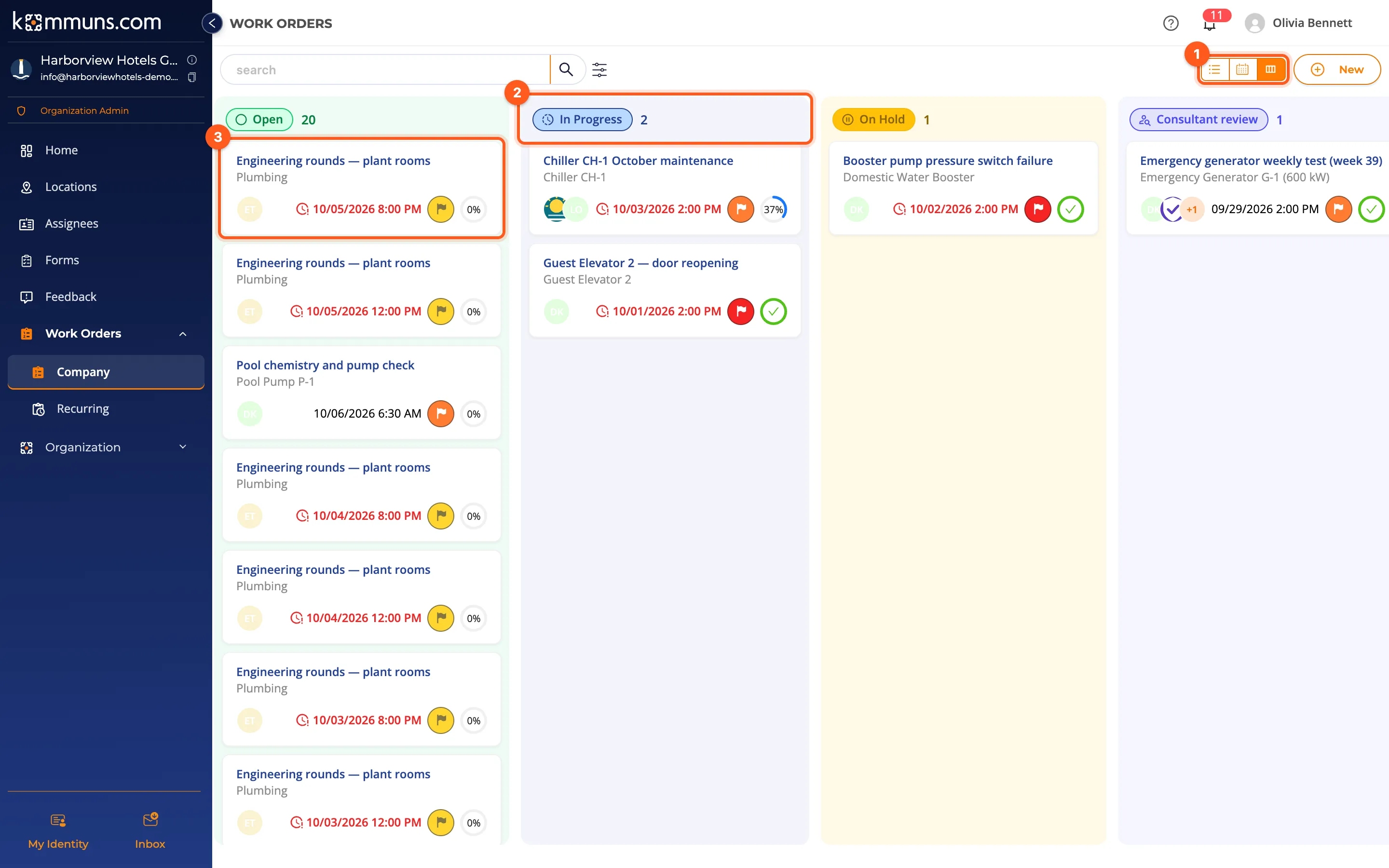
Columns and cards
- The buttons switch between the list, the calendar and the board.
- Each column is a status in its color: Open, In Progress, On Hold, Consultant review, Completed, Cancelled. Consultant rejected and Waiting for sub work orders appear only when they have work orders. The number next to the status is how many work orders it has; a column shows 20 and loads the rest with More.
- A card shows the work order's title and inventory and, on its last line, the assignees, the target date (red with a clock when overdue), the priority (a flag in its color) and the progress of the form.
Click a card to open the work order's panel, as in the list. The search box and the filters apply to the board too. The board fills the window; a long column scrolls on its own.
Moving a card
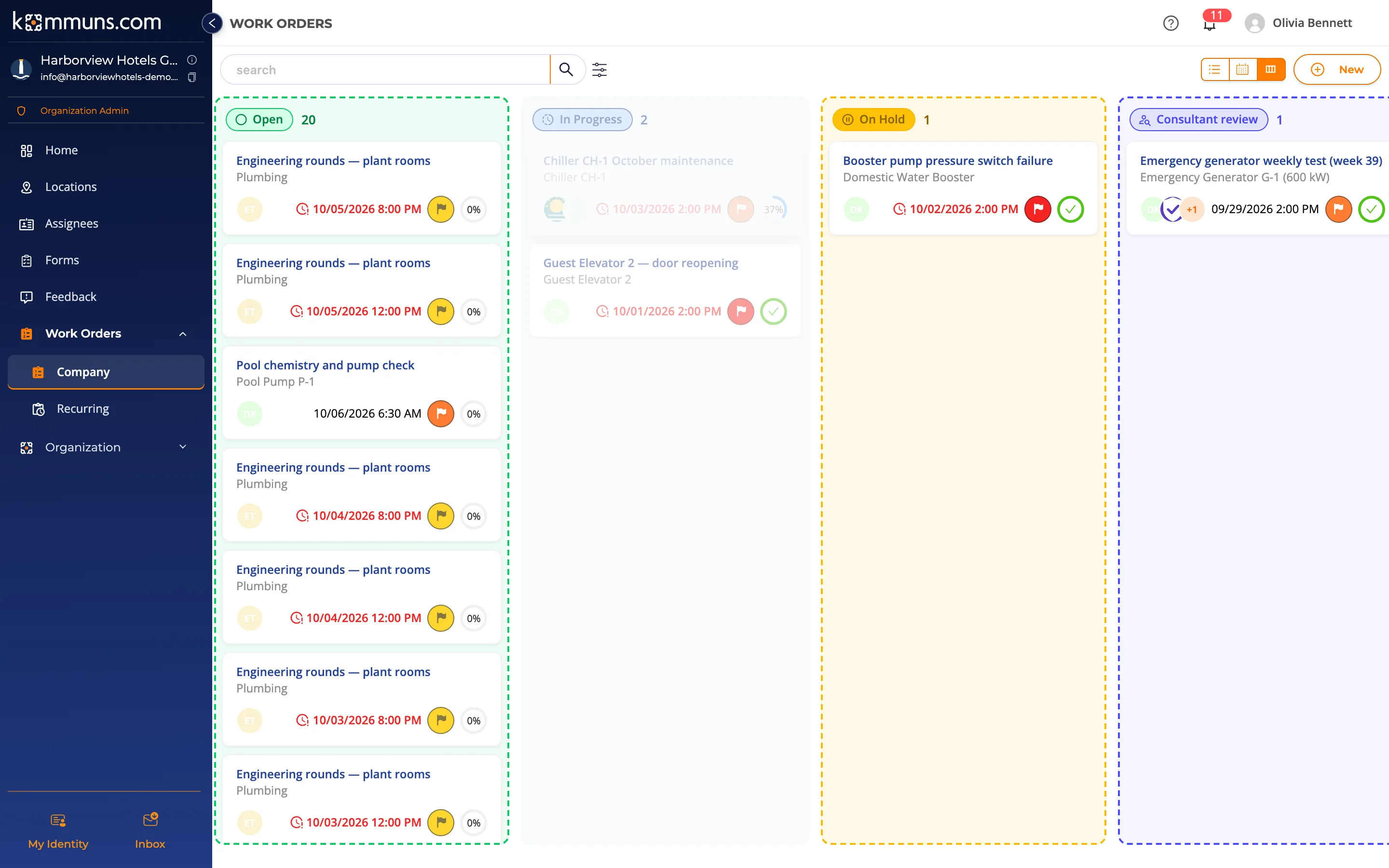
Hold a card and drag it: the columns it may go to get a dashed outline in their color, the others fade. Drop it on one of them and the window of that step opens. The card moves only after you save; if you close the window or the save fails, it stays where it was.
| Move | What it asks | Who can do it |
|---|---|---|
| Open → In Progress | Start work (a confirmation) | The work order's assignees |
| → On Hold | Put on Hold: a reason, files can be added | The assignees and the consultant |
| On Hold → Open or In Progress | Resume; the work order returns to the status it had before | People with the Edit right on work orders |
| → Cancelled | Cancel It: a cancellation reason | People with the Cancelling right on work orders |
| → Completed, without a form | Completed (a confirmation) | The assignees |
| → Completed, with a form | The form page opens; the card moves when the form is sent | The assignees |
| Consultant review → Completed or Consultant rejected | The consultant's review (or the form page) | The consultant |
A work order with a consultant goes to Consultant review when it is completed, not straight to Completed: its card moves to the column of the status it really gets. If a move is not allowed for you, kommuns says "You don't have permission for this." and the card stays.
Moving to any status
People with the Edit right on Work orders for the inventory (for example an Organization Manager → Permission definitions) can drag a work order to any status, also out of Completed or Cancelled to reopen it. When there is no ordinary step for the move, the Change status window opens:
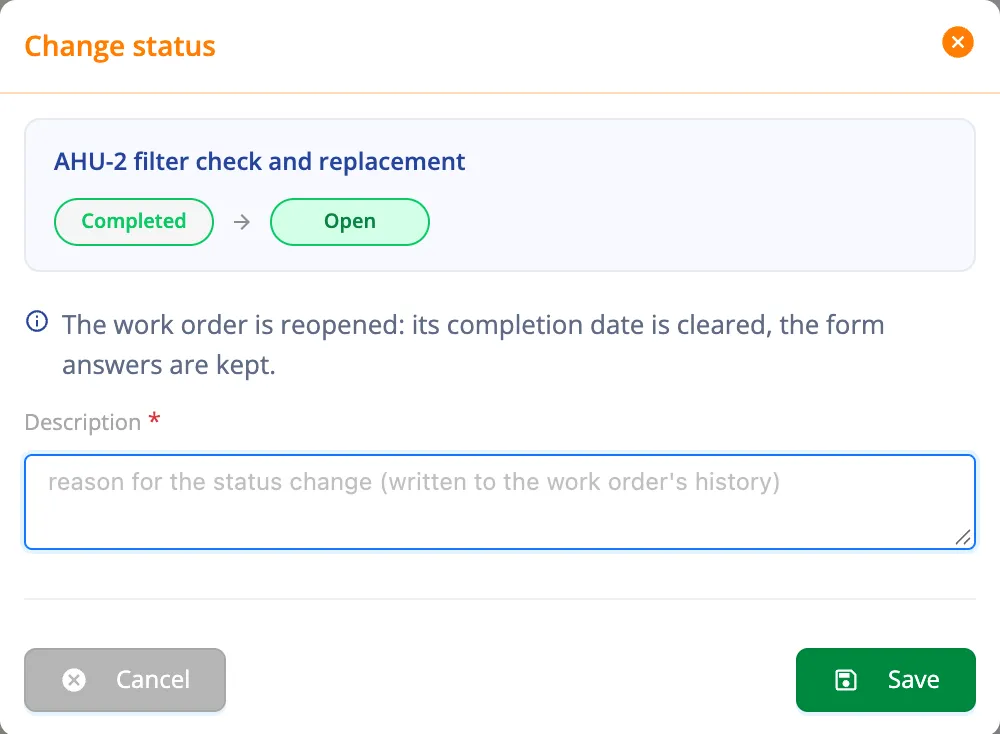
- A reason is required, except between Open and In Progress. It is written to the work order's history (Updates tab, with the old and the new status) and the assignees get a status notification.
- Reopening (out of Completed or Cancelled) clears the completion date; answers already given to the form are kept.
- Completed this way closes the work without filling in the form. A work order with a consultant goes to Consultant review first; from there it can be moved to Completed too.
- Consultant rejected this way stands in for the consultant's review: the work counts as not completed.
- Waiting for sub work orders is set by kommuns only; it is never a target.
The board stays up to date
You don't need to reload the page. When someone else creates, edits or moves a work order, its card changes or moves to its new column within a couple of seconds, and a new work order appears at the top of its column (→ The app updates itself).
Cards can't be dragged on touch screens. Tap a card to open the work order and use its buttons (Start, Put on Hold, Cancel …) as usual.