Scoring
A form with scoring on gets a green, yellow or red result when it is completed. Managers, customers and consultants see how a check went without reading every answer; Form statistics lists the inventory that often comes out yellow or red.
The answers decide the result: the options' points are added up and the share of the most points is compared with the form's thresholds; some questions can make the form yellow or red on their own. The consultant's review (a person's decision) stays separate.
Steps
- Open the draft form on Edit Form and turn on Scoring in Form settings.
- Enter the Green threshold (e.g. 80 % and above) and, if you like, the Yellow one (e.g. 50 % and above). Below that is red; without a yellow threshold, below green is red.
- Open each choice question and enter the points of its options (0 or a positive whole number; empty counts as 0).
- If one answer should colour the form on its own, enter the question's Red limit or Yellow limit (below).
- On number questions with an expected range, choose the Value outside the range: Makes the form yellow, Makes the form red or Only marked.
- Try the result with Try in a question and Simulation in the top bar.
- Publish the form. The publish check also checks the thresholds and limits.
The scoring settings are part of the form: on a published form they change only with a new revision.
How the points are counted
- Only single and multiple choice questions give points. Number and text questions are not added up (a number question can only affect the form with a value out of range).
- Single choice: the chosen option's points. The question's most is its best option's.
- Multiple choice: the chosen options' points added up. The most is all its options together; with Most choices, the best that many options.
- An optional question left empty is left out: neither its points nor its most count.
- The share = points / most points. At or above the green threshold the form is green, at or above the yellow one yellow, below that red.
Example: Harborview's Boiler Room Weekly Round has three choice questions.
| Question | Points | Limit |
|---|---|---|
| Burner flame normal? | Yes 10 · No 0 | – |
| Any leaks? | No 10 · Yes 0 | Yellow limit: at least 10 |
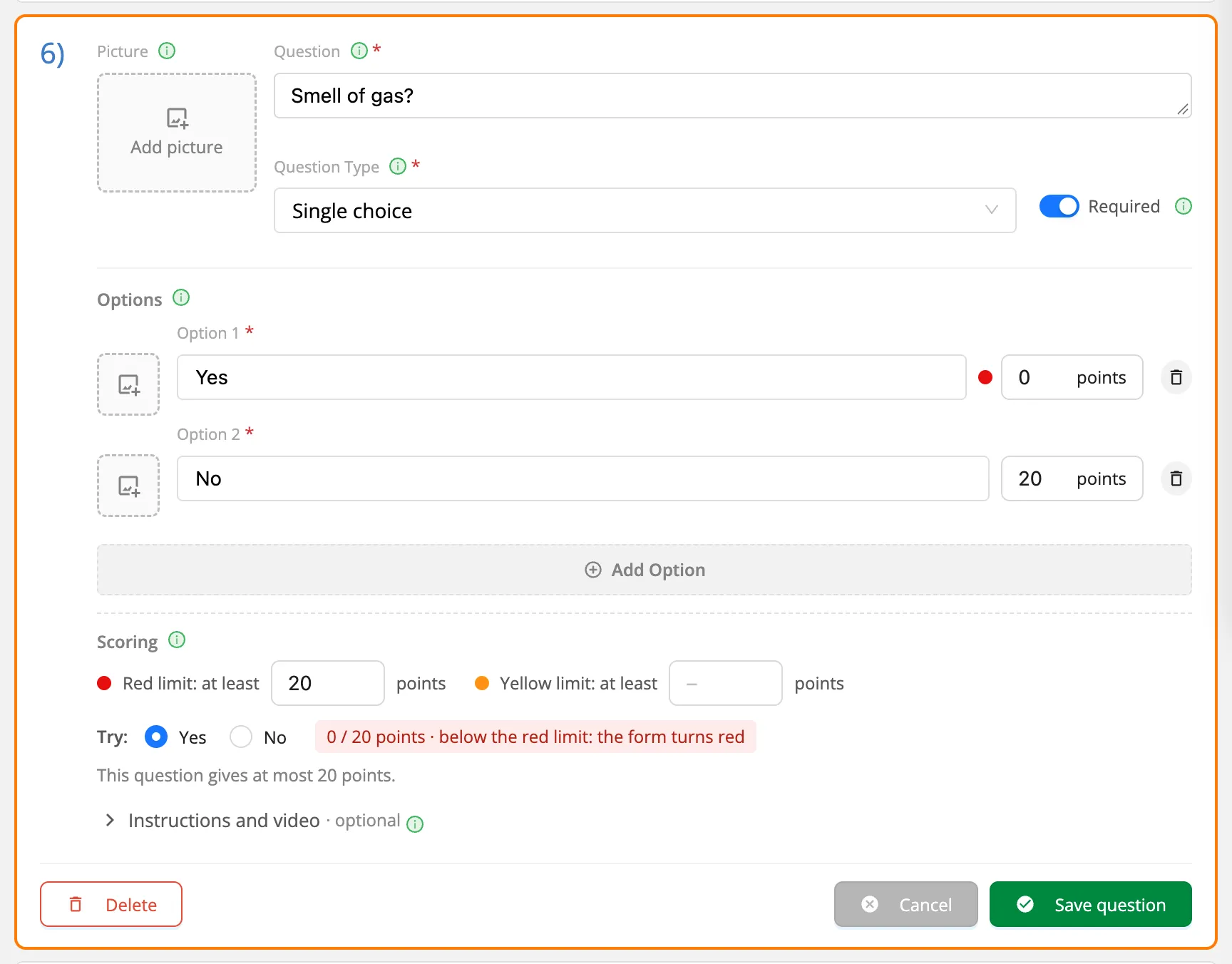
| Smell of gas? | No 20 · Yes 0 | Red limit: at least 20 |
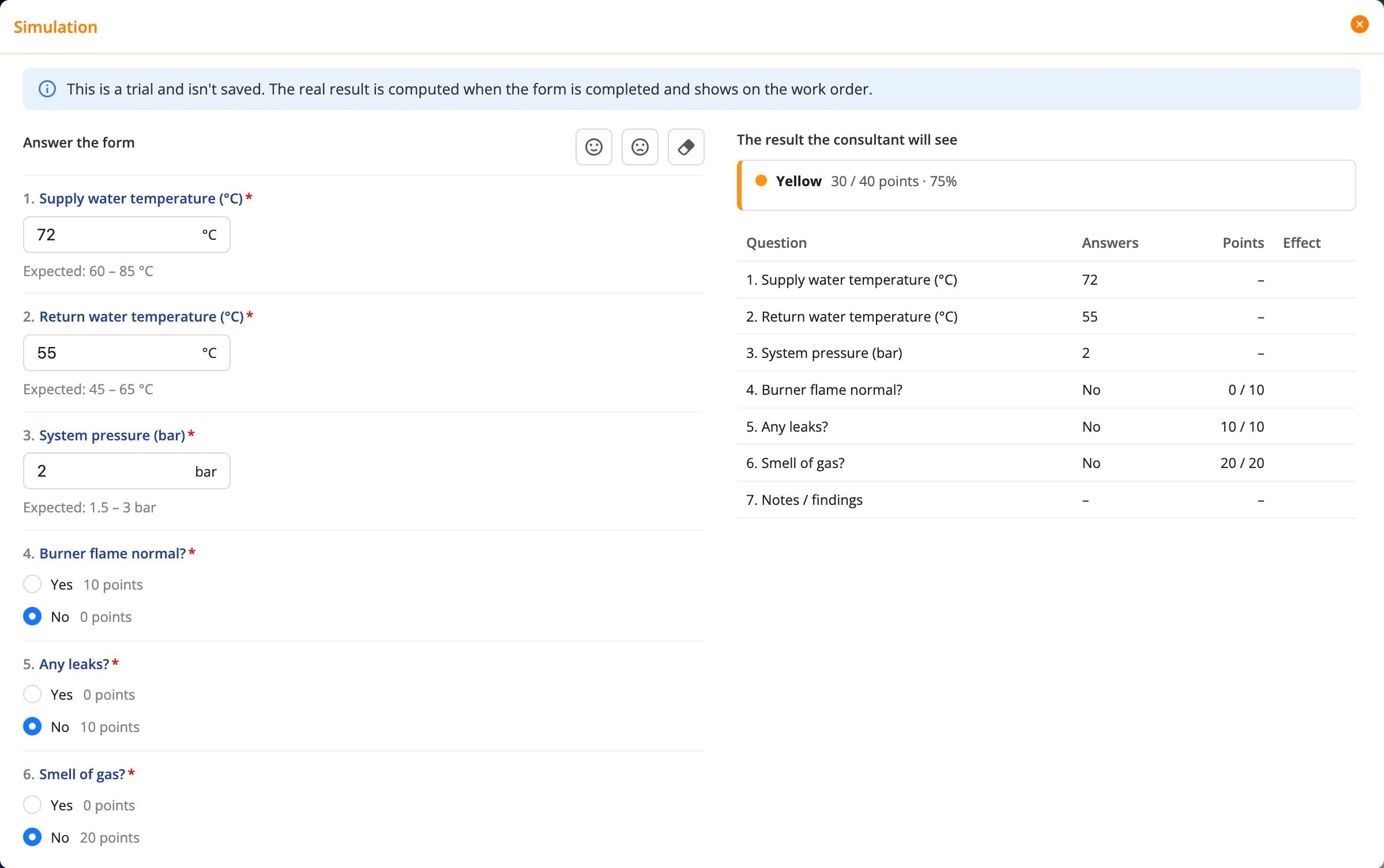
The most is 40 points. If the flame isn't normal and there is no leak and no smell of gas, the form gets 30 / 40 = 75%: yellow, as the green threshold is 80%. With a smell of gas the form is red whatever its share.
Question limits
On a choice question, the Scoring part of the open card has two limits:
| Limit | Meaning |
|---|---|
| Red limit: at least n points | Fewer than n points on this question make the form red. |
| Yellow limit: at least n points | Fewer than n points on this question make the form at best yellow. |
Options below a limit get a red or yellow dot beside them; under the card it says how many points the question gives at most. An optional question left empty doesn't trigger its limits.
On a number question, Value outside the range decides what an answer outside the expected range does: it makes the form yellow or red; left empty, the value is only marked.
The result is the worst of the share's colour and the limits triggered. Each question that coloured the form is kept as a reason of the result (Any leaks? — Yes: 0 points (limit 10)).
Try and Simulation
You can try the result before publishing; neither saves anything.
- Try: on an open choice question's card, choose an answer; the card says its points and what the limits do (0 / 20 points · below the red limit: the form turns red).
- Simulation: the flask icon in the top bar (while scoring is on). On the left you answer the form as the person filling it in would; on the right is The result the consultant will see: the colour, the points, the share and each question's Effect. The Best answers and Worst answers icons fill in the form at once, Clear removes the answers. Required questions left empty are marked "the form can't be completed like this".
Checked when publishing
| Case | Result |
|---|---|
| Scoring is on but the Green threshold is empty | Can't be published |
| The Yellow threshold is above green | Can't be published (the settings panel says so too and doesn't save the value) |
| A question's limit is above the most points the question can give | Can't be published: the form would always get that colour |
| An option without points | Warning (counted as 0) |
| A limit on an optional question | Warning (left empty, the question doesn't trigger it) |
| No choice question to give points | Warning |
Where the result shows
The result is computed once, when the form is completed, and stored. Changing the thresholds later (with a new revision) doesn't repaint older records.
- The form page: the person who completed the form and everyone who opens the work order see the colour, points and share in FORM RESULT; Why? lists the questions that coloured the form.
- The work order panel: the same result on the form card.
- The consultant's review: while reviewing, the consultant sees the result above the Work Order Review; their own review's colour isn't preselected from it.
- Work order lists and Kanban: a coloured dot on the corner of the progress ring.
- Form statistics: the bar's Scoring button opens a panel with the summary, results by week, the questions losing points, the inventory needing attention and the consultant's evaluation. See Form statistics.

The score's colour is computed from the answers; the consultant's review (green / amber / red) is a person's decision. The two are shown side by side and neither changes the other.