Questions and question settings
A form's questions are on the Edit Form page, in the list in the middle. This page explains how questions are added and the settings of each question type. To create the form itself, see Creating forms.
Adding a question
- In Forms, click the pencil icon (Edit) on the draft form's row; Edit Form opens.
- Click Add question under the list. The question card opens.
- Write the Question and choose the Question Type. Turn on Required if the form can't be completed without an answer.
- For a choice question, enter the options (Add Option); for a number or text question, fill in the question settings.
- Optionally add a picture and open Instructions and video to write guidance.
- Click Save question. Beside the card, the question's phone view changes as you type.
Question types
| Question type | When? | Example |
|---|---|---|
| Single choice | One option is chosen | Burner flame normal? Yes / No |
| Multiple choice | Several options can be chosen | Work performed: Filter drier replaced, Oil added, Refrigerant added… |
| Whole number | Counts | Number of extinguishers checked |
| Decimal number | Readings | System pressure (bar), Battery voltage (V) |
| Text | Notes, findings, serial numbers | Notes / findings |
If you change a saved choice question to a type without options (number, text), the card tells you how many options will be deleted when you save. Switching between single and multiple choice keeps the options.
Question settings
They are all optional and appear on the card by question type.
| Question type | Setting | What it does |
|---|---|---|
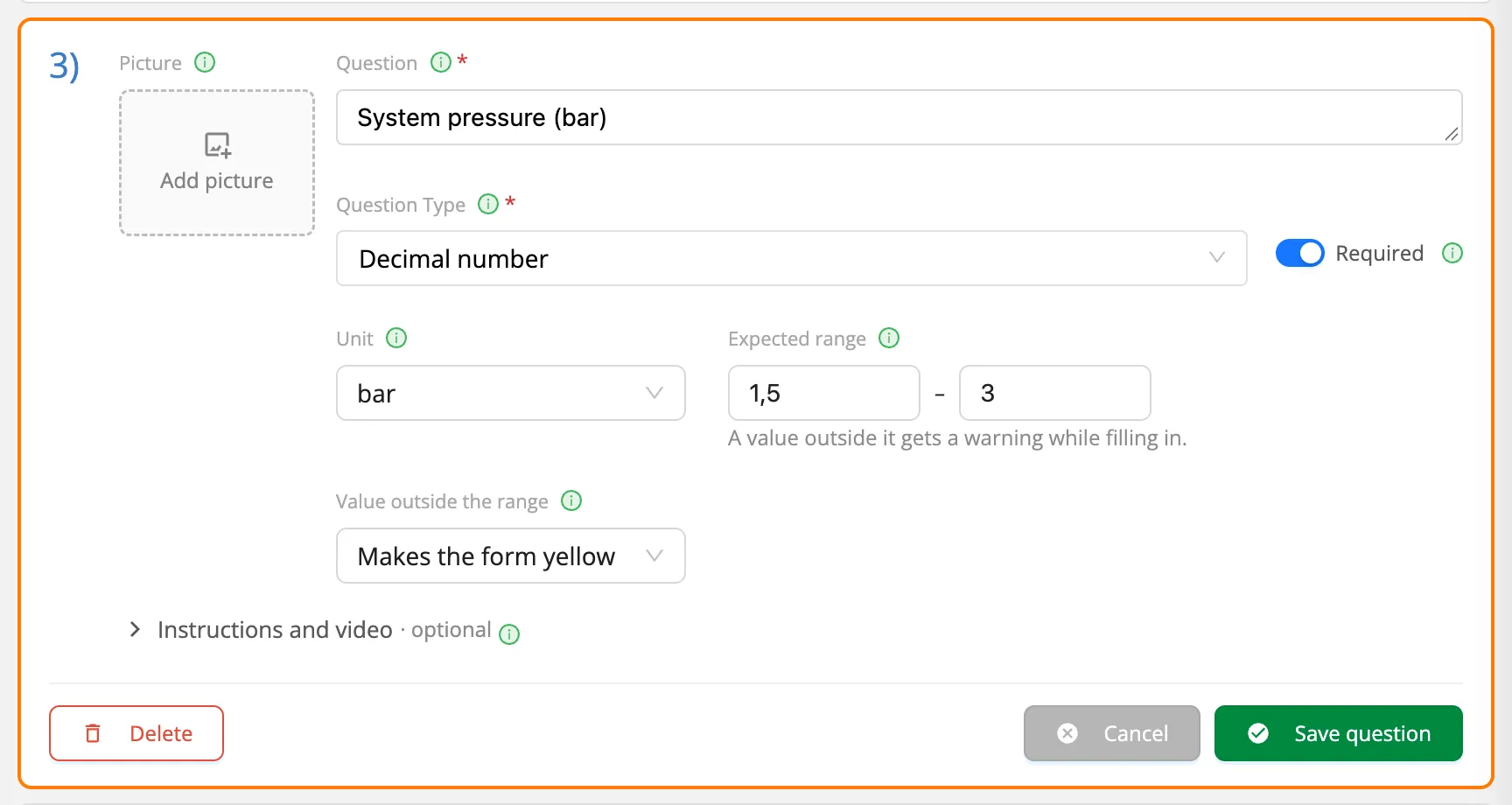
| Whole number, decimal number | Unit | The answer's unit (bar, °F, kWh …). Shown next to the field when filling in, and next to the values in the statistics and the CSV. Empty: No unit. |
| Whole number, decimal number | Expected range | The values considered normal (at least – at most; one end can be empty). A value outside it warns when filling in but is saved; it is marked on the work order and in the statistics. |
| Whole number, decimal number | Value outside the range | Only while scoring is on: an answer out of range Makes the form yellow, Makes the form red, or is Only marked. See Scoring. |
| Text | Answers | Short (one line) for short answers like a serial number; Long for a note of a few lines (the default). |
| Text | Placeholder | A hint shown in the empty answer field (e.g. Enter the serial number). |
| Multiple choice | Least choices, Most choices | How many options can be chosen. When filling in it says e.g. "Choose 1 to 3 options". |
What the person filling in the form sees:
- The unit next to a number field, Expected: 1.5 – 3 bar under it, and Outside the expected range (1.5 – 3 bar). for a value out of range. The value is saved anyway.
- For multiple choice, the most is checked on every save, the least only when the form is completed. Someone who takes a break with Pause keeps a half-made choice.
A question with a Unit shows it next to the answer. Older forms that have the unit in the question's name (System pressure (bar)) can use both.
Options
On a choice question each option is a line: its picture on the left, its name in the middle and, while scoring is on, its points on the right. Options are shown in this order; the bin at the end of the line deletes an option. Before publishing, every choice question needs at least two options with a name.
Pictures
A question and each option can have a picture. The question's picture comes before the question (on the left of the card, on top when filling in); an option's picture is left of its name.
- Click the box to choose a picture, drag and drop it on the box, or copy and paste it.
- Large photos are scaled down in the browser before uploading (at most 2048 pixels on the long edge); details like the location are removed from the photo. The upload shows its progress; on an error, Try again.
- A portrait photo gets the note "Portrait picture: its top and bottom are cut on the phone."; the phone view beside the questions crops it the way the phone will.
- JPEG, PNG, WebP and HEIC can be added; SVG can't, and a picture can't be larger than 25 MB.
Chrome can't open HEIC files: if it says "This browser can't open this picture", save the photo as JPEG and add it (on the iPhone Settings › Camera › Formats › Most Compatible). Safari opens HEIC.
Instructions and video
In Instructions and video (optional) at the bottom of the card you add guidance for answering and a Video Guide link. The person filling in the form sees the guidance with the ⓘ next to the question and opens the video from the link. When you click the video field with a web address on the clipboard, Paste appears at the end of the field (the browser may ask to allow clipboard access). A link that isn't a valid web address keeps the form from being published.
The question list
Each saved question is one line in the list: its number, its name, the question's picture small (click it to enlarge), its type and the Required mark (a red dot). Number questions show their unit and expected range (Decimal · bar · Expected: 1.5 – 3), choice questions n options; click that to open the options under the line. The button in the list's header shows or hides every question's options at once.
| Action | How? |
|---|---|
| Open a question | Click its line. One question is open at a time. |
| Move to another question | With a question open, click another line or Add question. If the open question has unsaved changes you are asked: Save and go on, Go on without saving or Stay on this question. |
| Reorder | Drag the line by its handle on the left, or reach the line with the keyboard and press Alt + ↑ / ↓. |
| Duplicate | Duplicate the question on the line: a copy with its options and pictures is added right below. |
| Delete | The bin on the line, or Delete on the open card; you are asked to confirm. |
Questions in a revision
In a new revision of a form, the questions that come from the earlier revision are tagged From an earlier revision. When you edit and save such a question, a copy is made for this revision only; the earlier revision and the forms already filled in don't change. See The form lifecycle.