Working with an expert company as an owner
Before you start: the expert company needs an organization of type Expert Organization in kommuns. Ask the company
for its organization's identity e-mail address (the address entered when it was created, e.g.
info@brightlinefs.com).
1. Invite the expert company
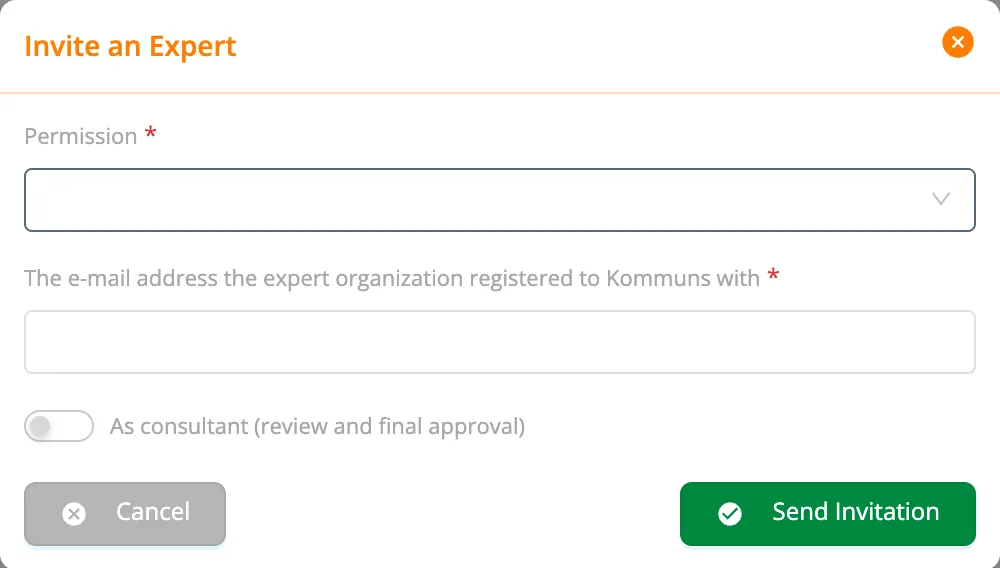
- Open Assignees › Expert Organizations and click Expert Organization Invitation.
- Under Permission, choose the company's general permission in your organization. Organization Employee is usually enough; the real permission is given per system in step 3.
- Enter the company's organization identity e-mail address.
- If the company will not do the work but check and approve it (periodic inspection, auditing, engineering), turn on As consultant (review and final approval). When the invitation is accepted, the company joins your organization as a consultant.
- Click Send Invitation.
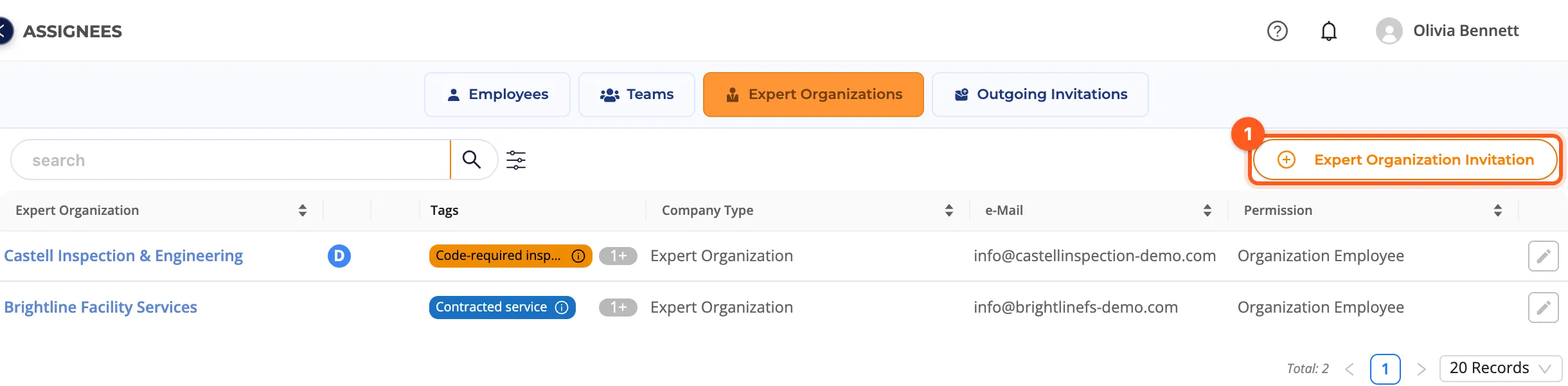
Once the company accepts, it appears in the Expert Organizations list; companies added as consultants have a D badge. Tags help you group them (e.g. Service contractor, Inspection body).
To turn consulting on or off later, open Edit Permission with the pencil icon on the row and change Consultant.
2. Prepare a suitable permission
The permission you give an expert company is usually of the System kind. Two examples from the demo:
| Permission | For whom? | Permissions (summary) |
|---|---|---|
| Service Contractor — System Maintenance | Service contractor | Sees the inventory; opens, works on and forwards work orders to its own team; opens and resolves issues; adds files |
| Inspection Firm — Periodic Inspection | Inspection / consulting firm | Sees the inventory and the work orders, reviews them; adds reports; can not forward |
To define a permission: Creating and assigning permissions. Don't forget to turn on Add Equipment Permission in the system permission, or the company won't see the equipment under the system.
3. Give a permission on a system
- Open the system the company will look after (e.g. Harborview Boston Waterfront › HVAC — Central Plant) and go to its Assignees tab.
- Click Assign, choose the Organization level at the top and pick the company in Assignee Selection.
- Turn on Consultant if the company reviews on this system. Consulting is chosen per assignment: the same company can do the work on one system and be the consultant on another.
- Choose the permission from step 2 in Define an additional permission and click Save.
The company now sees this system and its equipment in its own account under Business Partners › Harborview… › Inventories.
4. Assign work orders to the company
When creating a work order, choose the company in Select Assignee (see Creating work orders). For periodic work, choose the company as the assignee or the consultant in a recurring work order rule.
The work order lands in the company's Incoming Work Orders; the company forwards it to its own technician. In the work order panel you see live who is working (the company and the technician), how much of the form is filled in and the comments.