Working as an expert company
This page is for organizations of type Expert Organization (maintenance, service, periodic inspection, auditing, consulting). Your customers (the owners) invite you in kommuns, give you permissions on the systems you work on and assign work orders to you. Each customer adds you either to do the work or as the Consultant; the invitation and the Business Partners list show which.
Before you start: create your organization as an Expert Organization and give your customers its identity e-mail address. Invitations arrive at that address.
The Expert menu
| Menu | What it is for |
|---|---|
| Business Partners | The customers who invited you and the permissions they gave you |
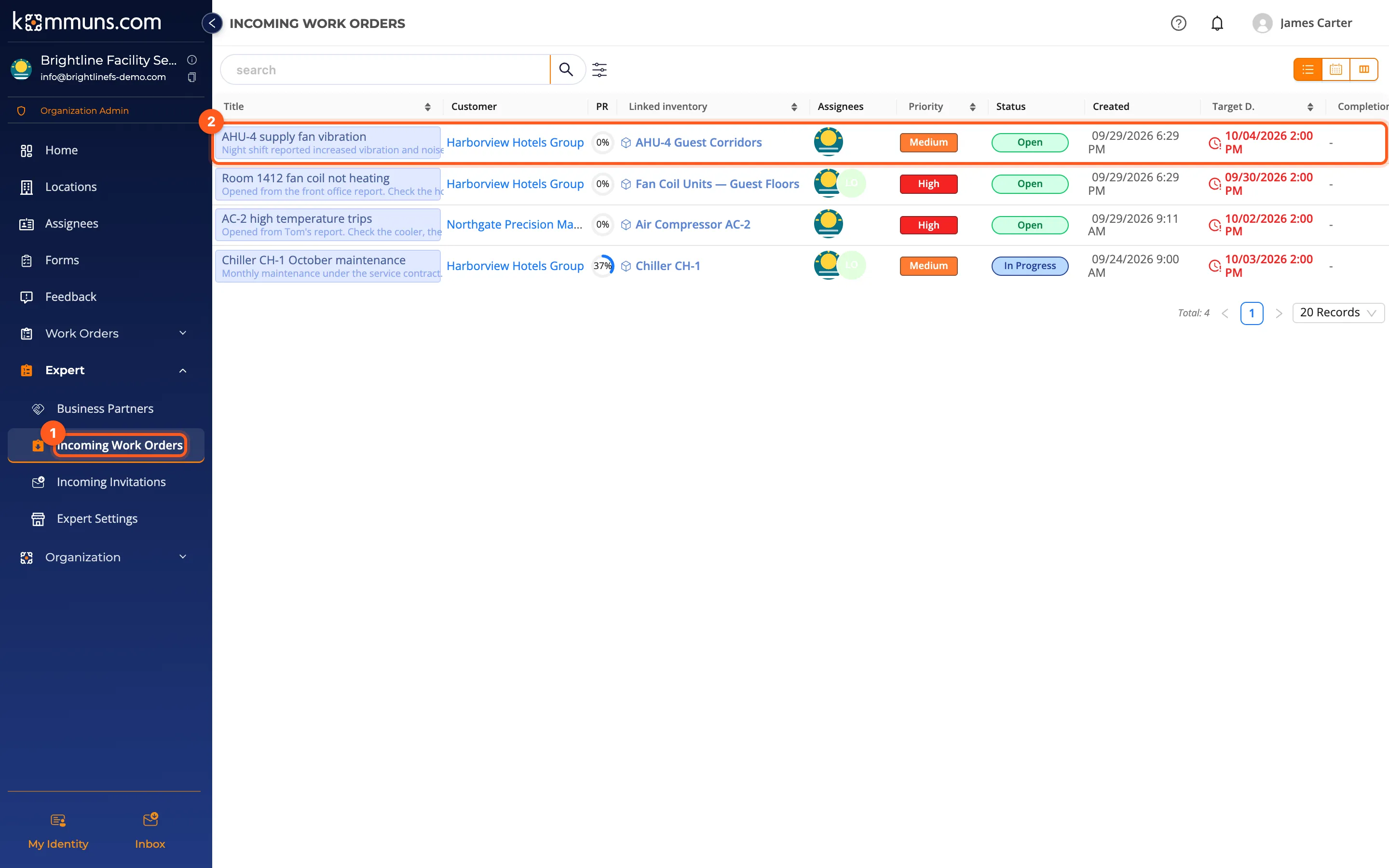
| Incoming Work Orders | The work orders your customers assigned to you |
| Incoming Invitations | Partnership invitations from customers |
| Expert Settings | The categories and regions you serve |
Invitation and work order notifications from your customers go to your default manager. Change it in the Permission Settings section at the bottom of (Select an Employee); only your organization's employees can be chosen.
1. Accept the invitation
- Open Expert › Incoming Invitations.
- Open the invitation, check the customer and the permission given, and click Accept.
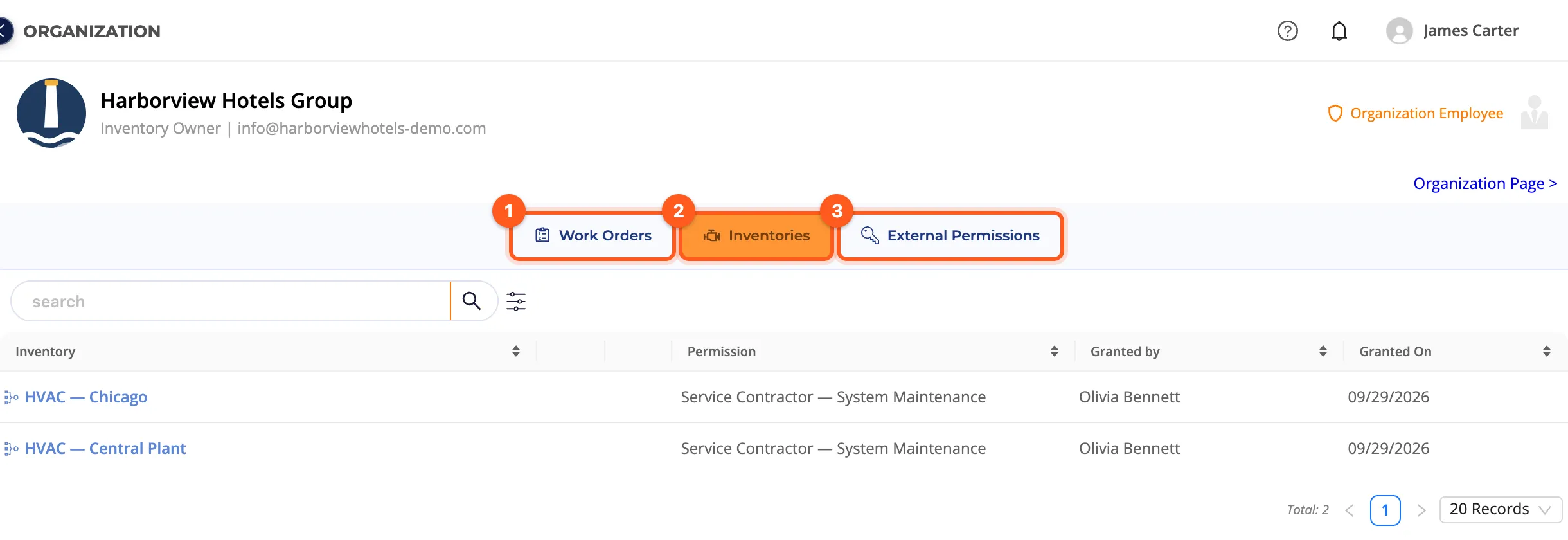
The customer is added to your Business Partners list. Click the customer's name to open the customer page with three tabs:
- Work Orders: the work orders you received from this customer
- Inventories: the systems the customer gave you a permission on, the permission and who granted it
- External Permissions: passing the customer's permission on to your own employees (see Delegating a partner permission to your team)
2. Forward incoming work orders
- Open Expert › Incoming Work Orders. The ongoing work orders from all your customers are listed; the Customer column shows which customer each comes from (click it to open the customer page). Switch to the calendar view to plan the week across customers.
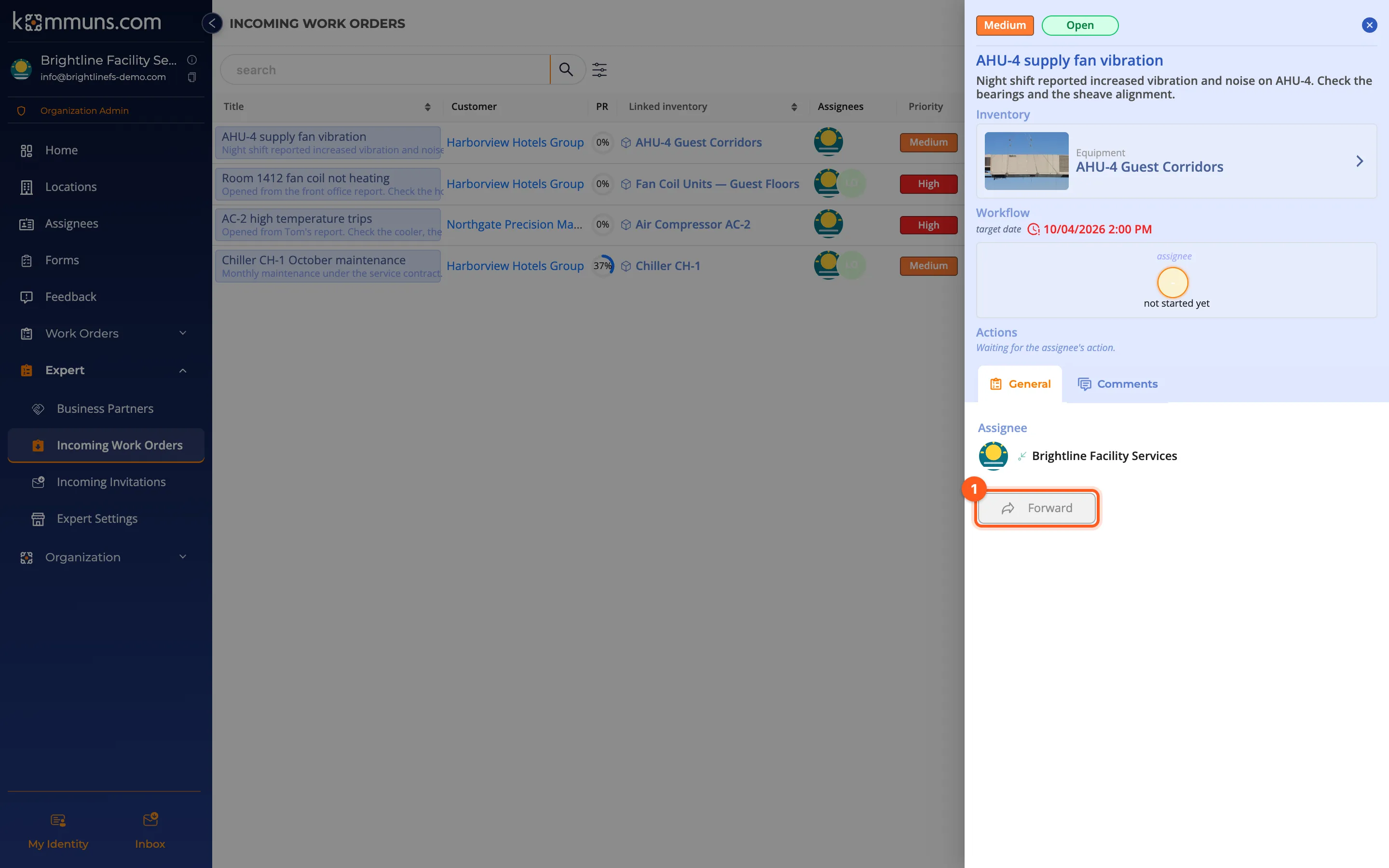
- Click the work order and press Forward in its panel.
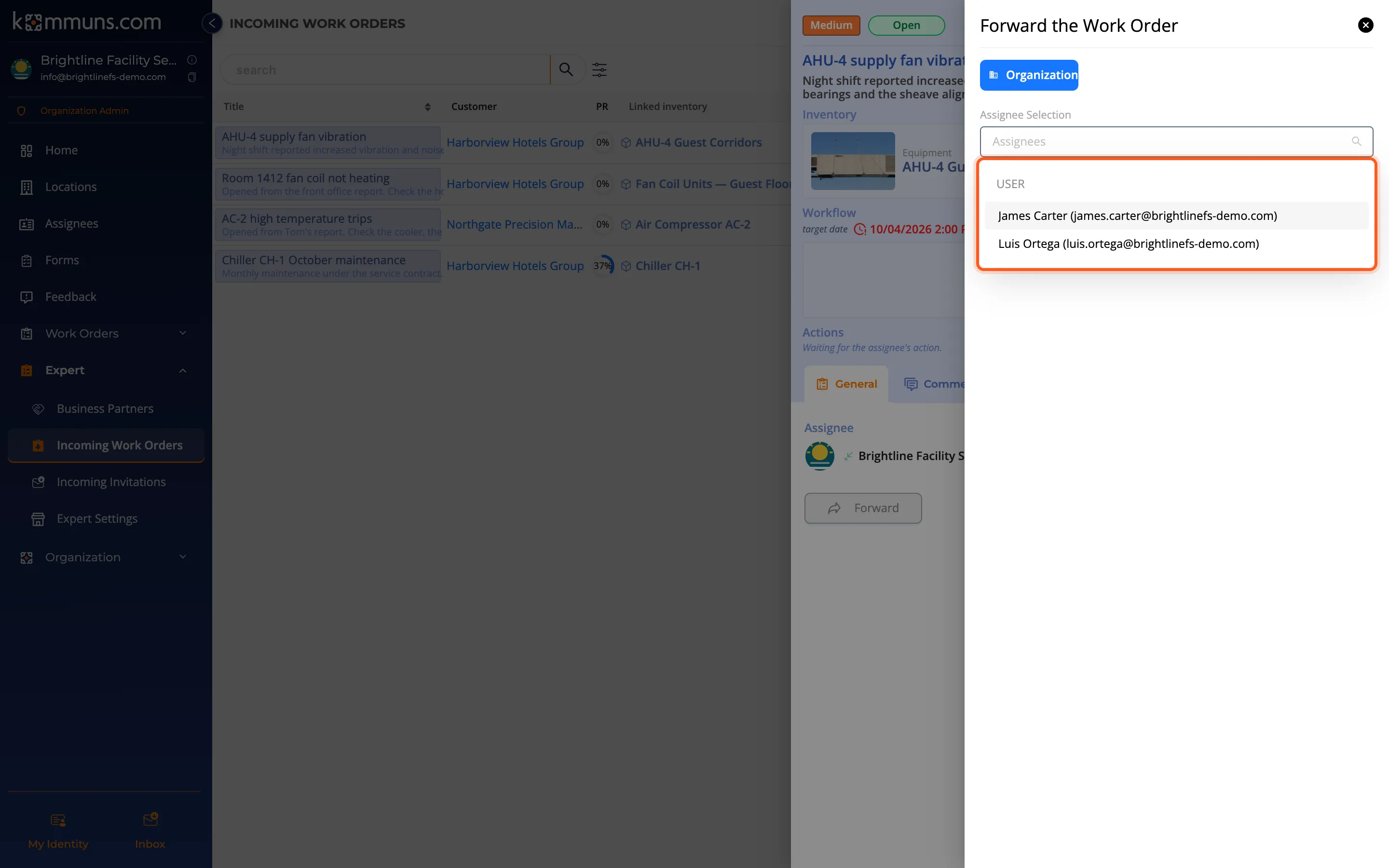
- Choose the employee who will do the work under Assignee Selection and click Finish the selection. A confirmation appears, and the Assignees column of the list shows your employee.
Your employee sees the work order in their own Home › My Work Orders and does the work. The customer follows the progress live on their own screen.
The employee you forward a work order to can open it, fill in the form and write comments. To let them browse the customer's inventory and see other work orders, pass the incoming permission on to them.
When you are added as the consultant
If the customer added you as the Consultant (periodic inspection, auditing), you are the consultant on their work orders: the customer's team or another expert organization does the work, and you check and approve it. The review also starts with forwarding: forward the work order to the engineer or inspector who does the review; they follow Review and approval. The person you forward to takes your organization's place on that work order: as the consultant where you consult, as the assignee where you do the work.
Your own inventory
Expert organizations can manage their own inventory too: add your office, warehouse and service vehicles under Locations, and create work orders and planned maintenance for your own equipment. The number of locations and inventory items depends on your plan (see Plans and billing).