Password and two-factor sign-in
Your account is protected by your password and, if you turn it on, a second step: a passkey (your fingerprint, face or device PIN) or a code from an authenticator app. You manage both in My Profile (user menu at the top right).
Your password
A new password must have:
- at least 8 characters,
- at least one letter and one digit.
While you type, a checklist and a strength bar show how the password does. A password is also refused if it appears in
known data leaks, contains your e-mail address, "kommuns" or your organization's name, is a repeated character or a
simple sequence (aaaa1111, 12345678), or is one of your last five passwords. Capital letters and special characters
are not required: a long password made of a few words is both easy to remember and strong.
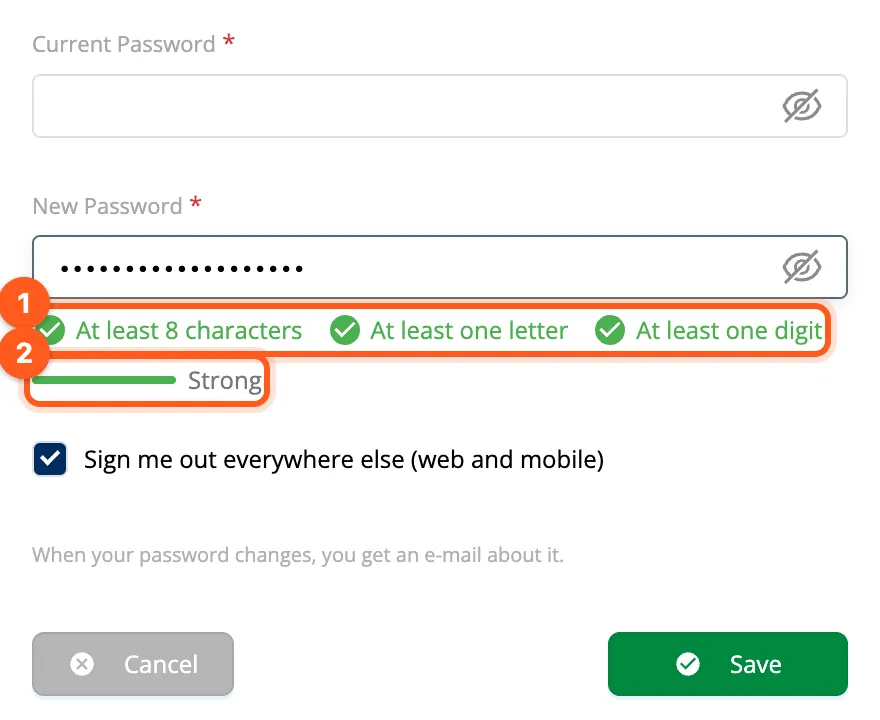
Changing your password
- Open My Profile from the user menu.
- In the Password row, click Change password.
- Type your Current Password and the New Password.
- Leave Sign me out everywhere else (web and mobile) ticked if you think someone else may know your old password.
- Click Save. An e-mail tells you that your password was changed.
If you use two-factor sign-in and verified it more than 15 minutes ago, kommuns asks you to verify again before saving. If you sign in with Google, you have no kommuns password and the row says so.
When a password expires
Passwords are renewed every 90 days (every 365 days if you use two-factor sign-in). Your organization may ask for a shorter period; if you are in several organizations, the shortest one applies. Fourteen days before the end a banner with Change password appears at the top of the app. Once the password has expired — or if it turns up in a data leak, or your organization's admin asks for it — the next sign-in opens Set a New Password: choose a new password and click Save and continue (your current password is not asked again).
Too many wrong attempts
After 10 wrong passwords in 15 minutes, sign-in for that account waits for a minute, then 2, 4 … up to 15 minutes. The account is never locked: wait, or use Forgot your password? on the sign-in page. A reset link works once and for an hour.
Two-factor sign-in
With two-factor sign-in, a stolen password alone is not enough to enter your account. After the password, kommuns asks for a second step:
| Method | How it works | Strength |
|---|---|---|
| Passkey | Your fingerprint, face or device PIN on this computer or phone; nothing to type, and it doesn't work on fake sites. | Most secure |
| Authenticator app | The 6-digit code of an app such as Google Authenticator, Microsoft Authenticator or 1Password; it changes every 30 seconds. | Strong |
| E-mail code | Nothing to set up; a 6-digit code comes to your e-mail address when you sign in. Only if your organization accepts it. | Basic |
| Recovery code | One of 10 codes you save when you set up a method; each works once. | Backup |
Signing in with Google already counts as two factors. With two-factor sign-in you change your password once a year instead of every 90 days.
Someone who takes over your mailbox can read the code too. That is why the e-mail code isn't used for sensitive actions (verifying again) and an organization may not accept it. Set up a passkey or an authenticator app if you can.
Turning it on
- Open My Profile from the user menu and click Turn on on the Two-factor sign-in row. The Two-Factor Sign-In window opens.
- The top of the window tells you where you stand; under it are Your organizations' rules (whether each organization asks for two-factor sign-in and which methods it accepts) and the Your methods cards.
- Choose a method:
- On the Passkey card, Add to this device: confirm with your fingerprint, face or device PIN.
- On the Authenticator app card, Set up: scan the QR code with the app (or type the key under it if you can't scan), then type the 6-digit code the app shows.
- Save the Recovery codes that appear: take them with Copy or Download, keep them somewhere safe, then click I saved them. They are shown only once.
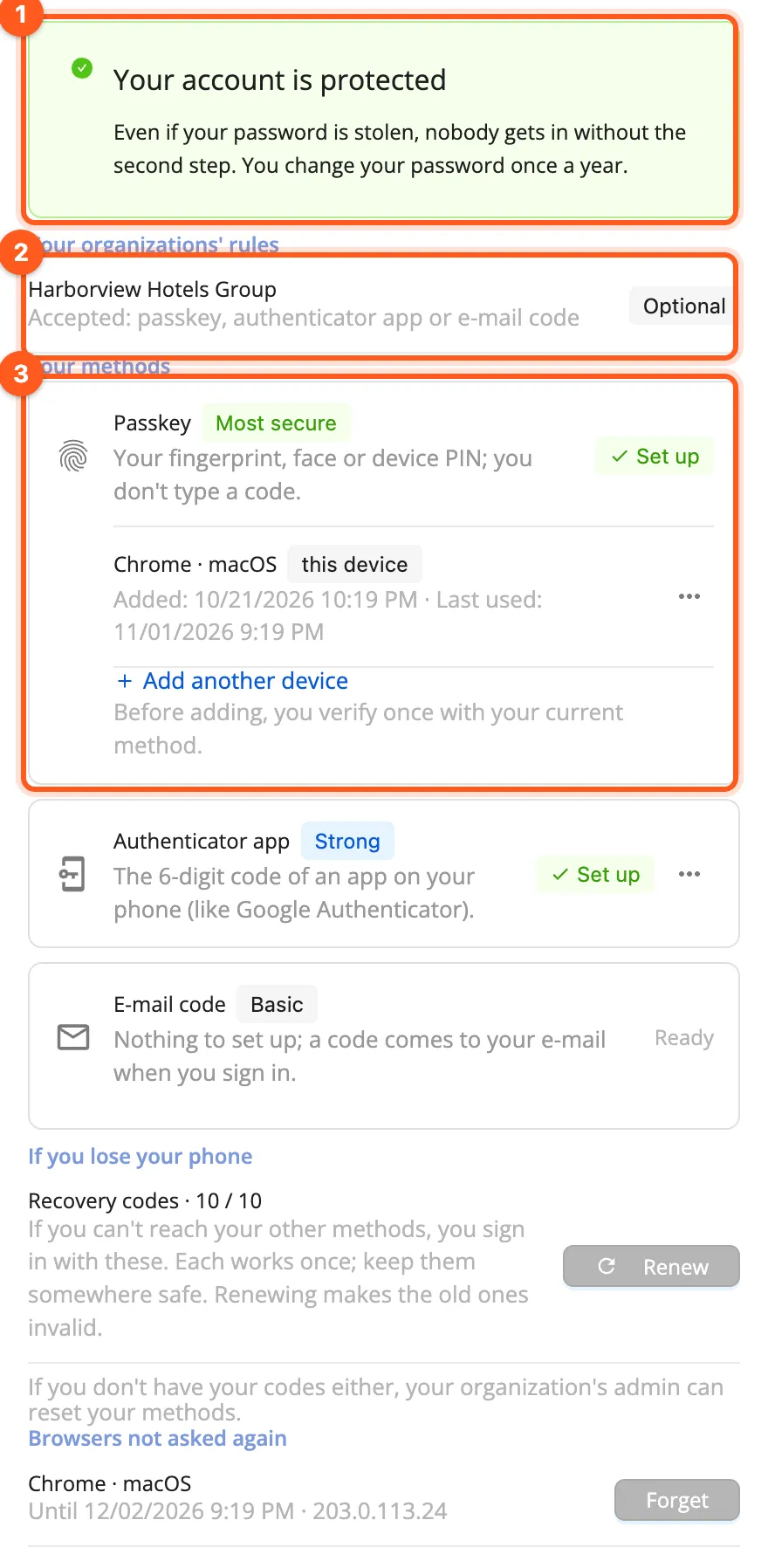
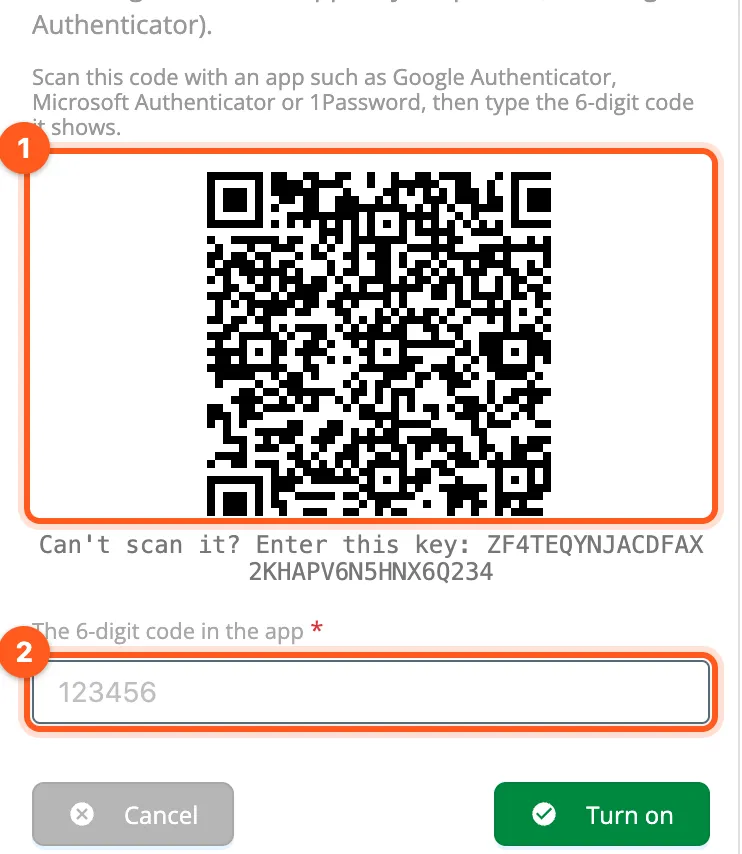
You can add several passkeys (one per device: Add another device) and an authenticator app as well; at sign-in whichever you have at hand works. If you already have a method, you verify once with it before adding a new one.
Signing in with two-factor sign-in
After your password, the Two-Factor Sign-In page opens. Click Verify with a passkey, or choose one of the options under it and type the code: Authenticator app, Recovery code or (if your organization accepts it) E-mail code — for that one click E-mail me a code first. Then Verify. On your own computer, tick Remember this browser for 30 days and that browser won't be asked for the second step (your organization may not allow it).
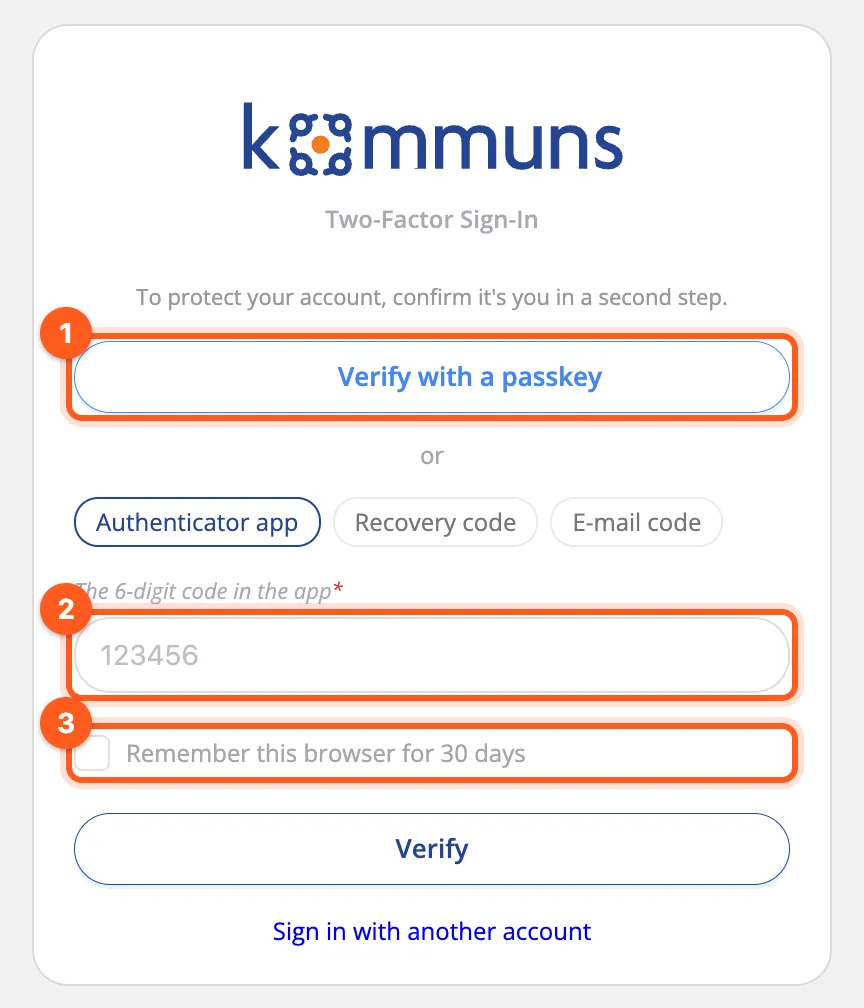
When someone signs in to your account from a device or browser you haven't used before, you get an e-mail. If it wasn't you, change your password at once.
Signing in with a passkey only
Once you have added a passkey, click Sign in with a passkey on the sign-in page: your device asks for your fingerprint, face or PIN, and you are in without typing an e-mail address or a password.
Managing your methods
In My Profile › Two-factor sign-in each method card has Options: Remove a passkey or the authenticator app, and on the recovery codes see how many are left and Renew them (the old ones stop working). Under Browsers not asked again you can Forget the browsers you had remembered. Removing a method signs your other sessions out; removing one and renewing codes ask you to verify again.
Verifying again for sensitive actions
Some actions need a second step from the last 15 minutes: changing your password, adding or removing a method, new recovery codes, creating or renewing an integration's secret, giving kommuns support access, changing your organization's two-factor rule and resetting a member's two-factor sign-in. The Verify again window opens; verify with a passkey, the app or a recovery code (the e-mail code isn't used here), then do the action once more.
If you lose your phone
Sign in with a recovery code, then remove the lost device's passkey or set up the app again, and create new recovery codes. If you have no recovery code either, ask your organization's admin to reset your two-factor sign-in (Security settings); you set it up again at your next sign-in. In two cases kommuns support, not the organization's admin, does the reset: when you also work in another organization that requires two-factor sign-in, or when you are the organization's only admin.
When your organization requires it
An organization can require two-factor sign-in from its members and chooses which methods it accepts. When you enter it without a suitable verification, the page … asks for one more step opens (with the organization's name first). It tells you why (for example, you have no method yet, or you signed in with an e-mail code this time but the organization doesn't accept it) and shows the options as cards:
- verify with a method you have and the organization accepts,
- or set up one of the methods it accepts (a passkey or an app), save the recovery codes and click Saved, continue,
- Verify with a recovery code is always there too.
If you can't do it now, Switch to another organization or Sign out. In the mobile app, the organization shows a screen that opens the same steps in your browser.
Signing in to the mobile app
The kommuns mobile app signs you in through your browser: when you tap Sign in in the app, kommuns' sign-in page opens in the phone's browser; your password and two-factor sign-in are asked there, then you go back to the app.
If you are already signed in in that browser, kommuns asks first: Sign in to the kommuns mobile app? The page shows your name and e-mail. If you started this request, tap Continue in the app; if you didn't, tap Cancel — the app isn't signed in.
A request is valid for at most an hour after it starts in the app; if you wait long at one step (15 minutes), kommuns says The mobile app's sign-in request has expired. Start the sign-in again from the app.