Sub work orders
Some jobs are not done by one person in one go. In Chiller CH-1's annual overhaul the service company changes the compressor oil, your own technician cleans the oil pump and cooler, and the service company does the start-up test. Open such a job as a main work order and make its parts its sub work orders:
- Each sub work order is an ordinary work order: it has its own inventory item, assignees, consultant, form and target date.
- The main work order waits for its sub work orders; it isn't completed before all of them are done. How many are done shows as "1 / 3" in the list, on the board and in the work order panel.
Sub work orders have one level: a sub work order can't have sub work orders of its own.
Adding a sub work order
- Open the main work order's panel (e.g. from the Work Orders › Organization list). The main work order must not be Completed, Cancelled or in Consultant review.
- Click + Sub work order at the bottom of the General tab. Add sub work order in the ⋮ menu at the bottom right of the panel opens the same panel.
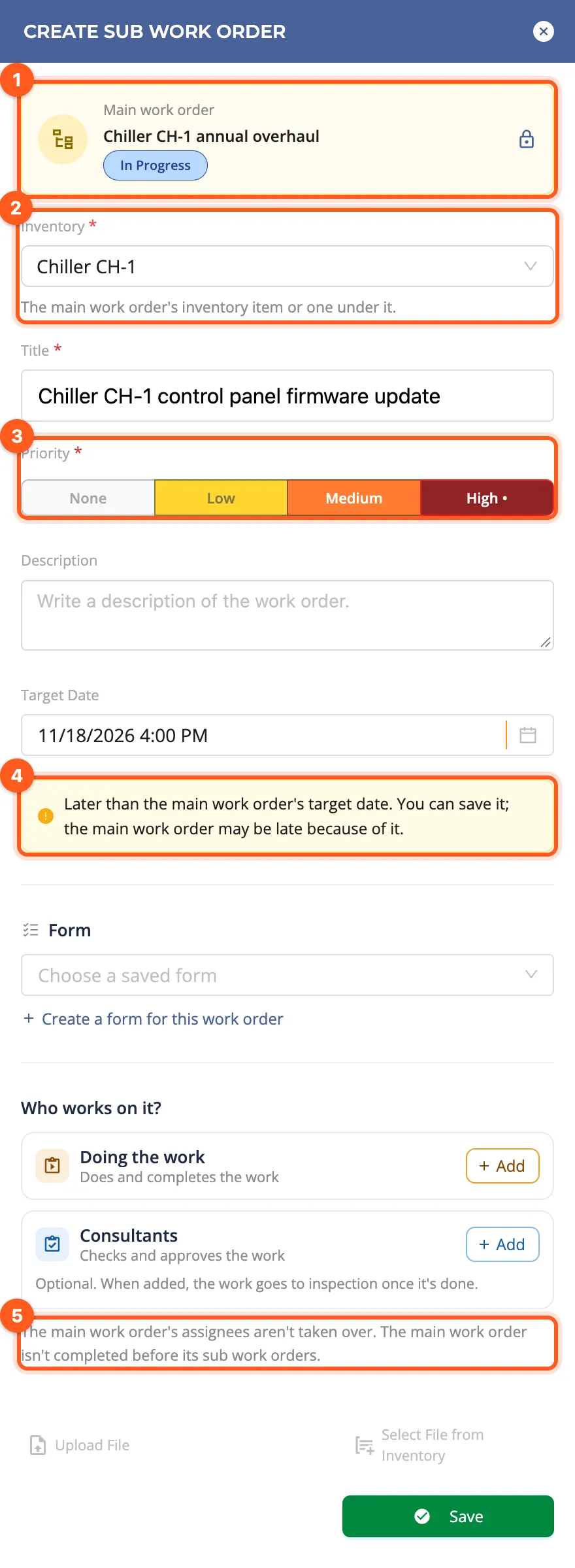
- The CREATE SUB WORK ORDER panel opens. It is the familiar Create Work Order panel (→
Creating work orders), with a few differences:
- The locked Main work order card sits at the top.
- The Inventory can only be the main work order's item or an item under it; the picker shows that tree. In the example, Chiller CH-1 itself or its sub-equipment such as Compressor or Oil pump and cooler.
- Priority and Target Date come from the main work order; you can change them. A target date later than the main work order's gives a warning but can be saved: the main work order may be late because of it.
- The main work order's assignees and consultants aren't taken over. Choose who does this part in Who works on it?; without a choice it goes to the item's inventory manager, as with any work order.
- Write the Title, choose a form if needed and click Save.
Once saved, the sub work order joins the list in the main work order's panel, and its assignees are notified as for any new work order.
The main work order's panel
A work order with sub work orders shows:
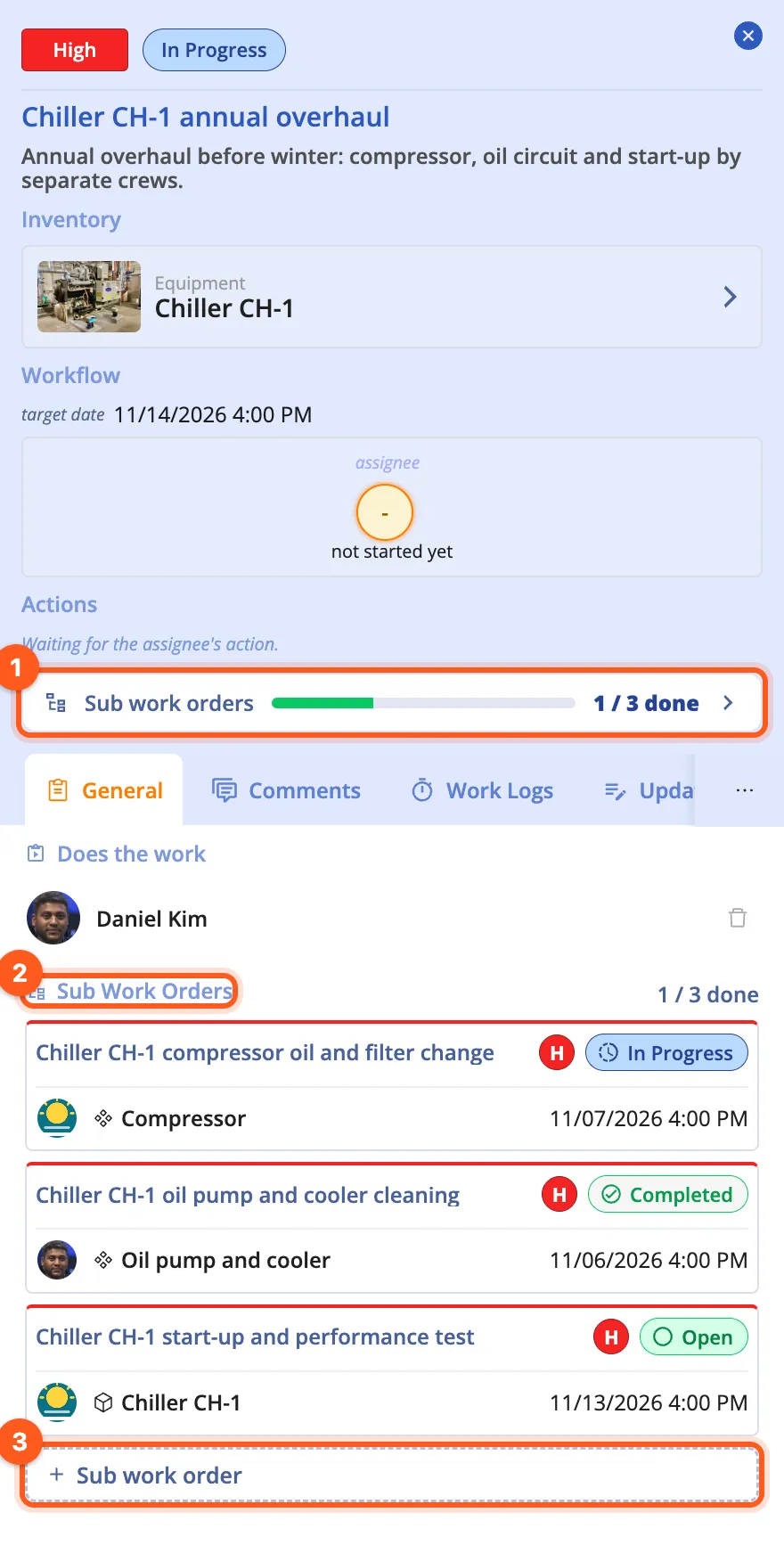
- Under Actions, a one-line summary: Sub work orders, a thin progress bar and how many are done (1 / 3 done). It tells what the main work order is waiting for without switching tabs; a click takes you to the list below.
- At the bottom of the General tab, Sub Work Orders: each sub work order as a card with its status, item, assignee and target date. Click a card to open that sub work order in the same panel.
- + Sub work order adds another part.
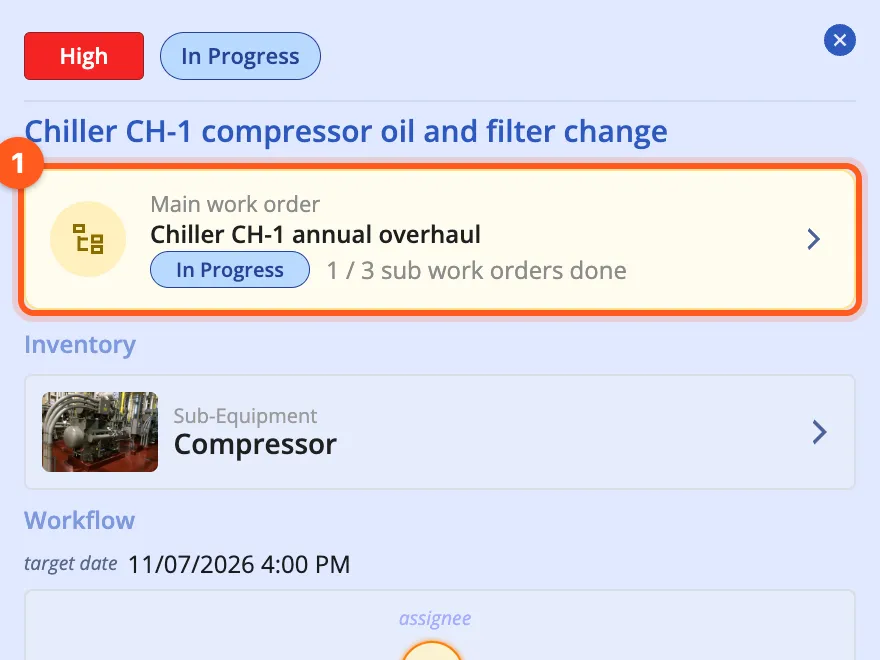
A sub work order's panel has the Main work order card at the top: the main work order's title, its status and how many sub work orders are done. Click the card to open the main work order.
In the lists
Work order lists show sub work orders in one of two ways. The icon right after the filter icon in the search bar says which one is on; a click switches to the other, and its tooltip explains both:
- Sub work orders under their main work order (the default, a tree icon): only the main work order is a row. The chip in front of its title tells how many are done (1 / 3). The + in the narrow column on the left of the row opens it, with its sub work orders as cards under it. When no row on the page can be opened, the column isn't drawn at all. When the main work order isn't in the list (e.g. it doesn't match the search or the filters), its sub work order still shows on a row of its own.
- Sub work orders on their own rows (a list icon, orange): every sub work order is a row, with its main work order's title under its own. The search, the filters and the sorting work on the sub work orders as on any row.
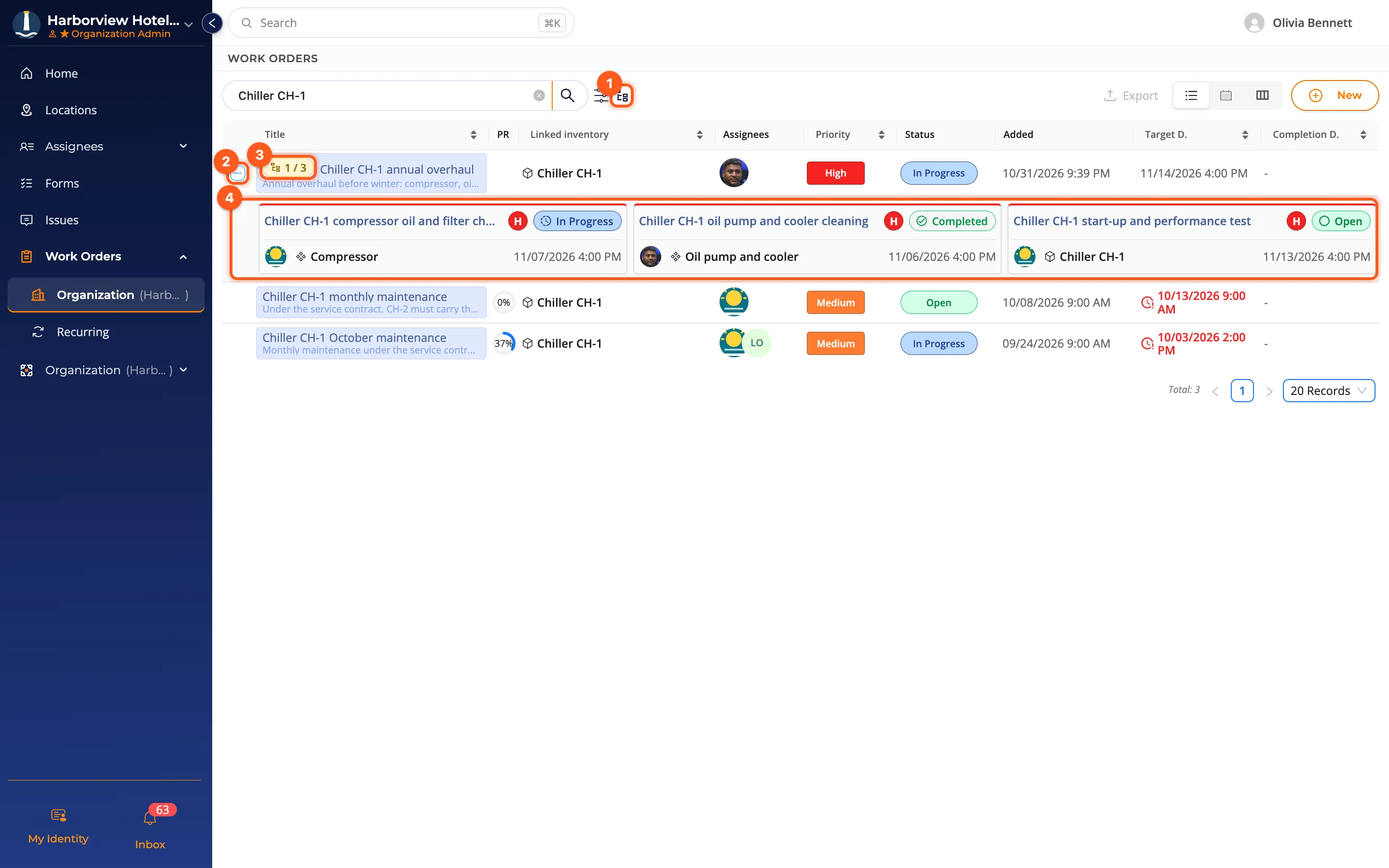
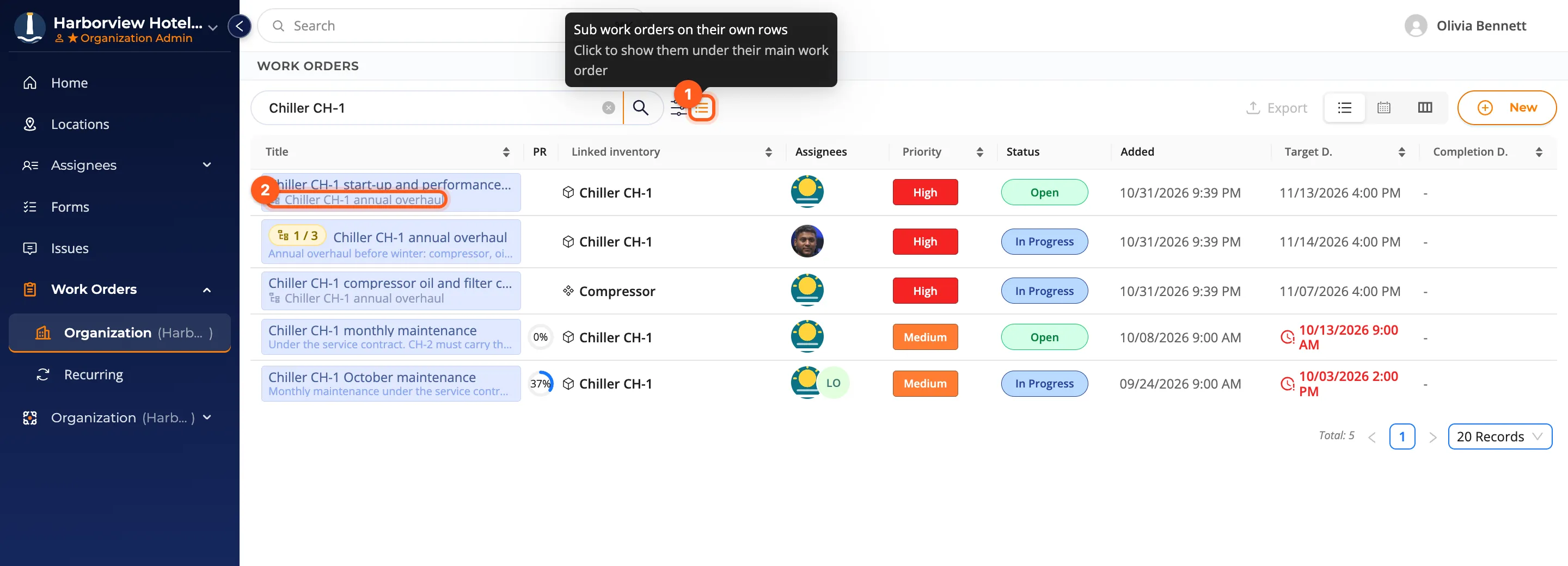
Your browser remembers the choice. The icon is on these lists: Work Orders › Organization, the Work Orders tab of inventory pages, the Work Orders tab of a person or a team, Incoming Work Orders and the work order table of the Categories tab (it has no search bar, so the icon sits in the tab's toolbar next to the type picker).
In the calendar each sub work order sits on the day of its own target date. On the kanban board the main work order's card carries the "1 / 3" chip and a sub work order's card its main work order's title. The file downloaded with Export has a Main work order column and holds every row whichever way the list shows them. The work order counters on Home don't count a main work order that has sub work orders; they count its parts.
When is the main work order completed?
A sub work order counts as finished when it is Completed or Cancelled. A sub work order in Consultant review isn't finished yet.
- A main work order without work of its own (no form, it only holds the parts together): when the first sub work order goes In Progress, so does the main work order. When the last one is finished (and at least one of them was completed), it becomes Completed by itself, or goes to Consultant review when it has a consultant.
- A main work order with work of its own (e.g. its own form): when its assignee finishes that work while sub work orders are still open, the main work order goes to Waiting for sub work orders (Sub WO in the lists). When the last sub work order is finished, it becomes Completed, or Consultant review when it has a consultant.
The main work order's completion date is that of the sub work order (or its own work) finished last. When the last sub work order is finished while the main work order's own work still waits, its assignees and the person who opened it get a Sub work orders done notification (→ Notifications). All statuses: The work order lifecycle.
Closing it while sub work orders are open
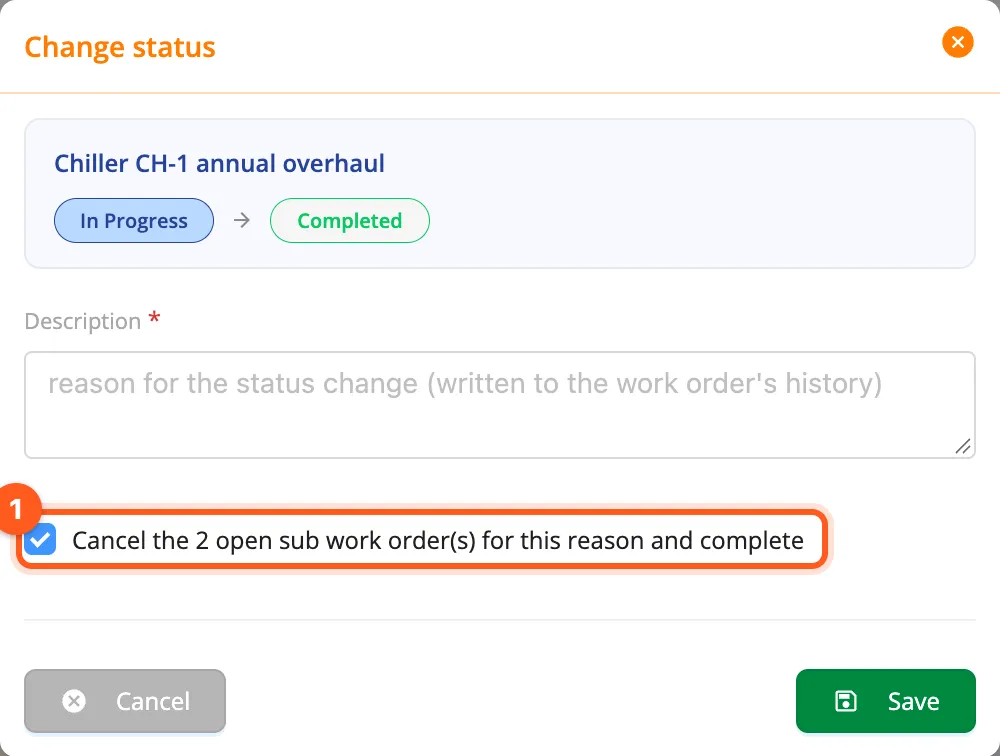
A main work order can't be completed by hand while it has open sub work orders. When you drag its card to Completed (or Consultant review) on the kanban board, the window asks you to tick Cancel the N open sub work order(s) for this reason and complete: the open sub work orders are cancelled with the reason you write, and the main work order is completed.
Cancelling the main work order
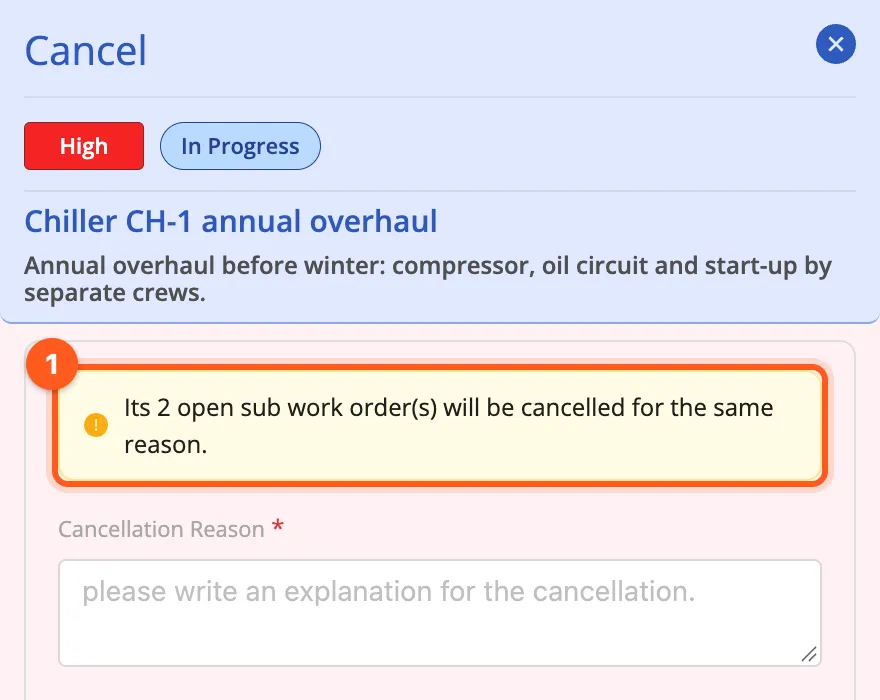
When you cancel the main work order (Cancel the work order in the panel's ⋮ menu), its open sub work orders are cancelled too, for the same reason; the Cancel panel says so beforehand. Completed sub work orders stay as they are.
A sub work order of a finished (completed or cancelled) main work order can't be reopened. Cancelling a single sub work order doesn't affect the main work order; that part counts as finished.
Who sees what?
The link between a main work order and its sub work orders gives nobody a permission. Each work order is seen, as always, by the people assigned to it and those who may see work orders on its item:
- The main work order's panel lists only the sub work orders you may open; for the others it says You can't view N sub work order(s). The "1 / 3" count still counts all of them.
- The assignee of a sub work order sees its main work order's title and status on the card even without access to it; the card is then locked and doesn't open.
For example, the service company given the compressor job sees and works on its own sub work order; it can't open the main work order or the other parts.
Changing the inventory item
Change inventory item works for sub work orders too, with one rule: a sub work order stays in its main work order's tree. A main work order can't be moved to an item that would leave its open sub work orders outside its tree either.