Moving inventory
When a system, an equipment or a sub-equipment changes place, move it instead of creating it again: its sub-inventory, work orders, recurring work orders, files and history go with it.
What can go where:
| Item | New place |
|---|---|
| System | another location |
| Equipment | another system |
| Sub-equipment | another equipment |
Locations are not moved, and an item stays in your organization and keeps its kind (a sub-equipment does not become an equipment).
Moving an item
- Open the item and click the arrow next to its photo at the top left to open its details panel.
- Click Move. (A tree card's ⋮ menu has Move too → A card's quick actions.)
- Choose the New place in the tree: only the right kind of place can be chosen; the current one is marked current place.
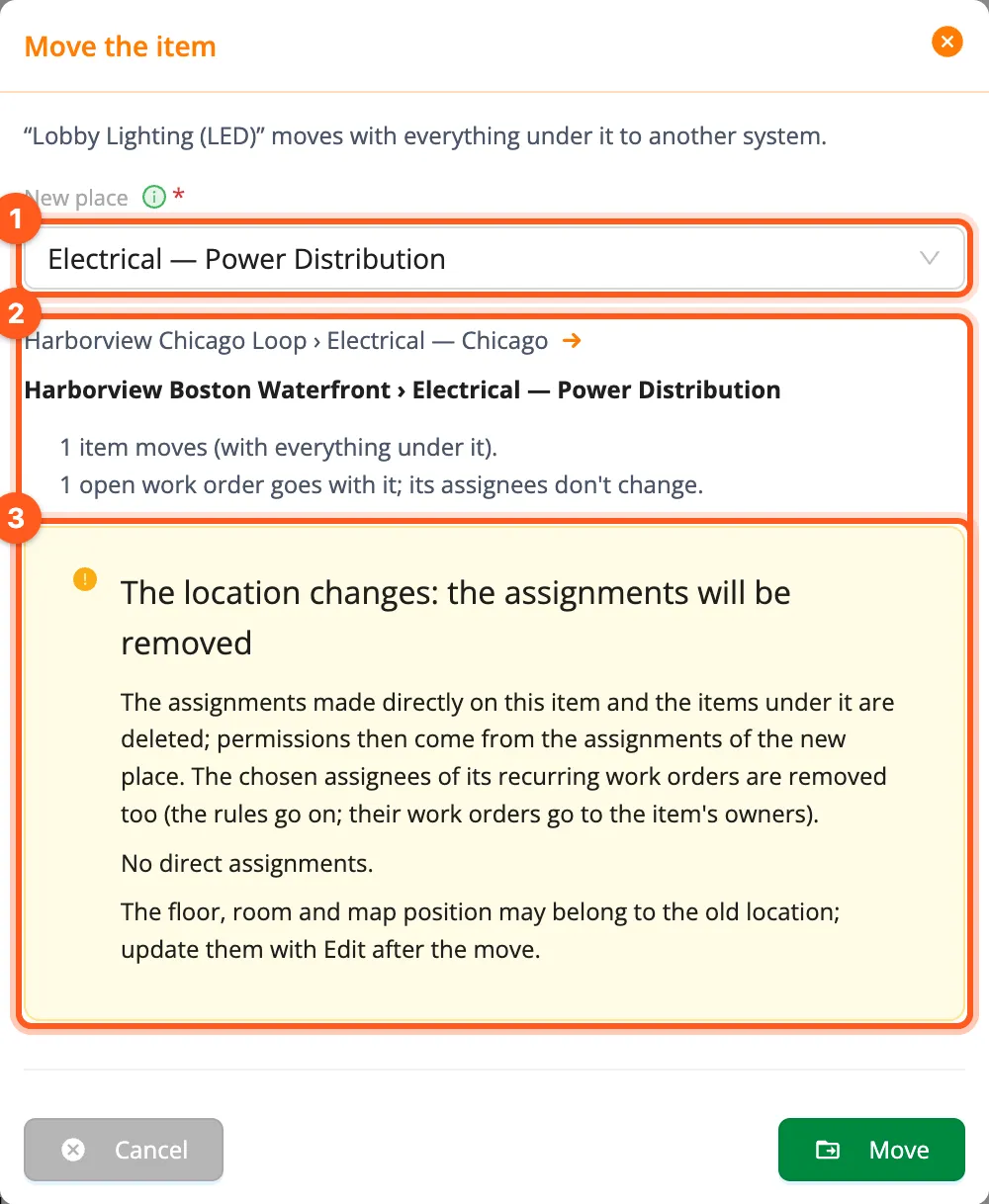
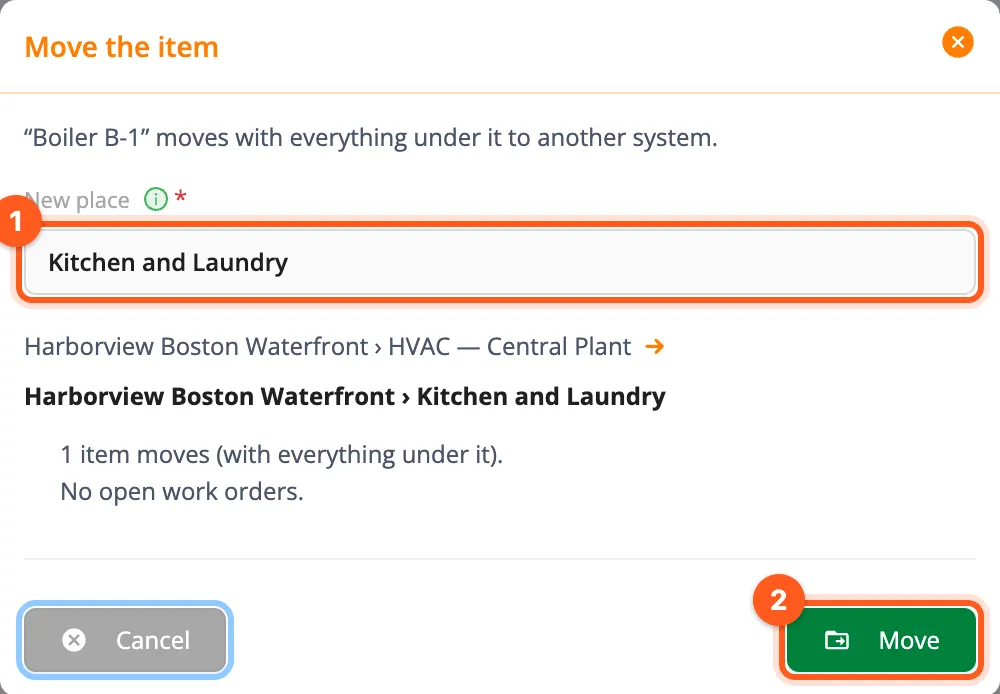
- Read the summary: how many items move (with everything under them), how many open work orders go along, which recurring work orders are affected and — if the location changes — which assignments will be removed.
- Click Move. The page opens at the item's new address.
Dragging in the tree
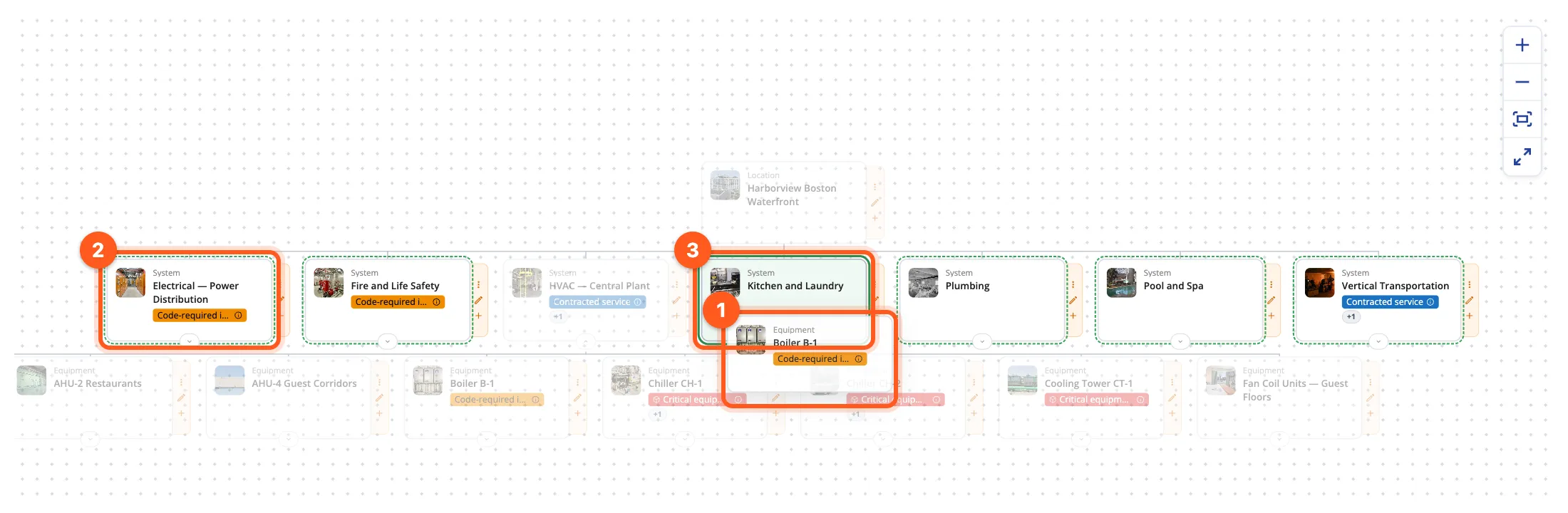
In the Locations tree (the Locations box on Home, an inventory page's General tab) you can drag a card onto the card of its new place.
- Press and hold a system, equipment or sub-equipment card and drag it. Locations and cards you may not edit don't move.
- While you drag, the cards you can drop on get a dashed green frame: places one type up (equipment on a system, sub-equipment on equipment, a system on a location) where you may add inventory. Other cards fade; the card you are over gets a solid green frame.
- Hold over a closed card for a moment and it opens to show what is under it. When the pointer rests at the tree's edge, the tree scrolls that way.
- Drop it and the Move the item window opens with the new place chosen and the summary. Click Move, or close it with Cancel: dropping alone moves nothing.
Esc cancels a drag. A very short drag counts as a click and opens the card.
Moving several items at once
When many items go to the same place, select them in a list and move them together: on the Systems, Equipment or Sub-Equipment tab of a location, system or equipment click Select several, select the items and click the bar's Move. The window asks for the new place and shows one summary for all of them. The rules are the same as for a single item; the differences:
- The selected items must be of one type (on the Categories tab Move is off while the types are mixed).
- Items already at that place and items you may not move are skipped; each item is moved on its own, so if one can't be moved, the others still are.
- After the move you stay on the list's page.
Details: Bulk actions › Moving several items.
What happens to…
- Work orders: they move with the item; the people assigned to open work orders do not change.
- Recurring work orders of the item and of its sub-inventory move with it. Another rule that had chosen this item as a target stops opening work orders on it if the item leaves that rule's place (These rules won't open work orders on this item any more). Rules that pick items by type, category or tag follow by themselves.
- Assignments: inside the same location (e.g. to another system) they stay. If the location changes, the assignments made directly on the item and below it are removed — inventory managers, teams, Expert Organizations, consultants and integrations — and the people chosen in its recurring work orders are taken out (the rules go on and open their work orders for the item's inventory manager). People keep what they get from the new place's own assignments. The window lists them under The location changes: the assignments will be removed.
- Floor, room and map position are not changed. If the location changes, they may belong to the old one: update them with Edit after the move.
- Files stay with the item; the activity log keeps the old records as they were and adds "moved from A to B".
Move history
Move history in the details panel lists every move of the item: when, who, from where to where, and how many assignments or rule targets were removed.