Documents: viewing, editing and versions
The documents you upload to kommuns (Word, Excel, PowerPoint, PDF…) open in the browser without being downloaded. If you may edit them, you edit Word, Excel and PowerPoint files right there, and together with your colleagues in the same document. Every save becomes a new version; you can look at an older version, go back to it or save it as a separate file.
This page uses the inventory's files as its example (the Files tab of every location, system and piece of equipment, and Organization › Files); for work order files and attachments see Documents in work orders.
Which files open?
| Formats | |
|---|---|
| Viewed and edited | Word (.docx), Excel (.xlsx), PowerPoint (.pptx) |
| Viewed only | PDF; older Office files (.doc, .xls, .ppt), Office files with macros and templates; OpenDocument (.odt, .ods, .odp); .rtf, .txt, .csv, .md, .html; .epub; Pages, Numbers, Keynote; Visio |
Pictures and other files open as before (the picture preview or a download).
Opening a document
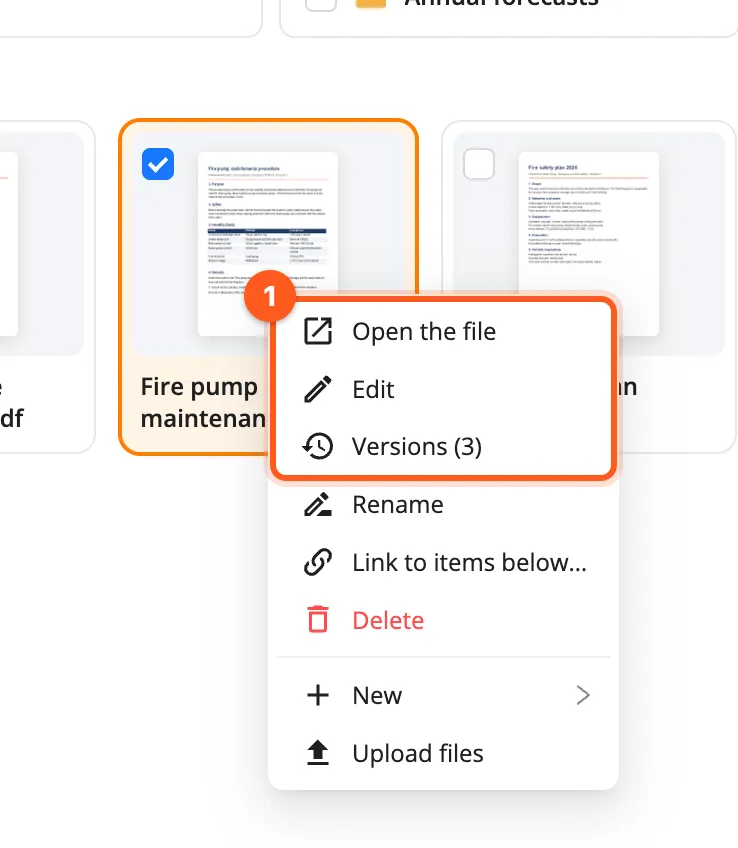
In the files window, double-click a document or choose Open the file in its right-click menu: it opens read-only in a new tab. A work order's file cards and the attachments of messages open in the same place when you click them.
The kommuns bar is at the top of the page, the document under it:
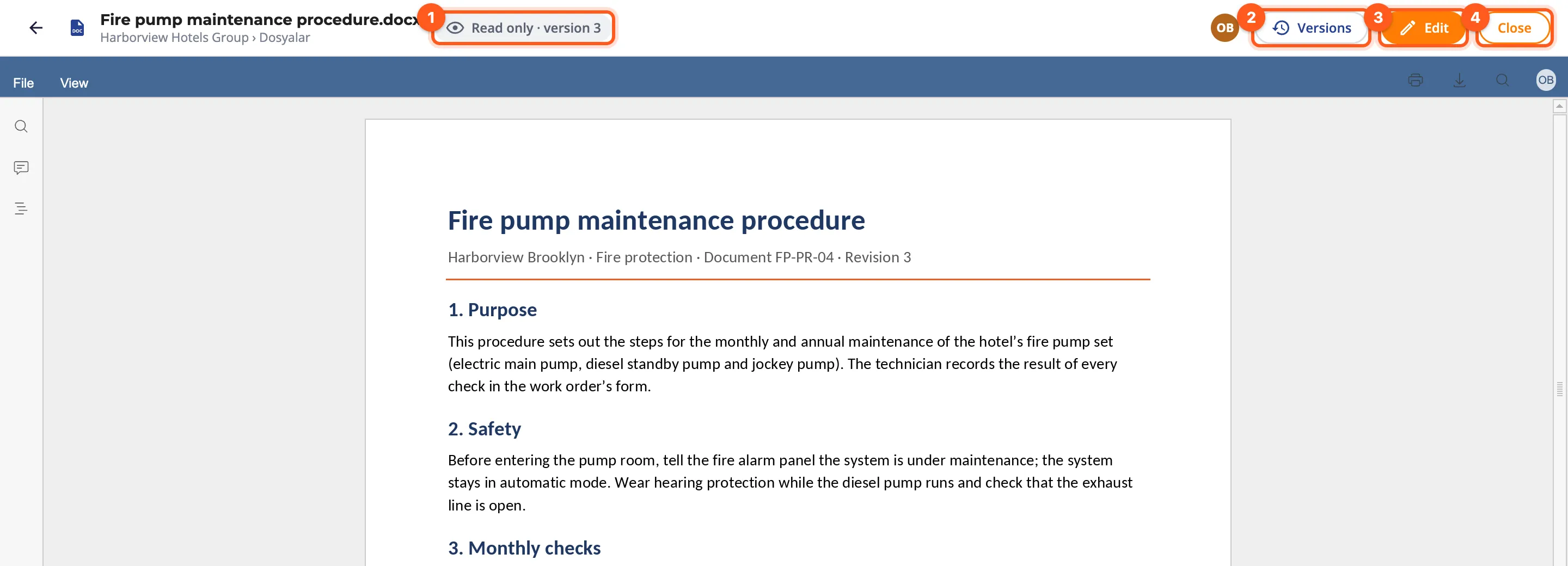
- On the left the file's name and, under it, where it is (the item › Files › its folders; for a work order file the work order › Files; for an attachment the work order › Attachments).
- Read only · version N: the version you are looking at.
- On the right your avatar, Versions (for inventory files; → Versions), Edit if you may edit, and Close. To download or print the document, use the buttons in the document's own toolbar.
- When the document can't be edited (you have no permission, or it is a type that is only viewed, like a PDF) the yellow band under the bar says so and which version you see. If someone is editing the document right now, the band says who.
- If someone saves a new version while you look, a New version saved note shows at the top right; Open version N brings the new version.
Editing, also together
- Choose Edit in the document's right-click menu, or click Edit in the viewer's bar.
- The document opens in the editor. What you type is kept on its own; to keep the state you have reached as a new version, press the document's Save button (Ctrl+S / ⌘S).
- When you are done, click Save and close (the ← at the top left does the same): your changes are saved (Saving…), then the tab closes. If you changed nothing, no new version is made.
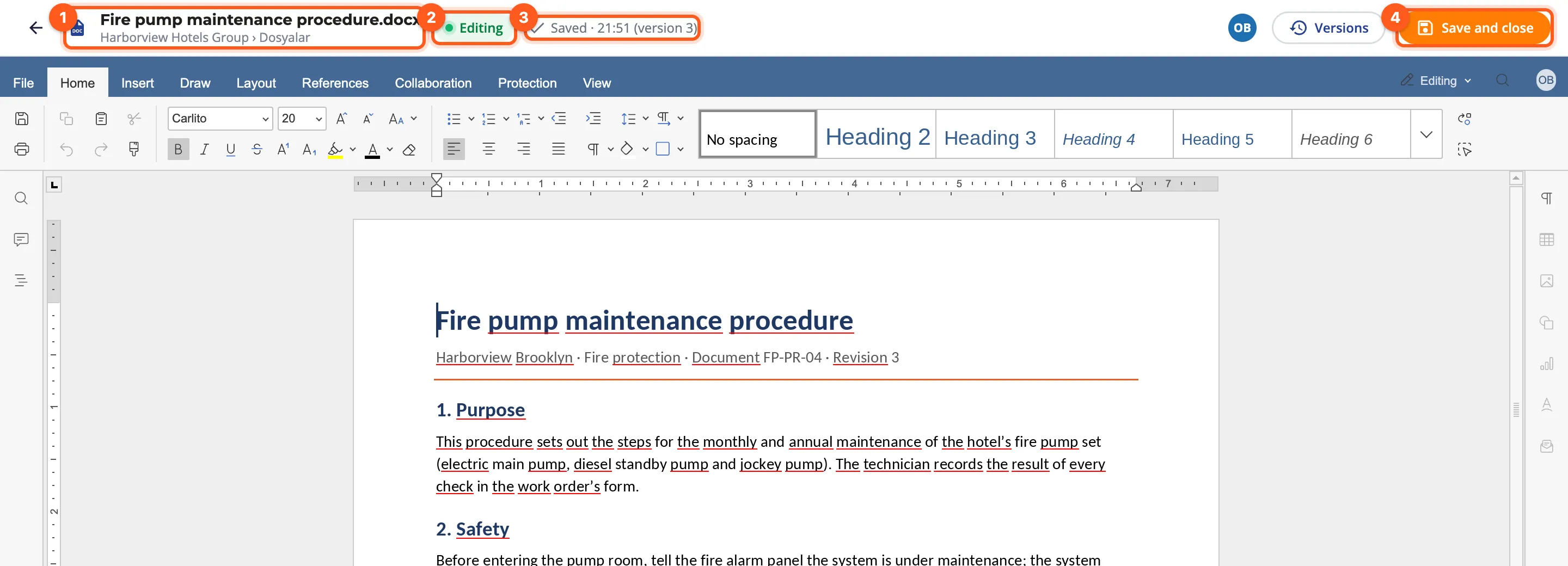
- The bar shows Editing and Saved · time (version N): the last version kept of the document.
- Editing together: everyone who opens the same document joins the same session. What one types shows at once on the others' screens, and everyone's cursor carries their name. The bar shows Editing together and the avatars of the people editing (you first). In the files window a green Sofia Alvarez is editing (2 people editing for two or more) shows under the file's name, and the menu says Edit · 2 here.
- Everyone who changed something in a save is an author of that version. When the last person leaves, the document is saved by itself.
- Renaming: click the name in the bar, type the new name and press Enter (the extension stays). For inventory files, for people who may rename them.
- An open document can be moved, renamed and linked to the items below. If it is deleted, the delete window says who is editing it, and the people editing see a This document was deleted window (Back to files).
- A linked file is only viewed where it is linked; edited at its source, the new version shows where it is linked too.
Viewing is in every plan. Editing is the plan's Editing documents feature: without it the menu shows Edit with a lock and Not in your plan. Clicking it opens a window where people with the Plans & Payments permission can change the plan with See plans (→ Plans and billing); others can ask the organization's admin. When the plan changes, the existing versions stay; only new editing is off.
Creating a new document
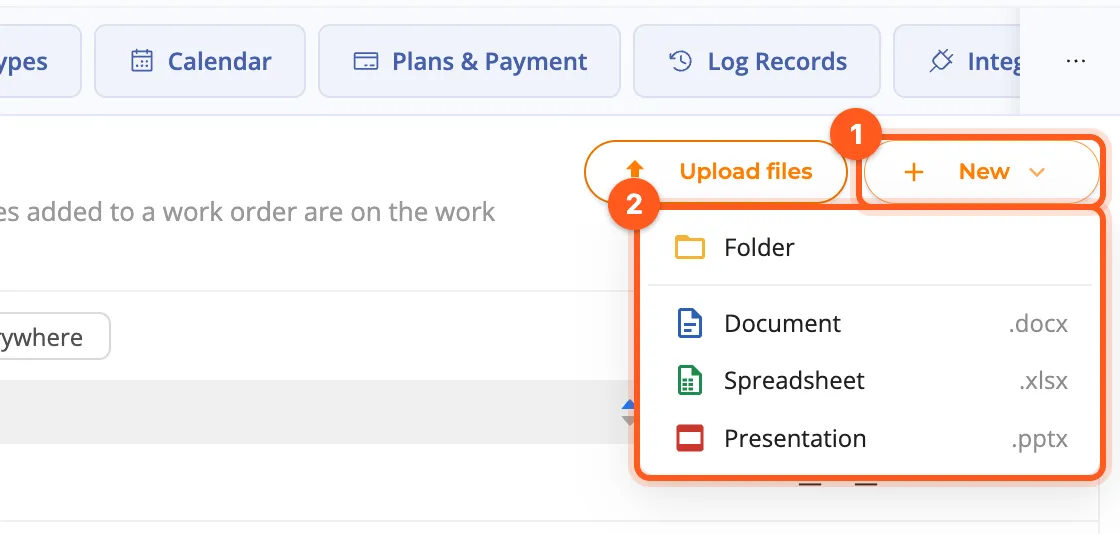
You can create a blank Word, Excel or PowerPoint document right in kommuns, without making it on your computer and uploading it:
- In the files window click New ▾, right of Upload files (at the top of the page in Organization › Files, on the top row of the file browser on an item's Files tab). The menu has Folder and, below it, Document (.docx), Spreadsheet (.xlsx) and Presentation (.pptx); New › in the right-click menu opens the same choices.
- Type the name in the small window (the extension stays) and click Create.
- The document is created in the folder you are in, shows selected in the list, and the editor opens in a new tab. If a file with the same name exists, "(2)" is added to the end of the name.
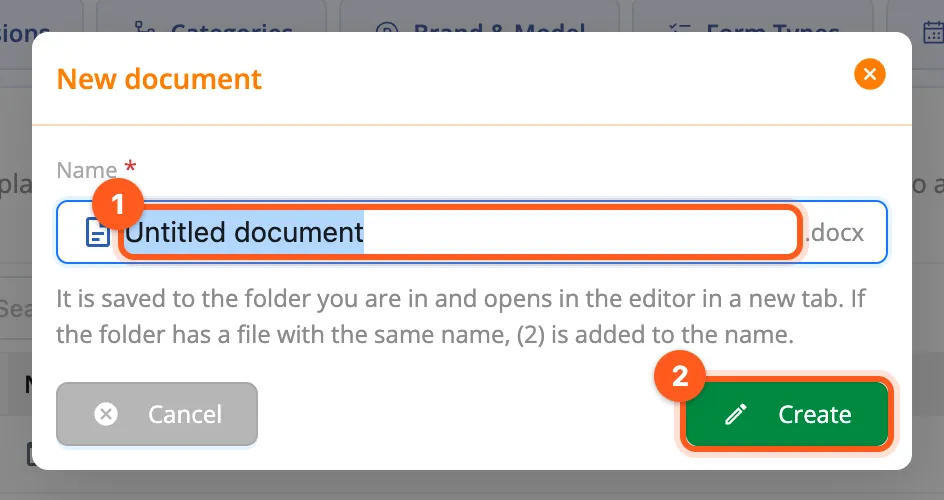
To create a document you need to be able to add files and edit documents there. If your plan doesn't include editing documents, the document rows show a lock and Not in your plan (Folder still works); clicking one opens the window to change your plan.
Thumbnails and the card view
The first page of a document shows as its thumbnail in the files window (a few seconds after the upload and after every new version). Pictures show their own thumbnail, other files the icon of their type.
To see the files with their pages, choose Card view with the List / Card switch on the right of the window's top row:
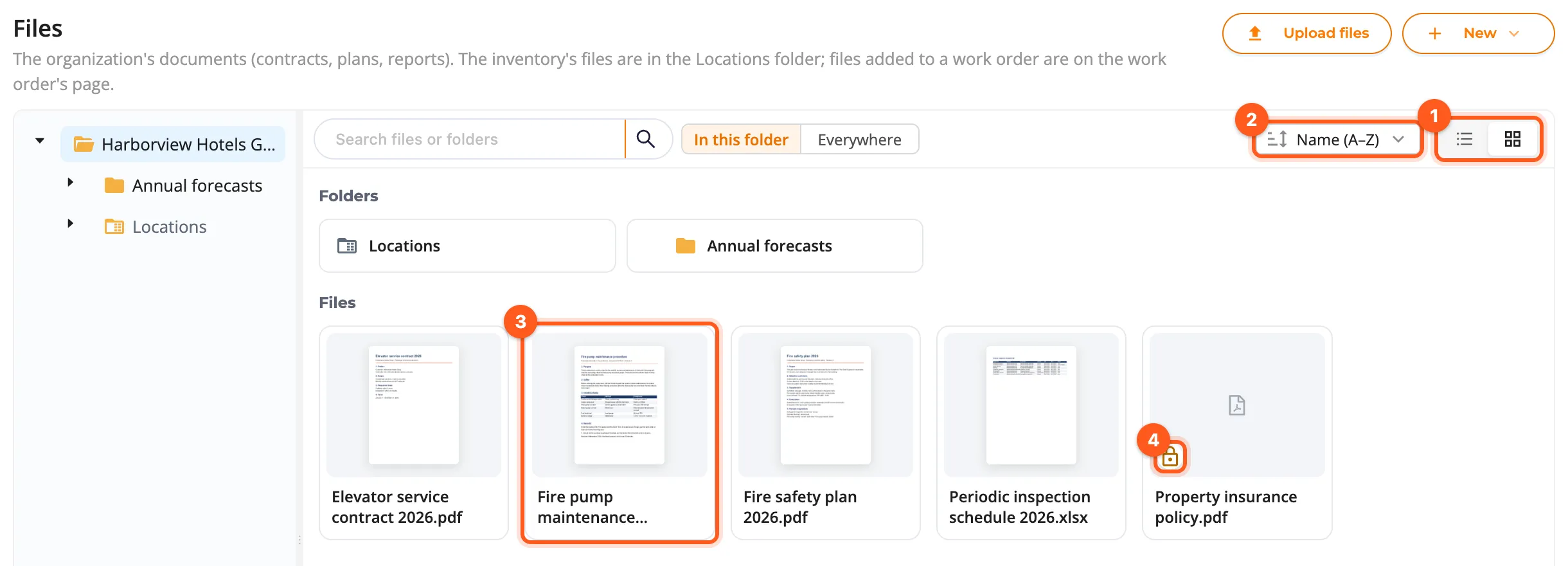
- Folders are small boxes at the top, files are cards below. A card shows the file's name and who is editing it; size, date and version show when you point at the card.
- Cards work like the rows of the list: a click selects (several with Shift / Ctrl), a double click opens, a right click opens the menu; drag and drop and the bar of bulk actions at the bottom are the same.
- In the card view the sorting is in the box on the left (Name (A–Z), Newest…); it is the same sorting you set with the list's column headers.
- The view you choose is remembered for every files window in this browser.
Password-protected files
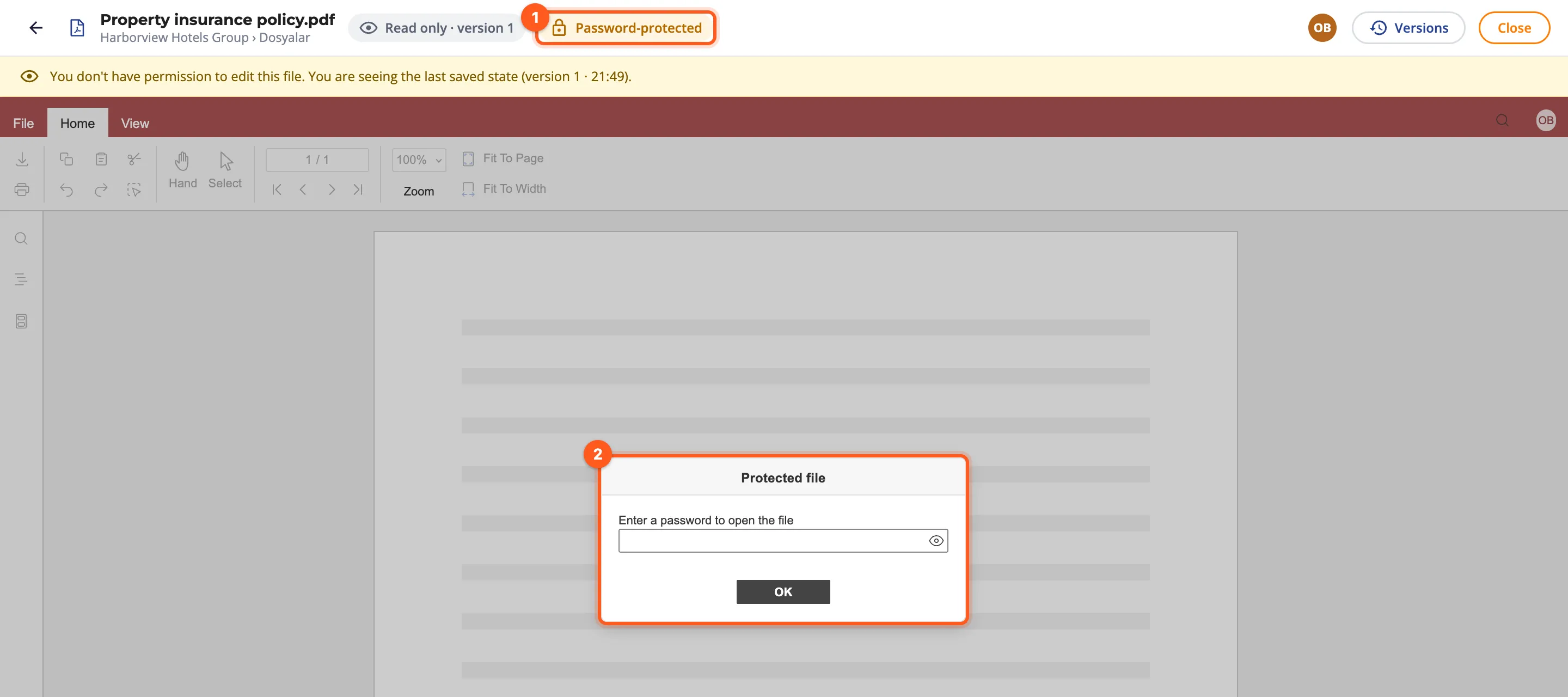
A document that needs a password to open has no thumbnail; it carries an orange lock in the list and on its card (pointing at it shows Password-protected file: it needs its password to open.). When you open it, the bar shows Password-protected and the document asks for the password in its own window. kommuns doesn't keep the password.
Versions
Every save of a document (Save in the editor, Save and close, the automatic save when everyone leaves) is a new version. In the files window's list, a file with more than one version shows version N next to its name (on a card when you point at it).
To see the versions, choose Versions (N) in the document's menu or click Versions in the viewer's bar. The panel lists them newest first: current on the current one, and on each who saved it and when, its size and how it came about (uploaded, saved, saved when everyone left, version N restored). A version attached to a message or a record shows attached.
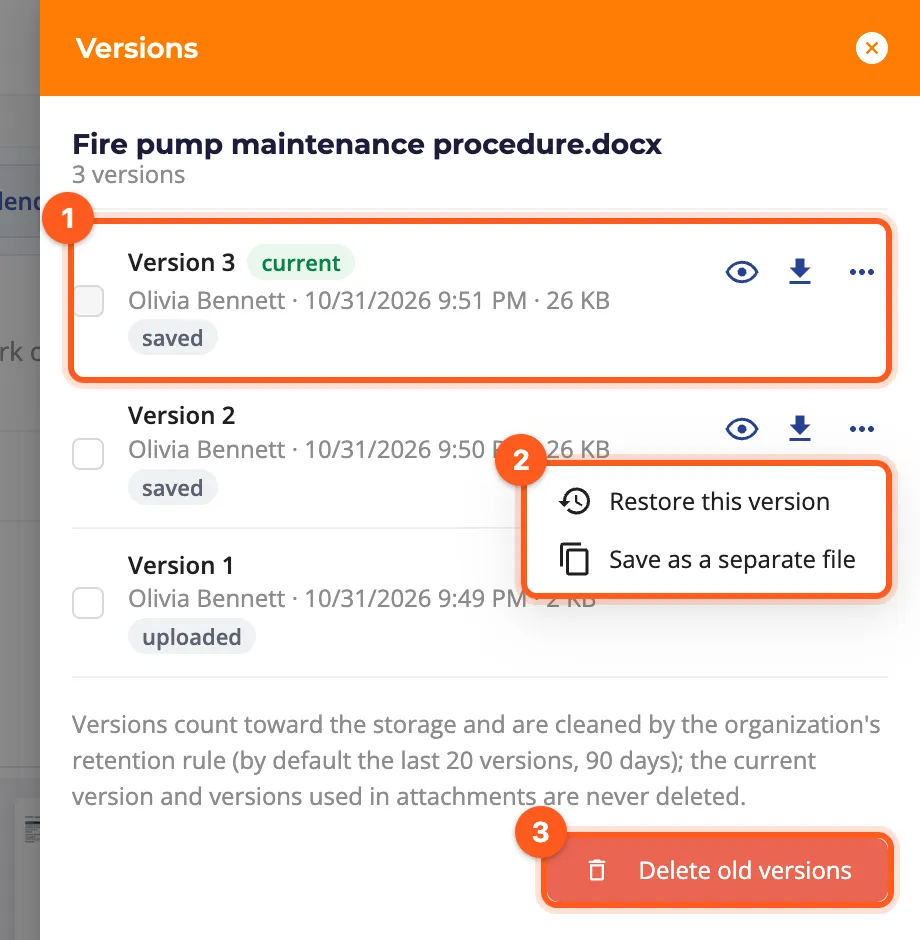
- 👁 opens the version in the viewer, ⬇ downloads it.
- ⋯ › Restore this version: that version is added on top as a new version; the versions in between stay. Needs Files (Edit); not on a linked file.
- ⋯ › Save as a separate file: a copy of the version is saved in the same folder as a new file named name (version N).ext. Needs Files (Add).
- People with the Organization Admin permission can select versions with the boxes on the left and delete them with Delete selected, or delete all this file's old versions that aren't attached with Delete old versions. The current version and attached versions can't be deleted; deleting can't be undone.
Versions count toward your organization's storage. Document edits, restored versions and deleted versions are written to the organization's Activity Log.
Keeping old versions
Old versions are cleaned up every night by the organization's retention rule. The rule is on the card:
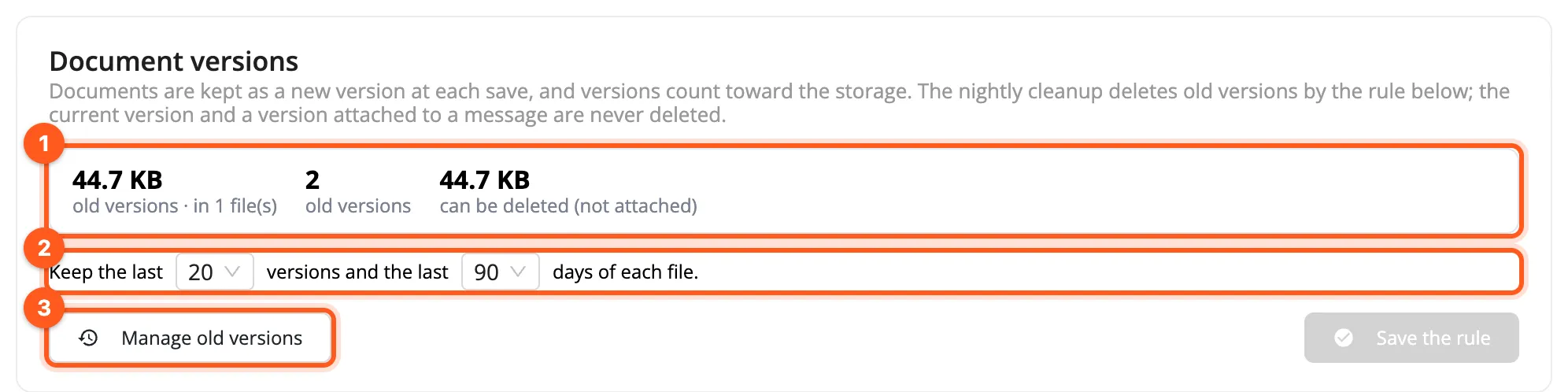
- At the top: how much room the old versions take, how many there are and how much of it can be deleted (the ones that aren't attached).
- Choose the rule Keep the last … versions and the last … days of each file: 5, 10 or 20 versions; 30, 90 or 365 days (by default 20 versions, 90 days). Old versions outside these limits are deleted at night. Click Save the rule.
- To make room at once, Manage old versions: the window shows the files that take the most room (where they are, their old versions, their size); Delete its old versions deletes one file's, Delete unused old versions every file's old versions that aren't attached. The confirmation says how many versions go and how much room is freed; it can't be undone.
The current version and a version attached to a message or a record are never deleted. In Plans & Payments › Usage, the storage breakdown shows old versions as a line of their own.
Documents in work orders
- The work order's files (the Files tab of the work order panel): a document's card shows its first page, size, date and version. People who may add files to the work order (with the plan's feature) edit it with the card's Edit link; the card says who is editing. A recurring work order rule's files are edited in the rule.
- When the work order is closed (Completed or Cancelled), its files become read-only (audit trail); the band above the Files tab says so. To change one, reopen the work order or use Edit a copy. If one of its documents is being edited when you close the work order, the window first says N document(s) being edited right now; on closing, their last state is saved as a version and the people editing see a The work order was closed window (See versions, Continue read only).
- When a work order's document is saved in the editor, the work order's Updates get a line with the document's name and its version number.
- Attachments of messages (comments, replies, inspection and on-hold records, issue attachments) stay as they were sent; they aren't edited. An attachment shows the version of the moment it was attached: if the document changed later, the attachment says as attached · version N with a current: version N link.
- To change the Word, Excel or PowerPoint document of an attachment, click Edit a copy. In the window, answer Where should it be saved? with To this work order's files (while the work order is open) or To inventory files (you choose an item where you may add files), change the Name (… (copy).docx) if you like and click Copy and edit: the copy opens in the editor, the attachment stays as it is. Issue attachments and the documents of a closed work order are copied only to the inventory.
Related pages
- Tags and files: the files window, folders, linking to the items below
- Plans and billing: plans and storage
- Activity Log